How to Check for Broken Links in GitHub Repositories
GitHub links break more often than you'd expect. Repositories get deleted, files get moved or renamed, and public projects suddenly go private. For developers maintaining documentation sites, awesome lists, or resource collections, a single broken link can frustrate users and damage credibility. Without a reliable broken link checker, these dead links can go unnoticed for months.
DeadLinkRadar provides deep integration with GitHub to automatically check for broken links across your repository and file URLs. Whether you're tracking hundreds of dependencies in an awesome list or ensuring your documentation references stay current, our dead link checker notifies you the moment a link returns a 404 error.
This guide walks you through setting up GitHub link monitoring, understanding status results, and configuring notifications for your development workflow.
What You'll Need
Before you begin, make sure you have:
- A DeadLinkRadar account - Free tier supports up to 50 links, paid plans offer higher limits
- GitHub links to monitor - Repository URLs, file links, or any GitHub page you want to track
- 5 minutes - That's all it takes to set up comprehensive GitHub monitoring
GitHub URL Patterns We Support
DeadLinkRadar recognizes and monitors all common GitHub URL patterns. Here's what you can track:
Repository Links
The most common pattern—direct links to GitHub repositories:
https://github.com/facebook/react
https://github.com/vercel/next.js
https://github.com/microsoft/typescript
These links are checked for repository existence and public accessibility.
File Links (Blob URLs)
Track specific files within repositories—perfect for documentation that references code examples, configuration files, or specific source files:
https://github.com/vercel/next.js/blob/main/package.json
https://github.com/facebook/react/blob/main/README.md
https://github.com/microsoft/typescript/blob/main/src/compiler/checker.ts
File monitoring goes beyond repository checks. DeadLinkRadar verifies that the specific file exists at the referenced branch and path.
Branch and Tree Links
Monitor links to specific branches or directory trees:
https://github.com/facebook/react/tree/main
https://github.com/vercel/next.js/tree/canary/packages
Other GitHub Pages
We also support links to issues, pull requests, releases, and other GitHub pages:
https://github.com/vercel/next.js/issues
https://github.com/facebook/react/releases
https://github.com/microsoft/typescript/pull/12345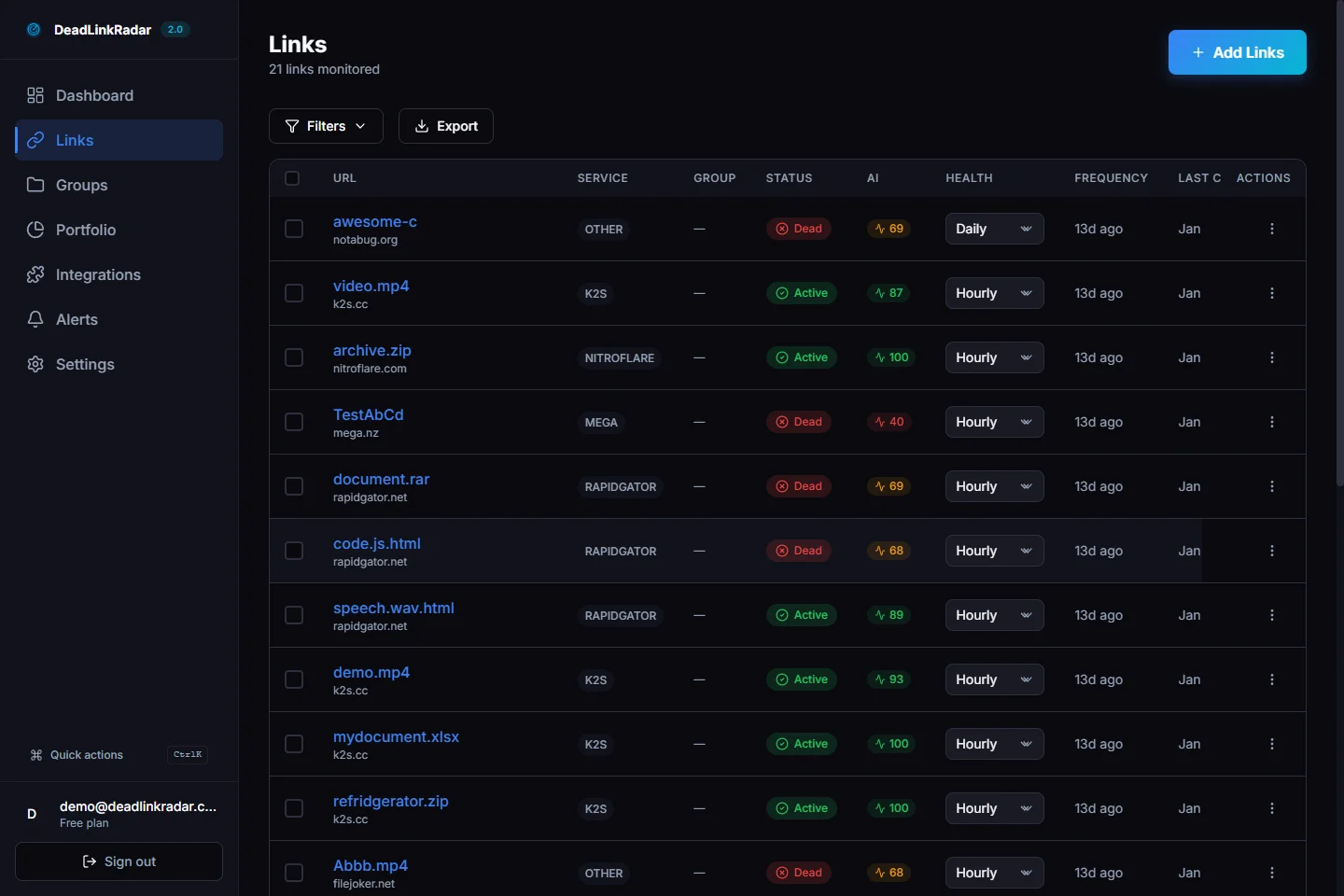
All GitHub URL patterns supported by DeadLinkRadar (click to view full size)
Step 1: Add GitHub Links to Your Dashboard
From your DeadLinkRadar dashboard, adding GitHub links takes just a few clicks.
Single Link Addition
- Click the Add Links button in the top navigation
- Paste your GitHub URL into the input field
- Click Add to start monitoring
Bulk Import
For larger collections, use bulk import:
- Click Add Links to open the import modal
- Paste multiple GitHub URLs (one per line)
- DeadLinkRadar automatically detects GitHub links and applies enhanced monitoring
- Click Import to add all links at once
You can also import from a text file or CSV. See our bulk import guide for detailed instructions.
Adding GitHub links through the bulk import interface (click to view full size)
Step 2: Understanding Dead Link Detection Results
After adding links, our broken link checker immediately verifies their status. Here's what each status means for GitHub links:
Alive (Green)
The repository or file exists and is publicly accessible. For file links, this confirms:
- The repository exists
- The specified branch exists
- The file exists at the given path
Dead (Red)
The link is broken. For GitHub, this typically means:
- Repository deleted - The owner removed the repository entirely
- Repository made private - Public access was revoked
- File removed - The specific file was deleted or moved
- Branch deleted - The referenced branch no longer exists
Error (Yellow)
Something prevented verification. Common causes:
- Temporary unavailability - GitHub experienced an outage
- Verification limits - Too many checks in a short period
DeadLinkRadar automatically retries error states on the next scheduled check.
How Detection Works
When you add a GitHub link, DeadLinkRadar uses platform-specific methods to verify accessibility. Unlike simple ping checks, we verify that the actual content is reachable—not just that GitHub's servers respond.
For file links, we go deeper by confirming the file exists at the specified location, not just that the repository is accessible. This catches cases where a repository still exists but specific files have been moved or deleted.
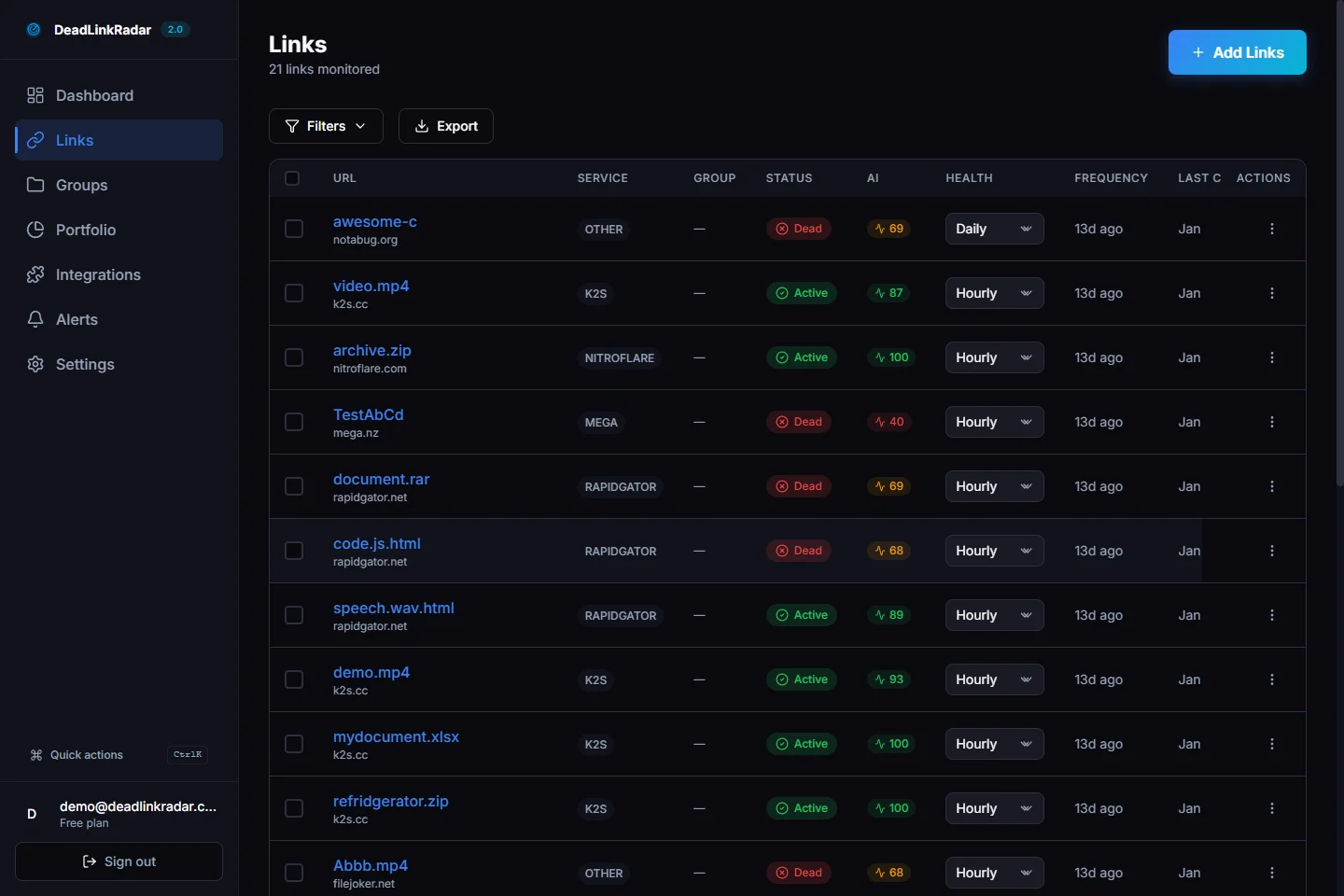
Link status view showing alive and dead GitHub repositories (click to view full size)
Step 3: Set Up Broken Link Alerts and Notifications
Don't wait for users to report broken links. Configure notifications to know immediately when your dead link checker detects something breaks.
Check Frequency
Choose how often DeadLinkRadar verifies your GitHub links:
- Every hour - For critical documentation or high-traffic sites
- Every 6 hours - Balanced monitoring for most use cases
- Daily - Sufficient for stable reference documentation
- Weekly - For large link collections with lower priority
Email Alerts
Enable email notifications to receive alerts when:
- A previously alive link becomes dead
- A link returns to alive status after being dead
- Multiple links in a group fail simultaneously
Webhook Integration
For automated workflows, configure webhooks to:
- Post to Slack when links break
- Create GitHub issues automatically
- Trigger CI/CD pipeline notifications
- Update monitoring dashboards
Webhook payloads include full context: the broken URL, when it was last alive, the error reason, and metadata about the repository or file.
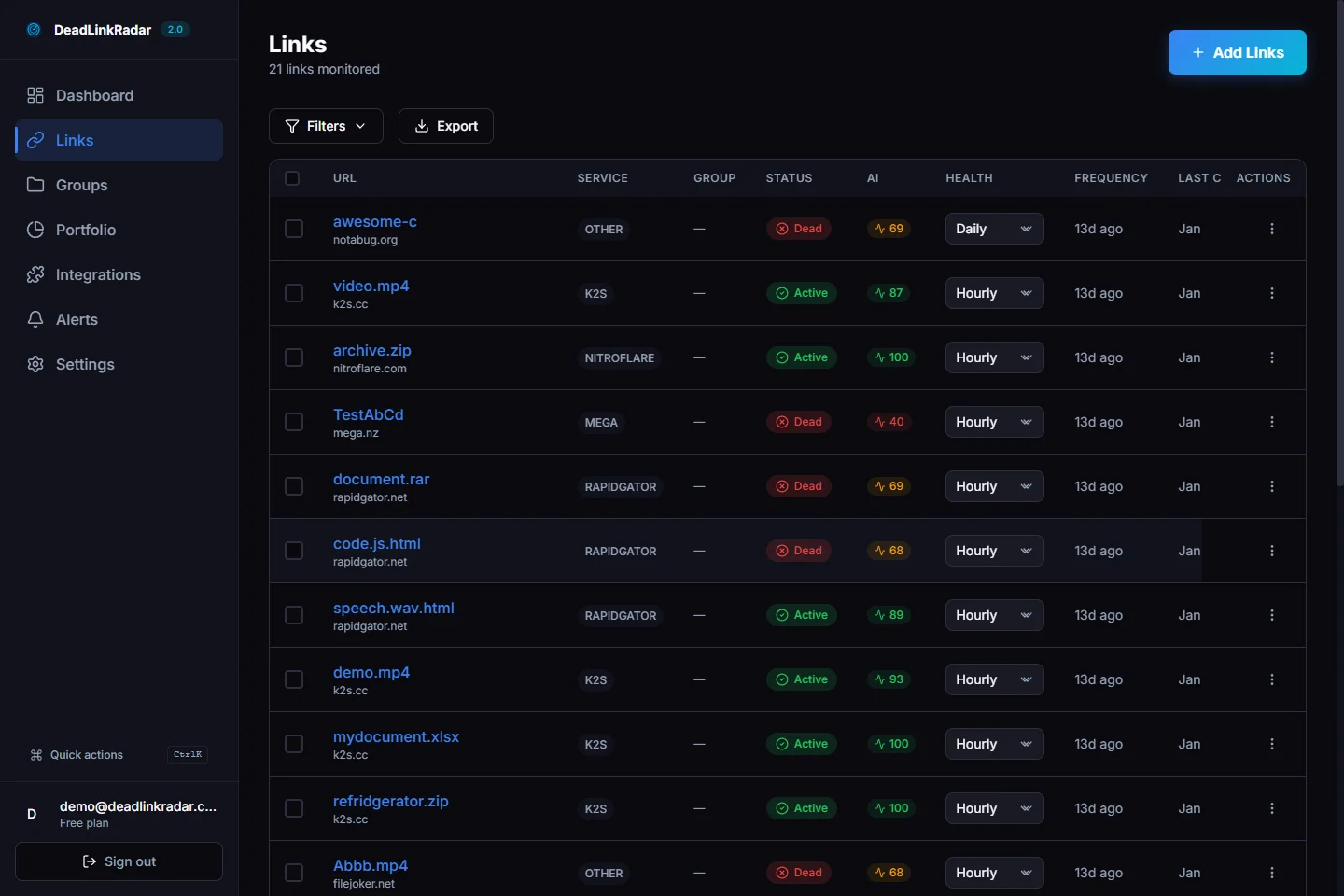
Notification settings for GitHub link monitoring (click to view full size)
Use Cases: Find Broken Links in Developer Projects
Documentation Sites
Technical documentation often links to GitHub repositories, example code, and configuration files. When these links break, readers lose trust in your documentation quality. A broken link checker helps you find broken links before they damage your credibility.
What to monitor:
- Links to example repositories
- References to configuration files
- Source code snippets linked from blob URLs
- Dependency documentation
Awesome Lists
Curated "awesome" lists can contain hundreds of repository links. Manually trying to check for broken links across all of them is time-consuming and error-prone. An automated 404 error checker saves hours of tedious work.
What to monitor:
- Every repository in your awesome list
- Links to project documentation
- Alternative and related project links
Resource Collections
Developer resource pages, learning paths, and tool aggregators link to many GitHub projects. Dead links frustrate users trying to explore new tools. Use a dead link checker to maintain a quality resource collection.
What to monitor:
- Tool and library repositories
- Tutorial repositories
- Starter templates and boilerplates
Internal Engineering Wikis
Company wikis and internal documentation frequently reference internal and external GitHub repositories. Link health monitoring ensures your team always has access to valid resources.
What to monitor:
- Links to internal private repositories (these will show as "dead" from external monitoring)
- External dependency documentation
- Architecture decision records (ADRs) stored in GitHub
CI/CD Integration
Automate dead link detection as part of your deployment pipeline:
- Configure a webhook endpoint in your CI/CD system
- DeadLinkRadar notifies on status changes
- Your pipeline can block deploys when critical links break
- Generate reports for documentation review
Pro Tips: Troubleshooting Your Broken Link Checker
Renamed Repositories
When a GitHub repository is renamed or transferred to a new owner, GitHub creates an automatic redirect. DeadLinkRadar detects these redirects and reports the link as alive—the URL still works even though the underlying repository moved.
If you want to update your links to use the new URL, check the link details in DeadLinkRadar which may show redirect information.
Private Repositories
Links to private repositories appear as dead because they're not publicly accessible. This is expected behavior—DeadLinkRadar can only verify publicly accessible content.
Tip: If you're monitoring a mix of public and private repos, use link groups to organize them. Create a "Private Repos" group so you can filter them out of your main monitoring view.
Large Collections
When monitoring hundreds of GitHub links:
- Use groups - Organize links by category (frameworks, tools, tutorials)
- Set appropriate frequency - Not everything needs hourly checks
- Enable batch notifications - Get a daily digest instead of individual alerts
Common Issues
"Error" status on valid links: Some links may temporarily show as errors due to rate limiting. These will automatically resolve on the next check. If errors persist, check that the URL is correct.
File links showing dead but repository is alive: This usually means the file was moved or the branch was deleted. Check if the file still exists at that location in GitHub.
Links to GitHub Pages:
We monitor github.com repository links. For *.github.io pages (GitHub Pages sites), add those as separate links—they're monitored as standard web pages.
Summary: Check for Broken Links in GitHub Automatically
Using a broken link checker for GitHub links helps you:
- Find broken links before users do - Automatic dead link detection catches 404 errors, deleted repositories, and missing files
- Check for broken links across all GitHub URL patterns - Repositories, files, branches, issues, and releases
- Stay informed with link health monitoring - Email alerts and webhooks notify you the moment a link breaks
- Scale your dead link checker confidently - Monitor hundreds of links across documentation, awesome lists, and resource pages
Ready to start checking for dead links? Sign up for free and add your first GitHub links in minutes.
Need help? Contact support or explore our documentation.