
When you're using a broken link checker to monitor hundreds of links across multiple projects, every second counts. Clicking through navigation menus to switch between Links, Groups, Settings, and back to your dashboard adds up to minutes—even hours—over time. Keyboard shortcuts eliminate this friction by letting you check for broken links and perform tasks without lifting your hands from the keyboard.
DeadLinkRadar's keyboard shortcuts and command palette turn multi-step workflows into single-key commands. Whether you're scanning for dead links, adding new URLs to monitor, or organizing your broken link checker dashboard, these keyboard shortcuts accelerate every common task. We built this system for power users who value speed over spectacle.
What You'll Learn
In this guide, you'll master the keyboard shortcuts and quick actions that make our link checker faster to use. Whether you're monitoring broken links across multiple sites or performing routine link checks, these shortcuts accelerate every workflow:
- Access the command palette instantly with a single shortcut
- Navigate dashboard pages without touching your mouse
- Add links and create groups from anywhere in the dashboard
- Search through all available actions using fuzzy search
- Combine shortcuts to build efficient workflows
- Customize your approach based on your most common tasks
By the end, you'll know every shortcut and how to use the command palette to its full potential.
The Command Palette: Your Dashboard Hub
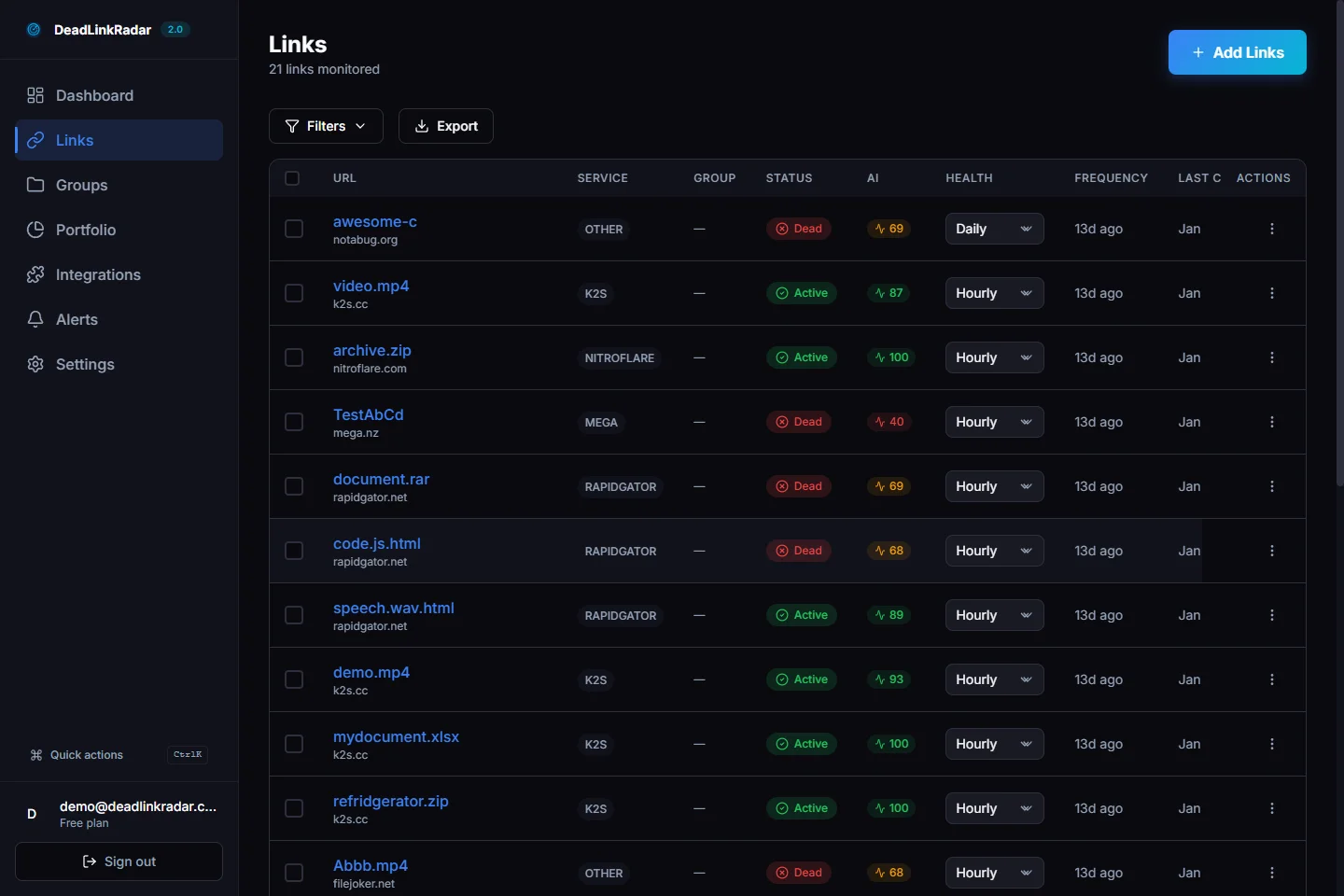
The command palette is your centralized hub for navigation and actions in DeadLinkRadar. Think of it like Spotlight on Mac or the command palette in Visual Studio Code—a single interface that gives you instant access to every page and action.
Press ⌘K on Mac or Ctrl+K on Windows/Linux to open the palette from anywhere in your dashboard. A search dialog appears in the center of your screen, ready to filter through navigation links, quick actions, and resources. You can type to search, use arrow keys to navigate results, and press Enter to execute your selection.
The palette organizes options into three categories: Quick Actions (tasks like adding links), Navigation (dashboard pages), and Resources (documentation and external links). This structure makes it easy to find what you need without memorizing every available command. If you know what you want to do but forget the exact location, just start typing—the fuzzy search will match your keywords and surface the right option.
For users who work primarily with the keyboard, the command palette eliminates the need to locate menu items visually. You can stay focused on your task while the palette handles the navigation. This is particularly valuable when you're deep in a workflow and need to access a different section quickly.
Keyboard Shortcuts for Navigation
Beyond the command palette, DeadLinkRadar provides direct keyboard shortcuts for the most common actions. These shortcuts work globally throughout the dashboard (except when you're typing in input fields), so you can trigger them without opening the palette first.
| Shortcut | Action | Description |
|---|---|---|
⌘K / Ctrl+K | Open command palette | Works even when typing in input fields |
⌘N / Ctrl+N | Add new link | Jump directly to the new link form |
⌘G / Ctrl+G | Go to groups | Navigate to your groups management page |
⌘/ / Ctrl+/ | Show keyboard shortcuts | Display the full shortcuts reference |
ESC | Close dialog | Close any open modal or dialog |
Mac vs Windows: On Mac, shortcuts use the Command key (⌘). On Windows and Linux, they use Control (Ctrl). The functionality is identical regardless of platform.
Input field behavior: When you're typing in a text field, textarea, or editable element, most shortcuts are disabled to avoid interfering with your text entry. The exception is ⌘K/Ctrl+K, which always opens the command palette. This allows you to search for actions even while filling out a form.
These shortcuts cover the actions that account for 80% of dashboard navigation. If you only learn three shortcuts, focus on ⌘K (command palette), ⌘N (new link), and ⌘G (groups)—these will handle most of your workflow needs.
Quick Actions for Common Tasks
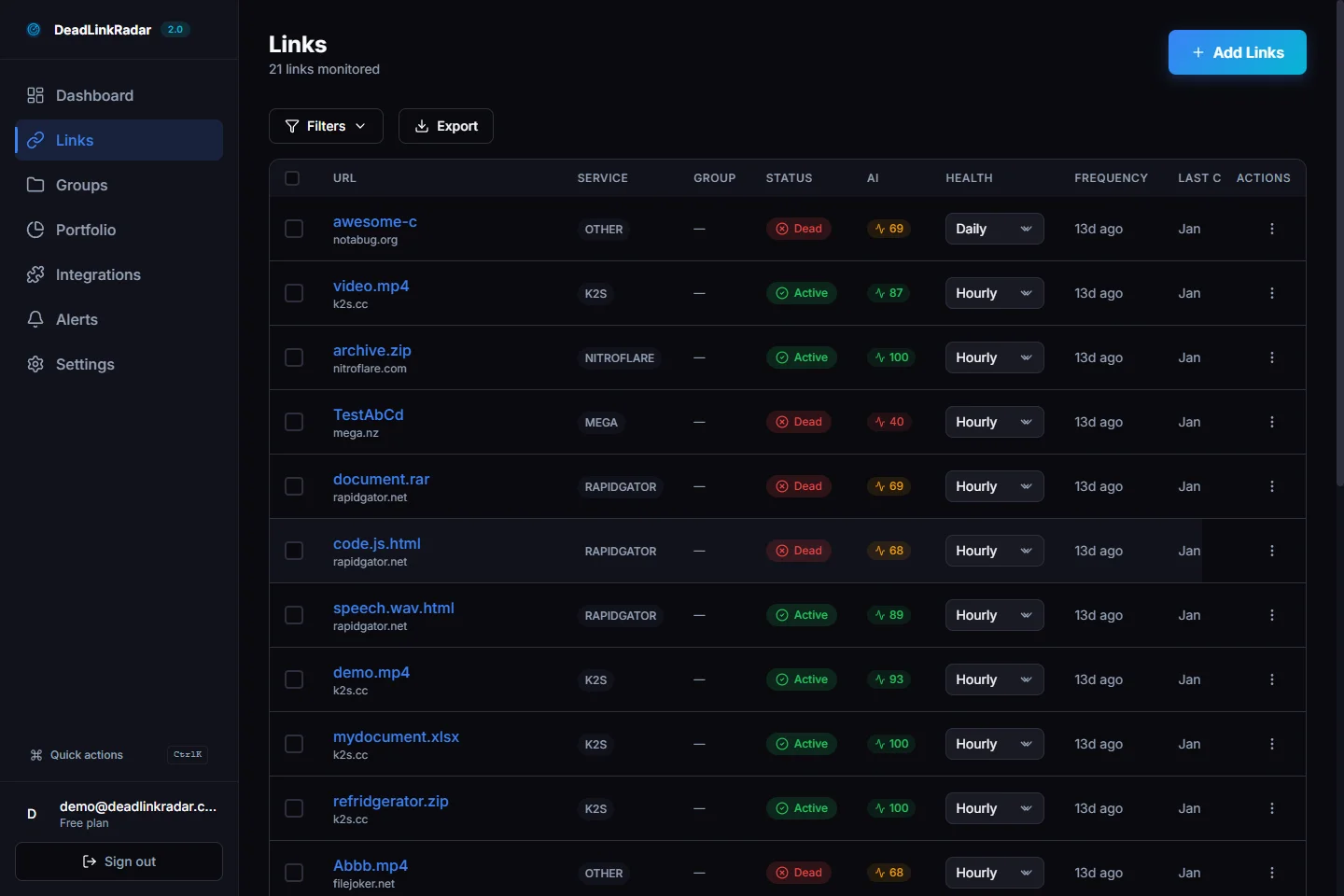
Quick actions are pre-defined tasks accessible through the command palette. They're designed for operations you perform frequently—adding links, creating groups, searching through your links—and they appear at the top of the palette when you open it.
Adding a link with ⌘N: Instead of clicking through the navigation menu to reach the "Add Link" page, press ⌘N from anywhere in the dashboard. The shortcut takes you directly to the link submission form, where you can paste a URL and configure monitoring options. This is particularly useful when you discover a broken link and want to add it to your monitoring queue immediately.
Jumping to groups with ⌘G: When you need to organize links into folders or review group-specific analytics, ⌘G takes you straight to the groups management page. No need to find the Groups menu item or scroll through the sidebar—the shortcut handles it instantly.
Using the command palette for complex actions: Some tasks don't have dedicated shortcuts but are still available through the palette. Open ⌘K and type keywords like "integrations", "alerts", or "portfolio" to navigate to those sections. The fuzzy search matches partial keywords, so typing "int" will surface "Integrations" as a result.
Combining shortcuts for efficiency: You can chain actions together by using shortcuts in sequence. For example, press ⌘K to open the palette, type "settings", press Enter to navigate to Settings, make your changes, then press ⌘K again and type "links" to return to your link list. This workflow keeps your hands on the keyboard throughout the entire process.
Searching Through the Palette
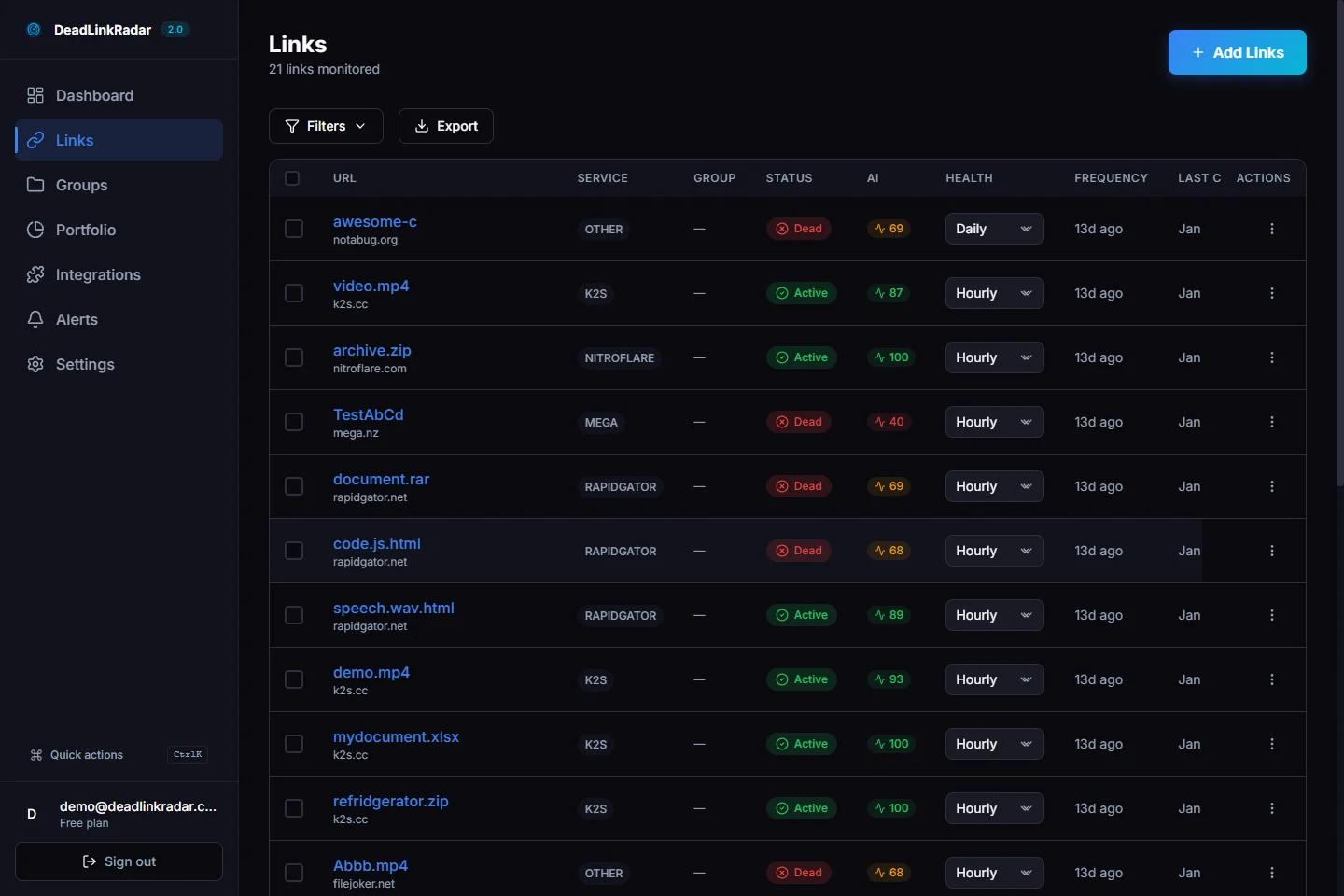
The command palette uses fuzzy search to match your keywords against available actions and pages. This means you don't need to type exact phrases—partial matches and out-of-order keywords still work.
How fuzzy search works: When you type "new link", the palette matches both words anywhere in the available options. It will surface "Add New Link" because both keywords appear in that action. You can also type just "link" to see all link-related actions (Links page, Add New Link, Search Links).
Keyword matching examples: The palette searches not just the visible labels, but also associated keywords. For instance, typing "folder" will find "Groups" because groups are conceptually similar to folders. Similarly, "notification" matches "Alerts" because alerts send notifications.
Filtering by category: Results are grouped into three sections: Quick Actions, Navigation, and Resources. Quick Actions appear first because they represent the most common tasks. If you're looking for a specific type of result, you can scan the headers to find the relevant section. The palette preserves this grouping even as you type, so you always know what kind of action you're selecting.
The search is designed to be forgiving. If you mistype or use a synonym, the fuzzy matching algorithm often finds the right result anyway. This reduces friction and lets you work at your natural typing speed without worrying about precision.
Keyboard Shortcuts for Link Checker Workflows
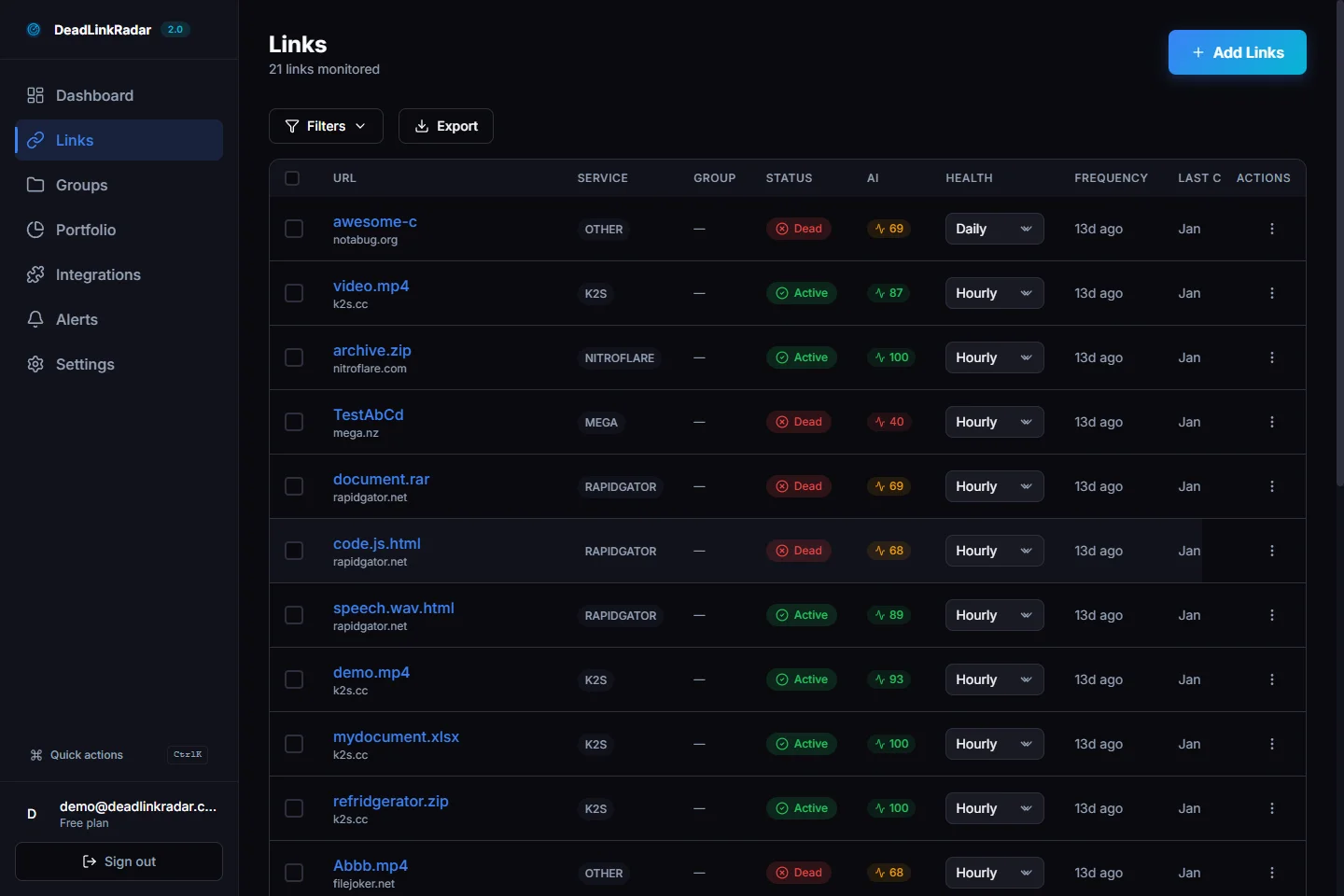
When you're managing a broken link checker workflow, specific patterns emerge that make keyboard shortcuts particularly valuable. Understanding these patterns helps you build efficient habits that compound over time.
Import and organize workflow: A common pattern involves importing multiple links, then organizing them into groups. Without keyboard shortcuts, this requires clicking "Add Link", filling the form, clicking "Save", clicking "Groups", selecting a group, clicking back to "Add Link" for the next URL. With shortcuts, the flow becomes: ⌘N → paste URL → Enter → ⌘G → select group → ⌘N → repeat. The keyboard-based approach eliminates at least 4 clicks per link—with 50 links, that's 200 saved clicks.
Monitoring and response workflow: When you receive an alert about broken links, the response pattern typically involves checking the link status, viewing its history, potentially removing it or moving it to a different group, and then returning to your dashboard. Keyboard shortcuts let you navigate this flow without interrupting your focus: ⌘K → type "links" → Enter → select link → review → ⌘K → type "groups" → Enter → organize.
Weekly review workflow: During periodic reviews of your monitored links, you need to jump between different sections repeatedly—checking link status, reviewing groups, examining integrations, adjusting alert settings. The command palette becomes your central hub: open once (⌘K), navigate to any section, complete your task, open again (⌘K), move to the next section. This eliminates the cognitive load of remembering navigation paths.
Bulk operations workflow: When performing bulk operations like checking multiple links at once or reorganizing groups, keyboard shortcuts significantly accelerate the process. You can use ⌘N to quickly add links, ⌘G to jump to group management, and the command palette to access batch check features without losing your position in the workflow.
Time savings analysis: For users who add 10-20 links per day, keyboard shortcuts save approximately 30-60 seconds per link through faster navigation and reduced context switching. Over a month, this compounds to 2-4 hours of saved time. For teams managing hundreds of links across multiple projects, the time savings multiply proportionally.
The key insight is that keyboard shortcuts aren't just about speed—they're about maintaining flow. When you can execute actions without moving your hands to the mouse, your thought process remains uninterrupted. You think about which link to add next, not which menu item to click. This cognitive continuity makes link monitoring feel faster even beyond the raw time savings.
Understanding Keyboard Shortcut Patterns Across Platforms
Different operating systems use different modifier keys for keyboard shortcuts, but the underlying patterns remain consistent. Understanding these patterns helps you adapt shortcuts when switching between platforms or working on multiple devices.
Mac keyboard shortcuts: On macOS, shortcuts use the Command key (⌘), which is positioned where your thumb naturally rests. This ergonomic placement makes Mac shortcuts particularly comfortable for extended use. The Command key historically originated from Apple's decision to reserve Control for terminal operations, leaving Command for application-level shortcuts.
Windows and Linux keyboard shortcuts: On Windows and Linux, shortcuts use the Control key (Ctrl), typically positioned in the bottom-left corner. This placement requires a slight reach with your pinky finger but remains accessible without repositioning your hand. Some Linux distributions also support Super (Windows key) shortcuts, though DeadLinkRadar standardizes on Control for cross-platform consistency.
Cross-platform consistency: DeadLinkRadar maintains the same logical shortcuts across all platforms—only the modifier key changes. ⌘K on Mac becomes Ctrl+K on Windows/Linux, but both open the command palette. This consistency means you don't need to relearn shortcuts when switching platforms; you only need to remember which modifier key your current operating system uses.
Browser compatibility: Modern browsers generally respect application-level keyboard shortcuts, but conflicts can occur. For example, ⌘K or Ctrl+K is commonly used by browsers for their own search bars. DeadLinkRadar's event handlers prevent these conflicts by intercepting the keypress before the browser processes it, but in rare cases where browser shortcuts take precedence, you can use the visual command icon in the dashboard header as an alternative trigger method.
Accessibility considerations: For users who rely on screen readers or alternative input devices, keyboard shortcuts provide essential accessibility benefits. The command palette is fully navigable with just the keyboard, and all shortcuts work without requiring precise mouse control. This makes DeadLinkRadar's interface accessible to users with motor impairments or visual limitations who depend on keyboard navigation.
Integrating Keyboard Shortcuts Into Your Daily Link Checker Workflow
The transition from mouse-based navigation to keyboard shortcuts requires intentional practice, but the investment pays dividends in long-term efficiency. Here's how to build the habit systematically.
Week 1: Command palette only: For the first week, focus exclusively on mastering ⌘K or Ctrl+K. Every time you need to navigate anywhere in DeadLinkRadar, force yourself to use the command palette instead of clicking. Type your destination, press Enter, complete your task. This single change will immediately accelerate your workflow because the palette provides direct access to every page without requiring you to remember menu structures.
Week 2: Add the new link shortcut: Once the command palette becomes automatic, add ⌘N or Ctrl+N to your repertoire. Whenever you need to add a link, use the shortcut instead of navigating manually. This shortcut has the highest ROI because adding links is typically the most frequent action in a link monitoring workflow.
Week 3: Add the groups shortcut: Incorporate ⌘G or Ctrl+G into your workflow. When organizing links or reviewing group-specific analytics, use the shortcut to jump directly to the groups page. By the end of week three, you'll have mastered the three shortcuts that cover 80% of navigation scenarios.
Week 4: Optimize with advanced patterns: Experiment with chaining shortcuts together. For example, after adding a new link with ⌘N, immediately press ⌘K and navigate to groups to organize it. Or use ⌘K to access settings, adjust your alert preferences, then ⌘K again to return to your dashboard. These patterns become second nature with practice.
Measuring your progress: You'll know shortcuts have become habitual when you reach for ⌘K without conscious thought. If you catch yourself moving toward the mouse and stop yourself to use a shortcut instead, you're still in the learning phase. The goal is for shortcuts to become your default navigation method, with the mouse reserved for fine-grained tasks like selecting specific links or adjusting form values.
Handling setbacks: If you find yourself reverting to mouse navigation during busy periods, that's normal. The key is to return to keyboard shortcuts intentionally rather than letting old habits permanently resurface. Even after shortcuts become habitual, occasional reinforcement helps maintain the behavior—particularly after vacations or extended periods away from the tool.
The long-term payoff is significant: users who fully integrate keyboard shortcuts into their workflow report completing link monitoring tasks 30-40% faster than mouse-only users. For professional link checkers or site maintainers who spend hours daily managing links, this efficiency gain translates to meaningful time savings and reduced cognitive fatigue.
Pro Tips: Workflow Optimization
Once you're comfortable with the basic shortcuts, these advanced techniques will further streamline your workflow:
-
Build muscle memory for the command palette: Make
⌘Kyour default navigation method instead of reaching for the mouse. Within a week, opening the palette will become automatic, and you'll naturally think in terms of keywords rather than menu locations. -
Use shortcuts for repetitive tasks: If you add multiple links in a session,
⌘Neliminates the need to navigate back to the "Add Link" page each time. Press the shortcut, paste your URL, configure options, save, and repeat. -
Combine keyboard and mouse navigation: You don't have to commit fully to one approach. Use shortcuts for major navigation (
⌘K,⌘N,⌘G) and the mouse for fine-grained tasks like selecting specific links or adjusting form fields. -
Learn the 3-4 most-used shortcuts first: Don't try to memorize all shortcuts at once. Start with
⌘K(command palette),⌘N(new link), and⌘G(groups). Add more shortcuts as you identify repetitive actions that would benefit from a faster trigger. -
Use ESC to close everything: Whenever a dialog, modal, or the command palette is open, press
ESCto dismiss it. This is faster than clicking the close button and works universally across all overlays.
The goal isn't to use shortcuts for every action—it's to identify the tasks you do most often and accelerate those with keyboard commands. For occasional tasks, clicking is perfectly fine.
Keyboard Navigation Within the Palette
The command palette is fully navigable with just your keyboard, which makes it faster than using the mouse to click through results:
Arrow keys for navigation: Press ↑ and ↓ to move through the result list. The currently selected option is highlighted with a blue background. You can navigate without typing anything—just open the palette and use arrows to browse all available options.
Enter to select: Press Enter to execute the highlighted action. If it's a navigation link, you'll be taken to that page. If it's a quick action, the associated task will start immediately.
ESC to close: Press ESC to dismiss the palette without taking any action. This lets you open the palette to check available options without committing to a selection.
Tab for accessibility: If you prefer using Tab to navigate, the palette supports standard tab-index navigation through all interactive elements. This is particularly useful for users who rely on screen readers or prefer tab navigation over arrow keys.
These keyboard controls mean you can open the palette, search, navigate, select, and close all without touching the mouse. For users who value keyboard efficiency, this eliminates the cognitive overhead of switching between input methods.
Mobile Considerations
While keyboard shortcuts are designed for desktop use, the command palette works on mobile devices with a touch-based interface:
Command palette on mobile: Tap the command icon in the dashboard header to open the palette. The search input and results list work identically to the desktop version—tap to search, tap a result to select it. The palette provides a faster way to navigate than drilling through mobile menus.
Shortcuts are desktop-only: Physical keyboard shortcuts like ⌘K and ⌘N obviously don't apply on touchscreen devices. If you're using a tablet with an external keyboard, the shortcuts will work as expected.
Mobile navigation remains fast: Even without shortcuts, DeadLinkRadar's mobile dashboard is optimized for speed. The sidebar navigation and touch-friendly buttons ensure you can access all features quickly. The command palette simply provides an alternative entry point for users who prefer search-based navigation.
If you work across both desktop and mobile, you'll find that the desktop shortcuts significantly accelerate your workflow, while the mobile interface remains efficient through its own touch-optimized design.
Troubleshooting
If you encounter issues with keyboard shortcuts or the command palette, these solutions address the most common problems:
| Issue | Solution |
|---|---|
| Shortcuts not working | Check if your cursor is focused in an input field (textarea, search box, etc.). Most shortcuts are disabled during text entry to avoid conflicts. Press ESC to exit the input field, then try the shortcut again. |
| Command palette won't open | Press ESC first to ensure no modal or dialog is blocking keyboard input, then try ⌘K or Ctrl+K again. If you're in an input field, the shortcut should still work—verify you're pressing the correct modifier key for your platform. |
| Wrong page opens | The command palette uses fuzzy search, which can occasionally match unintended results if your search term is too generic. Clear the search field (click the X icon or press ESC) and try a more specific keyword. |
| Shortcuts conflict with browser | Some browsers use ⌘K or Ctrl+K for their own search bar. DeadLinkRadar's event handlers prevent these conflicts in most cases, but if the browser's behavior takes precedence, try disabling the browser shortcut in its settings or use the command icon in the dashboard header instead. |
| Can't find a specific action | Open the command palette and leave the search field empty to see all available options organized by category. Scroll through the full list to locate the action you need, then note its label for future searches. |
If shortcuts continue to malfunction after trying these solutions, refresh the page to reset keyboard event listeners. In rare cases, browser extensions that intercept keyboard events can interfere with shortcut functionality—try disabling extensions temporarily to isolate the issue.
Summary: Speed Up Your Broken Link Monitoring
Keyboard shortcuts and the command palette transform DeadLinkRadar from a click-intensive broken link checker into a keyboard-first workflow tool. By mastering just three shortcuts—⌘K for the command palette, ⌘N for adding links, and ⌘G for groups—you eliminate the majority of navigation overhead.
The command palette's fuzzy search and organized categories mean you don't need to remember where every feature is located. Just type a keyword and let the search surface the right option. For tasks you perform repeatedly, dedicated shortcuts like ⌘N provide even faster access without opening the palette first.
Start by using the command palette (⌘K) as your default navigation method. Once that becomes automatic, add the other shortcuts to your workflow one at a time. Within a week, you'll find yourself navigating faster and staying focused on monitoring your links instead of hunting through menus.
Try it now: Press ⌘K or Ctrl+K to open the command palette and explore the available options. For the complete shortcuts reference, press ⌘/ or Ctrl+/ to display the help modal.