
The Problem: Silent Link Monitoring Failures
You're running your daily link checks, everything is working smoothly. Your automated monitoring is catching broken links before they hurt your SEO. Life is good.
Then one morning, you check your dashboard. Your link checks have stopped. You've exceeded your daily limit without warning, and your most critical links haven't been verified in 24 hours.
Meanwhile, that affiliate link you rely on for 30% of your revenue? It went dead 18 hours ago. Search engines have already noticed. Users have already left.
You didn't know until it was too late.
This is exactly what rate limit alerts solve: proactive warnings before you hit your limits, giving you time to review usage, upgrade your plan, or pause non-critical checks.
In this guide, we'll show you how to set up rate limit alerts at three threshold levels across 7 notification channels. By the end, you'll have an early warning system that prevents surprise interruptions to your link monitoring.
TL;DR - Quick Setup
5-Minute Setup:
- Go to Dashboard → Settings → Alert Preferences
- Enable all three thresholds: 80% Warning, 95% Critical, Exceeded
- Choose 2-3 notification channels (Email always enabled)
- Configure webhooks/tokens for selected channels
- Test each channel with the built-in test button
- Save settings - alerts go live immediately
Recommended Configuration:
- ✅ Enable all three thresholds for maximum visibility
- ✅ Use Email (default) + at least one instant channel (Discord/Slack/Telegram)
- ✅ Test notifications before going live
- ✅ Review alert history weekly to identify usage patterns
Understanding Your Rate Limits
Every DeadLinkRadar plan includes a daily link check limit that resets at midnight UTC:
| Plan | Daily Checks | Best For |
|---|---|---|
| Free | 100 | Testing, small personal sites |
| Starter | 500 | Small businesses, bloggers |
| Pro | 2,000 | Growing businesses, agencies |
| Business | 10,000 | Enterprise, high-volume monitoring |
What Happens When You Exceed Limits
When you hit your daily limit:
- Immediate impact - New link checks are queued but not processed
- Scheduled checks pause - Your automated monitoring stops
- Manual checks blocked - You can't trigger checks from the dashboard
- Reset at midnight UTC - Full quota restored automatically
The key insight: Without alerts, you only discover you've exceeded limits when you actively check the dashboard. By then, critical links may have gone unmonitored for hours.
Why Proactive Alerts Matter
Rate limit alerts transform your monitoring from reactive to proactive:
| Without Alerts | With Alerts |
|---|---|
| Discover limits exceeded hours later | Get warned at 80% usage |
| Critical checks missed silently | Time to review and prioritize |
| Scramble to fix after damage done | Plan upgrades before hitting limits |
| No visibility into usage patterns | Understand peak usage days |
Three Alert Thresholds Explained
DeadLinkRadar provides three threshold levels, each serving a distinct purpose:
80% Warning: Early Heads-Up
When it triggers: You've used 80% of your daily quota
What it means: You're on track to potentially exceed limits today, but you still have runway
Best response:
- Review what's consuming checks (large batch imports, frequent rechecks)
- Pause non-critical automated checks if needed
- Consider if this is a one-time spike or recurring pattern
Example: On a Pro plan (2,000 daily checks), you'll get the 80% alert at 1,600 checks.
95% Critical: Urgent Action Needed
When it triggers: You've used 95% of your daily quota
What it means: You're about to hit your limit. Immediate attention required.
Best response:
- Stop any non-essential checks immediately
- Prioritize which links absolutely must be checked today
- Consider upgrading if this happens regularly
- Review if any automation is misconfigured
Example: On a Pro plan, the 95% alert fires at 1,900 checks, giving you 100 checks of buffer.
Exceeded: Limit Reached
When it triggers: You've used 100% of your daily quota
What it means: Link checking is paused until midnight UTC
Best response:
- Acknowledge the situation (monitoring is paused)
- Plan which checks are highest priority for when limits reset
- Review usage to prevent recurrence
- Upgrade plan if this is a regular occurrence
Key insight: The exceeded alert isn't just about informing you—it's documentation for your records showing exactly when limits were hit.
Choose Your Notification Channels
Rate limit alerts support the same 7 channels as your broken link alerts. Choose based on your team's workflow:
Quick Comparison: Which Channel Is Right for You?
| Channel | Setup Time | Mobile App | Team Visibility | Best For | Free Tier |
|---|---|---|---|---|---|
| 0 min | ✅ | ❌ | Individual users, permanent records | ✅ | |
| Discord | 2 min | ✅ | ✅ | Dev teams, gaming communities | ✅ |
| Slack | 3 min | ✅ | ✅ | Business teams, enterprise | ✅ |
| Telegram | 5 min | ✅ | ❌ | Mobile-first, personal alerts | ✅ |
| Teams | 3 min | ✅ | ✅ | Microsoft 365 organizations | ✅ |
| Webhooks | 1-10 min | Depends | Depends | Custom integrations, automation | ✅ |
| ntfy.sh | 1 min | ✅ | ❌ | Privacy-focused, self-hosting | ✅ |
Detailed Channel Guides
Email (Default)
Best for: Individual users, async notification preferences
Setup: Automatically uses your account email. No configuration needed.
Pros:
- Always available
- Permanent record
- Works even when other services are down
Discord
Best for: Development teams, gaming communities, tech-savvy users
Setup: Create a webhook in your Discord server settings, paste the URL
Pros:
- Instant mobile notifications
- Team-wide visibility
- Rich message formatting
Slack
Best for: Business teams, enterprise workflows
Setup: Create an incoming webhook via Slack App settings
Pros:
- Integrates with existing workflows
- Channel-based organization
- Searchable history
Telegram
Best for: Mobile-first users, instant personal alerts
Setup: Create a bot via BotFather, get your chat ID
Pros:
- Fastest mobile notifications
- Works globally without VPN
- Simple setup
Microsoft Teams
Best for: Corporate environments, Microsoft 365 organizations
Setup: Create an incoming webhook connector in your Teams channel
Pros:
- Native enterprise integration
- Compliance-friendly
- Team collaboration features
Webhooks
Best for: Custom integrations, automation pipelines
Setup: Provide any HTTPS endpoint that accepts POST requests
Pros:
- Connect to any system
- Trigger custom workflows
- Full payload control
Webhook Payload Example:
When a rate limit alert is triggered, your webhook receives a POST request with this JSON payload:
{
  "event": "rate_limit_alert",
  "threshold": "80_percent",
  "user_id": "uuid-here",
  "plan": "pro",
  "usage": {
    "checks_used": 1600,
    "daily_limit": 2000,
    "percentage": 80,
    "reset_at": "2026-01-21T00:00:00Z"
  },
  "triggered_at": "2026-01-20T18:45:23Z"
}
Example Webhook Handlers:
// Node.js / Express example
app.post('/webhooks/deadlinkradar', async (req, res) => {
  const { threshold, usage } = req.body

  if (threshold === '95_percent') {
    // Urgent: Send SMS via Twilio
    await twilioClient.messages.create({
      body: `⚠️ URGENT: ${usage.percentage}% of link checks used (${usage.checks_used}/${usage.daily_limit})`,
      to: process.env.ADMIN_PHONE,
    })
  }

  res.status(200).send('OK')
})
# Python / Flask example
@app.route('/webhooks/deadlinkradar', methods=['POST'])
def handle_rate_limit_alert():
data = request.json
threshold = data['threshold']
usage = data['usage']
if threshold == '80_percent':
# Log to monitoring system
logging.warning(f"Rate limit at {usage['percentage']}%")
# Create ticket in Jira
jira.create_issue(
project='OPS',
summary=f'Rate Limit Warning: {usage["checks_used"]}/{usage["daily_limit"]}',
priority='Medium'
)
return 'OK', 200ntfy.sh
Best for: Privacy-conscious users, self-hosting enthusiasts
Setup: Choose a topic name, optionally self-host your ntfy server
Pros:
- No account required
- Self-host option for full control
- Simple push notifications
Step-by-Step Setup Guide
Setting up rate limit alerts takes less than 2 minutes:
Step 1: Navigate to Alert Preferences
- Log in to your DeadLinkRadar dashboard
- Click Settings in the sidebar
- Select Alert Preferences
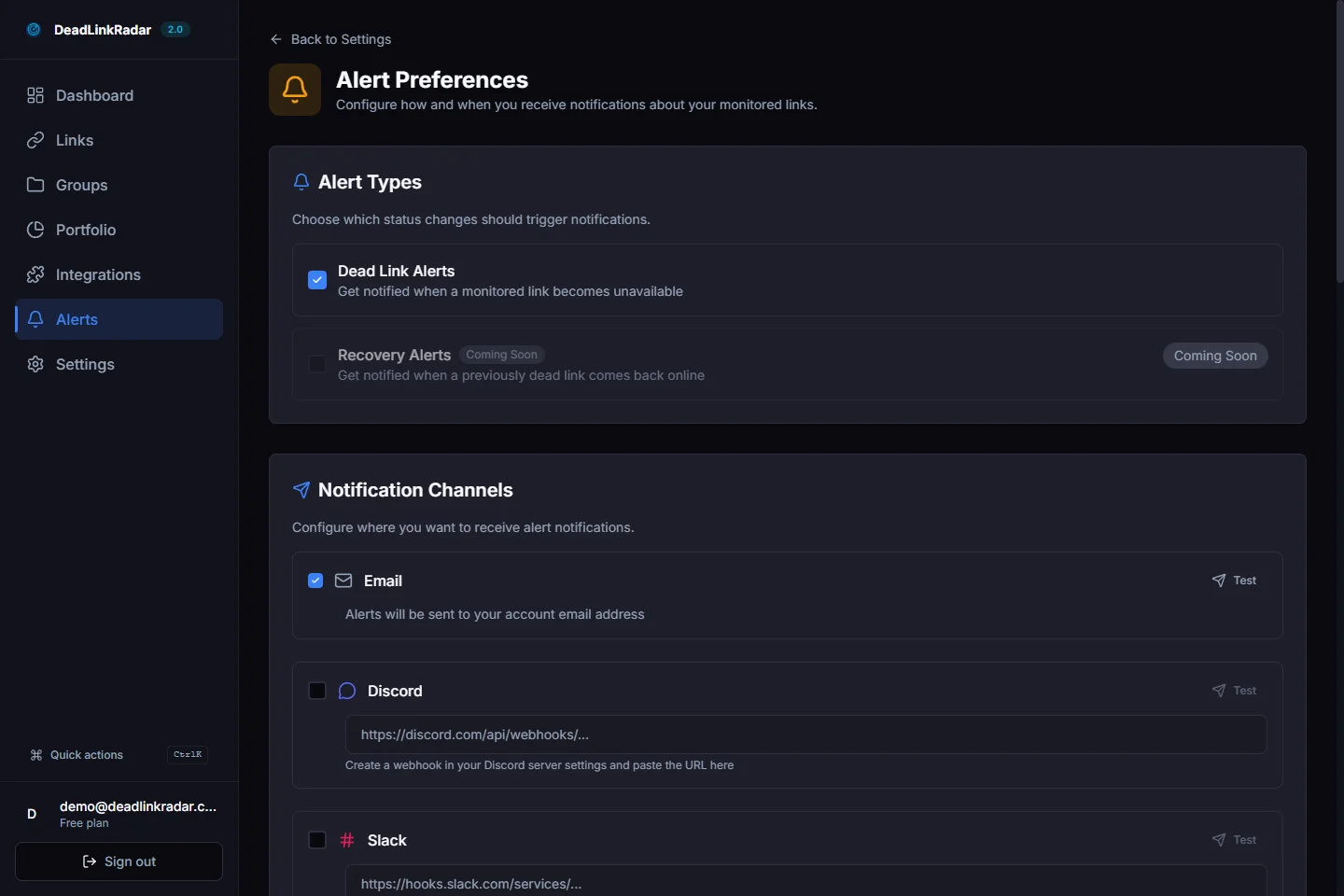
Alert Preferences dashboard (click to view full size)
Step 2: Enable Rate Limit Thresholds
In the Rate Limit Alerts section, you'll see three toggles:
- 80% Warning - Toggle on for early warnings
- 95% Critical - Toggle on for urgent alerts
- Exceeded - Toggle on for limit reached notifications
Recommendation: Enable all three thresholds for maximum visibility into your usage patterns.
Step 3: Configure Notification Channels
For each enabled threshold, select which channels should receive alerts:
- Email is always on by default
- Toggle additional channels as needed
- For webhook-based channels, enter your webhook URL
- For Telegram, enter your bot token and chat ID
- For ntfy.sh, enter your topic name
Step 4: Test Your Notifications
Click the Send Test Notification button to verify each channel is working:
- Test button appears next to each configured channel
- Check that you receive the test message
- Verify formatting looks correct
- Confirm delivery time is acceptable
Step 5: Save Your Preferences
Click Save Settings to apply your configuration. Changes take effect immediately for all future alerts.
Best Practices
Based on how our users configure their alerts, here are proven strategies:
Enable All Three Thresholds
Don't skip the 80% warning. It gives you valuable lead time:
| Threshold | Purpose |
|---|---|
| 80% | Time to review and adjust |
| 95% | Last chance to act |
| Exceeded | Documentation and awareness |
Use Multiple Channels for Critical Workflows
If link monitoring is business-critical, don't rely on a single channel:
- Primary: Email (always delivered)
- Secondary: Slack or Teams (team visibility)
- Backup: Telegram (personal mobile alert)
Set Up Quiet Hours
If you enable Discord or Telegram, consider:
- Creating a dedicated channel/chat for alerts
- Configuring notification schedules in those apps
- Avoiding overnight disruptions for non-critical thresholds
Review Alert History
Your alert history shows patterns:
- Which days do you hit 80%?
- Are you consistently approaching limits?
- Is one project consuming disproportionate checks?
Use this data to optimize your monitoring strategy or right-size your plan.
Common Mistakes to Avoid
❌ Mistake #1: Only Enabling the "Exceeded" Threshold
Why it's wrong: By the time you get the exceeded alert, your monitoring has already stopped.
Do this instead: Enable all three thresholds (80%, 95%, exceeded) to get progressive warnings with time to act.
❌ Mistake #2: Ignoring 80% Warnings
Why it's wrong: The 80% threshold gives you the most runway to adjust. Ignoring it means you'll scramble at 95%.
Do this instead: Treat 80% alerts as a signal to review your usage patterns and optimize.
❌ Mistake #3: Using Only Email Notifications
Why it's wrong: Email can be delayed, filtered to spam, or missed if you're not actively checking.
Do this instead: Add at least one instant notification channel (Discord, Slack, Telegram) for time-sensitive alerts.
❌ Mistake #4: Not Testing Notifications Before Going Live
Why it's wrong: You won't know if your webhook is broken until a real alert fires (and by then, it's too late).
Do this instead: Use the "Send Test Notification" button for every channel you configure.
❌ Mistake #5: Setting Up Alerts Then Never Reviewing Them
Why it's wrong: Alert history reveals usage patterns. Without review, you're missing optimization opportunities.
Do this instead: Check your alert history weekly. Look for patterns: which days trigger alerts? Are limits increasing?
❌ Mistake #6: Configuring Webhooks Without Error Handling
Why it's wrong: If your webhook endpoint is down, alerts are lost silently.
Do this instead: Always have email enabled as a backup. Configure webhook retry logic on your end.
What to Do When You're Notified
At 80% Warning
- Check current usage in Dashboard → Settings → Usage
- Review active checks - Are all of them necessary today?
- Pause if needed - Temporarily disable low-priority scheduled checks
- Note the pattern - Is this a one-time spike or weekly occurrence?
At 95% Critical
- Prioritize immediately - Which checks absolutely must run today?
- Pause non-essential monitoring - Can some checks wait until tomorrow?
- Consider upgrade - If you're hitting 95% regularly, you've outgrown your tier
- Check for runaway automation - Is something triggering more checks than expected?
At Exceeded
- Acknowledge the pause - Your monitoring is paused until midnight UTC
- Plan for reset - Which links need checking first when limits restore?
- Prevent recurrence - Review what pushed you over today
- Upgrade if needed - Calculate your actual daily needs
Quick Reference: Plan Upgrades
If you're consistently hitting limits:
| Current Plan | Upgrade to | New Daily Limit |
|---|---|---|
| Free (100) | Starter | 500 (+400%) |
| Starter (500) | Pro | 2,000 (+300%) |
| Pro (2,000) | Business | 10,000 (+400%) |
Troubleshooting Common Issues
"I'm not receiving alerts"
Possible causes:
- Threshold not enabled - Check Alert Preferences to ensure toggles are ON
- Channel not configured - Verify webhook URLs/tokens are correct
- Email in spam - Check spam folder, whitelist alerts@deadlinkradar.com
- Webhook endpoint down - Test your endpoint independently
Fix: Click "Send Test Notification" for each channel to verify delivery.
"Alerts are delayed"
Expected behavior:
- Email: 1-5 minutes
- Discord/Slack/Teams: 10-30 seconds
- Telegram: 5-15 seconds
- Webhooks: 5-30 seconds
If alerts take >10 minutes:
- Check your email provider's delivery logs
- Verify webhook endpoint responds within 5 seconds
- Test with a different channel to isolate the issue
"Receiving duplicate alerts"
Cause: Multiple channels enabled for the same threshold.
This is intentional - if you enable Email + Discord + Slack for the 80% threshold, you'll receive 3 notifications (one per channel).
Fix: Disable channels you don't need in Alert Preferences.
"Alert triggered at wrong percentage"
Check timezone: Limits reset at midnight UTC, not your local time. If you're in PST (UTC-8), limits reset at 4:00 PM local time.
Check usage calculation: The dashboard shows real-time usage. If you had 1,599 checks and ran a batch of 50, the alert fires after the batch completes.
"Webhook not receiving POST requests"
Checklist:
- ✅ Endpoint uses HTTPS (HTTP not supported)
- ✅ Endpoint returns 200 status within 5 seconds
- ✅ No authentication required (or uses token in URL query params)
- ✅ Content-Type header is
application/json
Test your endpoint:
curl -X POST https://your-webhook-url.com \
  -H "Content-Type: application/json" \
  -d '{"test": true, "threshold": "80_percent"}'
"ntfy.sh notifications not appearing"
Common issues:
- Wrong topic format - Topic should be a simple string (e.g.,
deadlinkradar-alerts) - Self-hosted ntfy down - Check if your ntfy server is running
- Mobile app not subscribed - Open ntfy app and subscribe to your topic
Test ntfy manually:
curl -d "Test alert from DeadLinkRadar" https://ntfy.sh/your-topic-nameFrequently Asked Questions
Can I customize alert messages?
Currently, alert messages use a standard format. Webhook integrations allow you to transform messages on your end.
Do alerts count against my link check quota?
No. Alert notifications are separate from link checks and don't consume your daily quota.
Can I set custom thresholds (e.g., 70% instead of 80%)?
The thresholds are fixed at 80%, 95%, and 100% to provide consistent early warning stages. Most users find these levels optimal.
What happens if I hit my limit on a weekend?
Limits reset at midnight UTC every day, including weekends. If you exceed limits on Saturday, they'll reset Sunday at midnight UTC.
Can I silence alerts temporarily?
Yes. Disable the threshold toggle in Alert Preferences. Your configuration is saved, so you can re-enable later without reconfiguring channels.
Do I get alerts for each notification channel separately?
Yes. If you enable Email + Discord + Slack for the 80% threshold, you'll receive one alert per channel (3 total) when the threshold is reached.
How do I know which project triggered the alert?
Alerts include your account email and timestamp. If you have multiple projects, the alert shows total usage across all projects under your account.
Can team members receive the same alerts?
Currently, alerts are per-account. For team-wide visibility, use Discord, Slack, or Teams channels where multiple team members have access.
Summary
Rate limit alerts are your safety net for uninterrupted link monitoring:
- 80% warning gives you time to review and adjust
- 95% critical demands immediate attention
- Exceeded notification keeps you informed when limits are hit
With 7 notification channels available, you can route alerts exactly where your team will see and act on them.
Set up your rate limit alerts now:
- Go to Dashboard → Settings → Alert Preferences
- Enable all three thresholds
- Configure at least two notification channels
- Test your setup with the built-in test buttons
Setup Checklist
Copy this checklist to ensure you've completed all setup steps:
□ Navigate to Dashboard → Settings → Alert Preferences
□ Enable 80% Warning threshold
□ Enable 95% Critical threshold
□ Enable Exceeded threshold
□ Configure Email (automatic)
□ Choose and configure second channel (Discord/Slack/Telegram)
□ Optional: Configure third channel for redundancy
□ Test each channel with "Send Test Notification" button
□ Verify test notifications received
□ Save settings
□ Add alerts@deadlinkradar.com to email whitelist
□ Create dedicated channel/chat for alerts (if using Discord/Slack)
□ Document webhook endpoints (if using custom integrations)
□ Set calendar reminder to review alert history weekly
□ Share alert channels with team members (if applicable)
Pro Tip: Take a screenshot of your configured Alert Preferences page and save it to your team's documentation for reference.
Never be caught off guard by exceeded limits again. Your link monitoring deserves proactive protection.
Related Resources
Pricing & Plans:
- Compare Plans - Find the right tier for your needs
- Upgrade Your Account - Increase your daily limits
Questions or feedback? Contact our support team.