
Checking for broken links manually means logging into dashboards, clicking through pages, and hoping you catch dead links before users do. A broken link checker with RSS feed integration offers a better approach: subscribe once, and your RSS reader pulls link status updates automatically—no extra tabs, no missed alerts.
If you've been using DeadLinkRadar to monitor file hosting links or download URLs, you've likely noticed the manual checking routine: refresh the dashboard, scan the list, note what changed. For teams managing hundreds of links across multiple projects, this adds up to hours of wasted time each week.
RSS feeds solve this by bringing link status changes directly to where you already work—whether that's Feedly for content monitoring, Inoreader for power users, or a self-hosted FreshRSS instance for complete control. Set it up once, and status notifications flow in automatically.
What You'll Need
Getting started with a broken link checker RSS feed requires just three things:
- DeadLinkRadar account (any plan—RSS feeds are free for everyone)
- RSS reader of your choice (Feedly, Inoreader, NewsBlur, or FreshRSS)
- 2 minutes for the one-time setup
No additional configuration, no webhook endpoints to expose, no email filters to manage. If you already use an RSS reader for blogs or news, you'll be checking for broken links and monitoring status changes within minutes.
How RSS Feeds Work
Unlike push notifications (email, webhooks) that send alerts when events happen, RSS feeds use a pull-based model: your reader periodically checks the feed URL for new items. This architectural difference offers several advantages.
No proprietary apps required. Any RSS 2.0-compatible reader works—from web-based services like Feedly to desktop clients like NetNewsWire to command-line tools. You're not locked into DeadLinkRadar's notification system.
Works offline. Once your reader fetches feed items, you can read them without an internet connection. This matters for developers working in restricted networks or reviewing status changes during travel.
Consolidated view. If you already monitor industry blogs, product updates, or security advisories via RSS, link status changes appear alongside that content. One interface for all monitoring, not separate dashboards for every tool.
Pull when convenient. Unlike email notifications that interrupt your workflow, RSS items wait until you're ready to review them. Check once a day, once an hour, or let your reader's default polling interval handle it.
The tradeoff? RSS feeds aren't instant. DeadLinkRadar caches feed content for 5 minutes, and most RSS readers poll every 15-60 minutes by default. If you need sub-minute alerts, email or webhooks remain better options. But for most workflows, this delay is negligible compared to the convenience.
Setting Up Your Feed (3 Steps)
RSS feed setup happens entirely within the DeadLinkRadar dashboard—no external configuration, no API keys to manage, no server endpoints to expose.
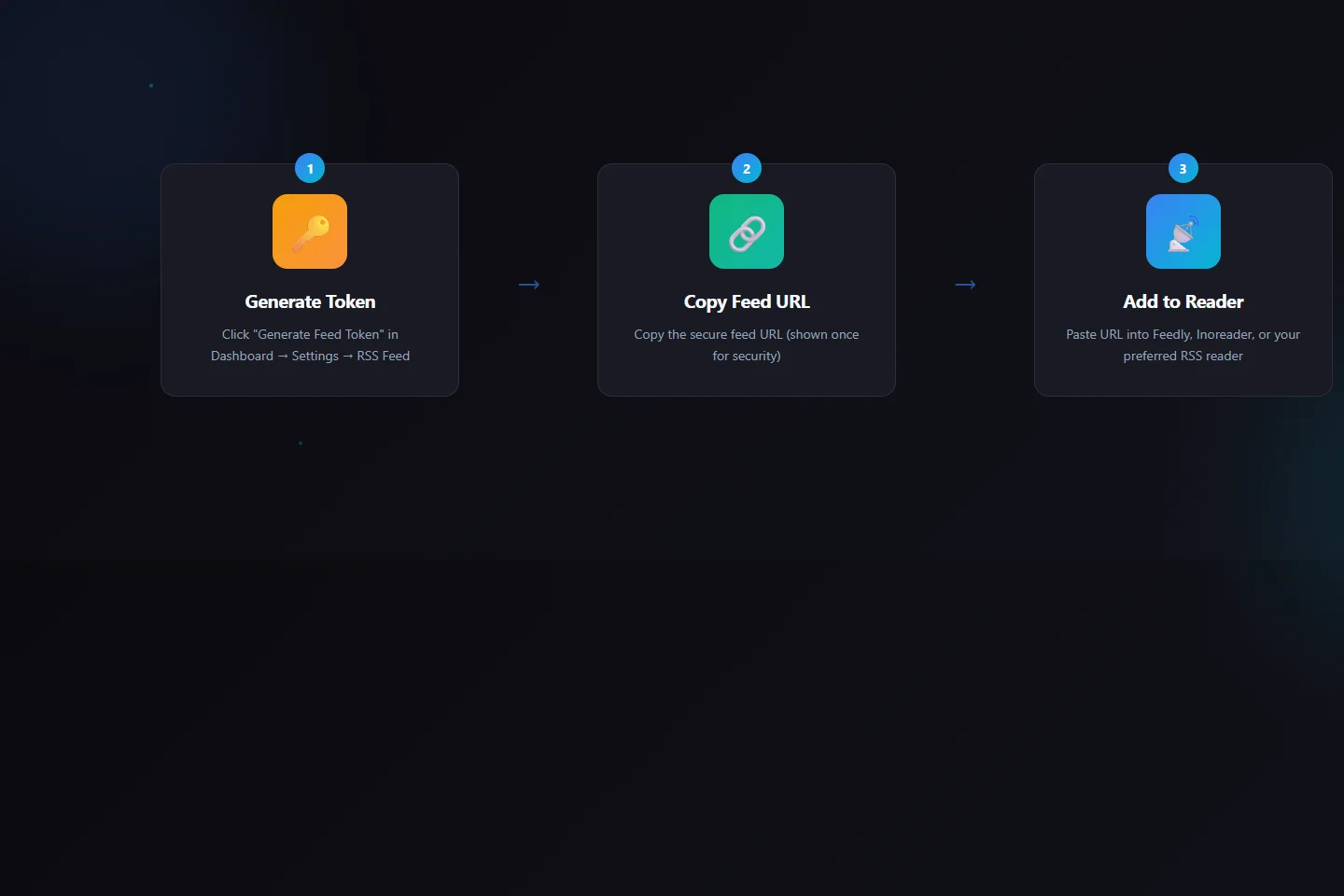
Step 1: Generate Your Feed Token
Navigate to Dashboard → Settings → RSS Feed. You'll see an information card explaining RSS feeds, followed by a token management section.
Click "Generate Feed Token" to create your personal RSS feed URL. DeadLinkRadar generates a cryptographically secure token, hashes it with bcrypt, and stores only the hash server-side. The plaintext token appears exactly once—in the feed URL displayed after generation.
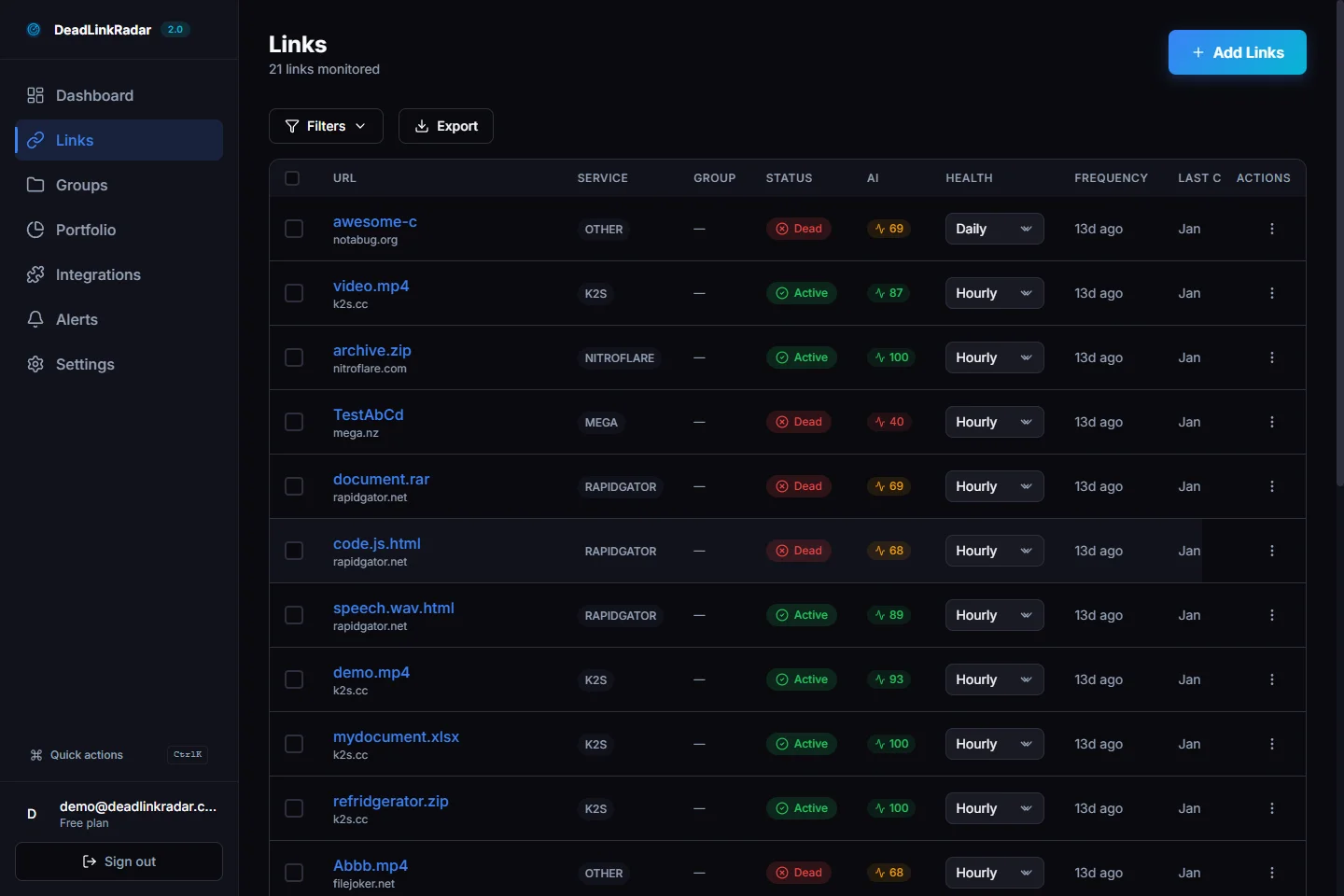
Security note: Tokens are single-use displays. If you navigate away or close the tab before copying the URL, you'll need to regenerate the token (which invalidates the previous one). This prevents token exposure through browser history or screenshots left on shared screens.
Step 2: Copy the Feed URL
After generation, DeadLinkRadar displays your complete feed URL in this format:
https://deadlinkradar.com/api/v1/feed/rss?token=YOUR_SECURE_TOKENClick the "Copy" button to copy the entire URL to your clipboard. The button changes to show a checkmark for 2 seconds, confirming the copy succeeded.
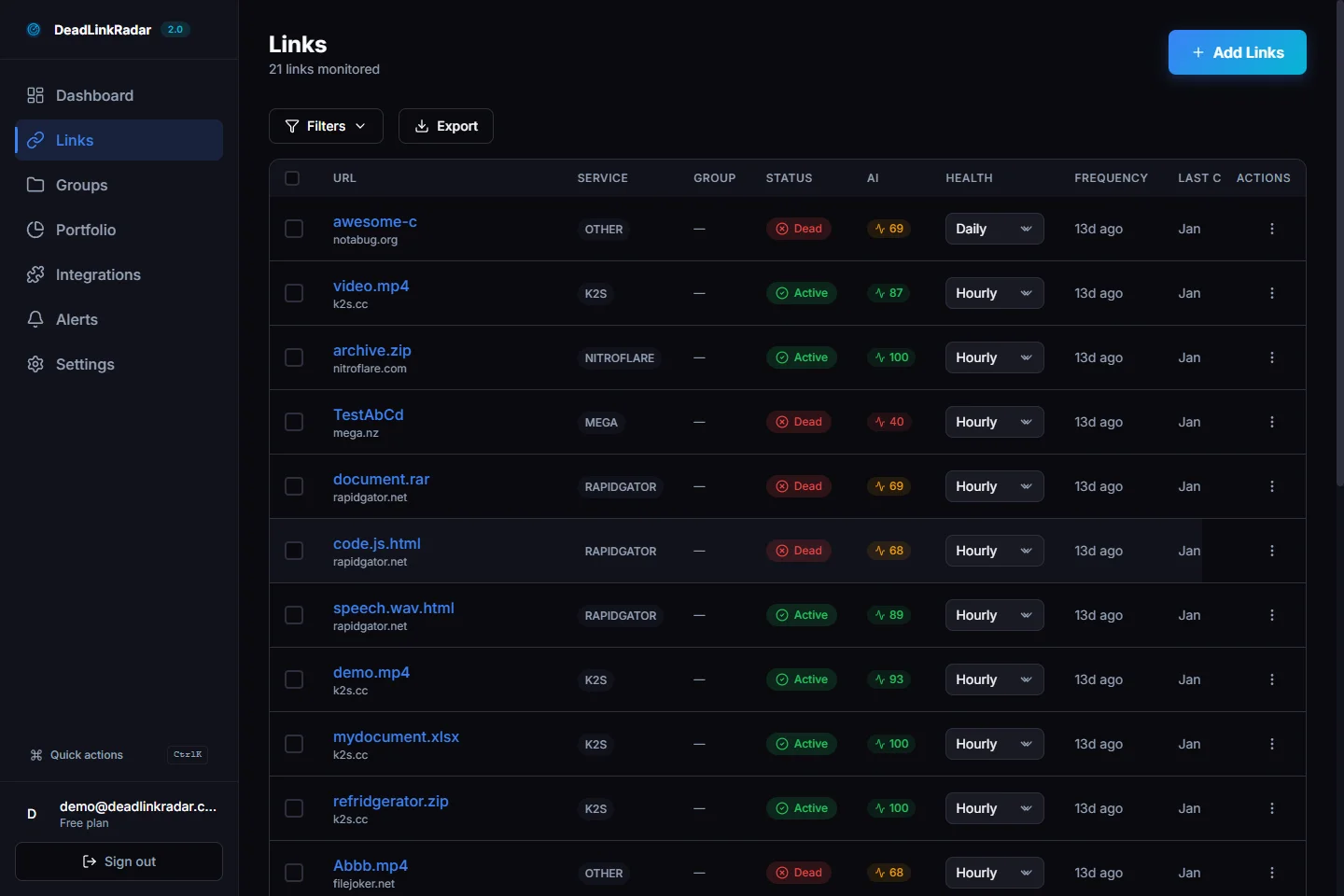
Important: Copy this URL immediately and paste it into your RSS reader. DeadLinkRadar won't display it again without regenerating (which breaks the current feed for security reasons). Store the URL only in your RSS reader—don't save it in plain text files or email it to team members.
Step 3: Add to Your RSS Reader
The subscription process varies slightly by reader, but follows the same pattern:
Feedly:
- Click the "+ Add Content" button in the sidebar
- Select "Add RSS Feed"
- Paste your DeadLinkRadar feed URL
- Choose a collection (or create "Link Monitoring")
- Click "Follow"
Inoreader:
- Click the red "+ Add" button (top left)
- Select "Feed" from the dropdown
- Paste the feed URL in the "Enter feed or site URL" field
- Click "Subscribe"
NewsBlur:
- Click the green "+ Add" button in the top bar
- Paste the feed URL in the search field
- Click "Add Site" when DeadLinkRadar appears in results
- Choose a folder for organization
FreshRSS (self-hosted):
- Navigate to Subscription → Add Subscription
- Paste the feed URL in the "Feed URL" field
- Optionally set a custom title like "DeadLinkRadar Status"
- Click "Add"
Most readers immediately fetch the feed after subscription. Within 15-60 seconds (depending on reader caching), you'll see your most recent 50 link status changes appear as feed items.
Supported RSS Readers
RSS 2.0 is a standardized format, meaning any compliant reader works. However, some readers offer features particularly useful for link monitoring workflows.
| Reader | Platform | Pricing | Best For |
|---|---|---|---|
| Feedly | Web, iOS, Android | Free / Pro ($6/mo) | Clean UI, AI-powered categorization, integrations with Slack/Teams |
| Inoreader | Web, iOS, Android | Free / Pro ($5/mo) | Power users, advanced filtering rules, read/unread sync across devices |
| NewsBlur | Web, iOS, Android | Free / Premium ($3/mo) | Social features, story training, inline media previews |
| FreshRSS | Self-hosted | Free (open source) | Privacy-focused teams, complete data control, custom extensions |
| NetNewsWire | macOS, iOS | Free (open source) | Native Apple experience, iCloud sync, lightweight and fast |
| Miniflux | Self-hosted | Free (open source) | Minimalist interface, keyboard shortcuts, PostgreSQL backend |
Recommendation for teams: If your organization already uses an RSS reader for industry news or security advisories, add DeadLinkRadar feeds to that existing setup. Consistency reduces tool sprawl and ensures link status doesn't get siloed in yet another dashboard.
Recommendation for individuals: Feedly offers the best balance of ease-of-use and features for casual monitoring. Inoreader suits power users who want granular control over filtering and organization. FreshRSS or Miniflux work well for self-hosted setups where data privacy is paramount.
Feed Format & Contents
DeadLinkRadar's RSS feed follows the RSS 2.0 specification with Atom namespace extensions for improved compatibility. Each status change becomes a distinct feed item with standardized formatting.
What's Included in the Feed
Status change notifications only. The feed doesn't include every routine check—only when a link's status actually changes (e.g., from active to dead, dead to active, unknown to checking). This signal-to-noise ratio keeps feeds readable and focused on actionable events.
Last 50 status changes. The feed caps at 50 items to maintain fast load times. If you have more than 50 status changes in a polling interval, older items fall off the feed. Most users see 5-15 status changes per day, making 50-item history sufficient for a 3-4 day window.
Emoji indicators for visual scanning. Each feed item starts with an emoji showing the new status at a glance:
- 🔴 Dead - Link returned 404, 410, or service-specific dead response
- 🟢 Active - Link confirmed working and accessible
- 🟡 Checking - Check currently in progress (appears briefly during background scans)
- ⚪ Unknown - Status couldn't be determined (rare, usually service timeouts)
Sample Feed Item Structure
When a link goes dead, the feed item looks like this:
🔴 Link went dead: mega.nz/file/abc123...

URL: https://mega.nz/file/abc123def456
Previous Status: Active
Current Status: Dead
Service: MEGA
Checked: Jan 15, 2026 10:30 AM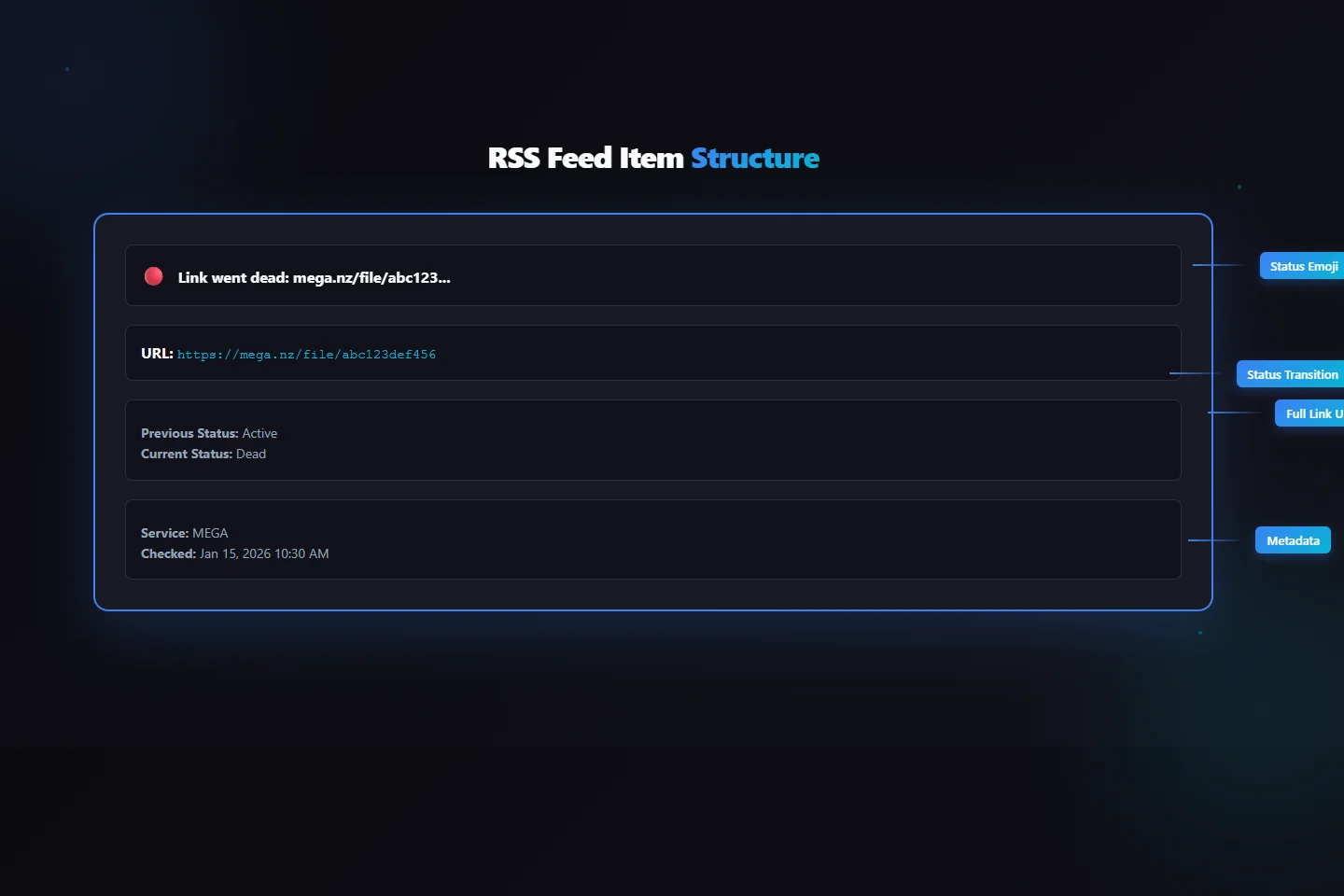
The guid (globally unique identifier) for each item combines the link ID and check timestamp: link-123-1705320600000. This prevents duplicate entries if you manually refresh your feed while a check is in progress.
Feed Metadata
The RSS channel includes metadata your reader uses for display and organization:
- Title: "DeadLinkRadar Link Status Changes"
- Description: "Status updates for your monitored links"
- Language:
en-us - Last Build Date: Timestamp of the most recent status change
- Generator: "DeadLinkRadar RSS Generator"
Self-links following the Atom namespace (<atom:link rel="self">) ensure readers correctly identify the feed URL for refresh operations.
Broken Link Monitoring Use Cases & Workflows
RSS feed monitoring for broken links shines in scenarios where push notifications create interruption overhead or centralized monitoring is already established.
Portfolio Site Owners
If you maintain a portfolio website with download links to design assets, code samples, or resume PDFs hosted on Google Drive or Dropbox, checking those links manually wastes time. A broken link checker integrated with your RSS workflow eliminates this overhead. Add DeadLinkRadar's RSS feed to your existing blog/news reader, and status changes appear alongside content updates.
Workflow: Subscribe to the feed in Feedly. When a link goes dead, you see the notification in your morning feed review (same time you check industry blogs). Fix the broken link, update the portfolio, move on—all within a single information-gathering session.
Content Creators
If you're a blogger, YouTuber, or course creator with download links for source files, datasets, or supplementary materials, broken links directly impact user experience. Fans who can't access promised resources leave negative comments or request refunds.
Workflow: Self-host FreshRSS on the same VPS as your website. Add DeadLinkRadar feeds for all file hosting links (Mega, Mediafire, Dropbox, Google Drive). Status changes appear in your pre-existing feed reader. No additional email noise, no webhook servers to maintain.
SEO Teams
SEO professionals often monitor dozens of client sites, each with external link profiles that affect search rankings. Broken outbound links send negative signals to search engines. RSS feeds consolidate monitoring for all clients without configuring email aliases or webhook receivers for each project.
Workflow: Create separate DeadLinkRadar projects per client. Generate an RSS feed for each. Add all feeds to Inoreader with tagging rules that categorize items by client. Review status changes during weekly SEO audits alongside keyword rankings and backlink reports.
Developers
Developers frequently share code repositories, documentation sites, or hosted demos with links to external services (CDNs, APIs, demo databases). Checking these manually interrupts coding flow. RSS feeds bring status monitoring into existing developer workflows.
Workflow: Use NetNewsWire (macOS/iOS) to monitor DeadLinkRadar feeds alongside GitHub release notes and dependency update notifications. When a link goes dead during development, the issue appears in your feed reader—no context switching to dashboards or email clients.
Technical Details
Understanding the technical underpinnings helps troubleshoot edge cases and set appropriate expectations for update frequency.
Update Frequency
Server-side caching: DeadLinkRadar caches RSS feed content for 5 minutes. If you request the feed URL at 10:00 AM and again at 10:03 AM, both requests return identical content. This reduces database load and ensures fast feed responses (sub-100ms latency).
Reader polling intervals: Most RSS readers poll feeds every 15-60 minutes by default. Feedly checks hourly on free plans, every 15 minutes on Pro plans. Inoreader polls every 30 minutes for free users, configurable down to 5 minutes for Pro subscribers.
Effective latency: Combining server caching (5 min) and reader polling (15-60 min) means status changes appear in your reader 20-65 minutes after they occur. For urgent notifications, use email or webhooks instead.
Security & Authentication
Token-based auth: Each feed URL includes a unique token parameter. DeadLinkRadar validates this token on every request. If the token is invalid, expired, or revoked, the server returns 401 Unauthorized with an empty feed.
Token storage: Tokens are hashed with bcrypt (cost factor 10) before database storage. DeadLinkRadar never stores plaintext tokens, meaning team members (including administrators) cannot retrieve your feed URL from the database.
Token rotation: Regenerating your token (Settings → RSS Feed → Regenerate Token) creates a new token and invalidates the old one immediately. Update your RSS reader subscription with the new URL to resume receiving updates.
Feed security: RSS feeds use HTTPS exclusively. The token provides authentication (proves you're authorized to access the feed) but not encryption—HTTPS handles transport-layer security.
Format Specifications
RSS version: RSS 2.0 with Atom namespace for self-links
Character encoding: UTF-8 (supports emoji indicators and international URLs)
Content type: application/rss+xml
Max item count: 50 status changes
Item ordering: Newest first (reverse chronological by check timestamp)
Troubleshooting Common Issues
Most RSS feed issues stem from authentication, caching, or reader configuration. Here's how to resolve the most common problems.
| Problem | Solution |
|---|---|
| 401 Unauthorized Error | Token expired or revoked. Regenerate token in DeadLinkRadar settings, then update feed URL in your reader. |
| Empty Feed (No Items) | No status changes have occurred yet. Add links to DeadLinkRadar and trigger a manual check to generate initial items. |
| Stale Data (Old Items) | Force refresh in your reader: Feedly (click feed → Refresh), Inoreader (right-click → Update Feed). Wait 5+ minutes for server cache expiration if still stale. |
| Duplicate Items | Your reader fetched the feed mid-check. Duplicates resolve automatically on next refresh. If persistent, check your reader's duplicate detection settings. |
| Feed Stopped Updating | Verify token is still active: visit feed URL in browser. If you see XML (not an error), token is valid—issue is with reader polling. Check reader subscription status and polling interval settings. |
| Can't Add Feed (Reader Rejects URL) | Ensure you copied the complete URL including ?token= parameter. Try pasting in a different reader to isolate whether the issue is reader-specific. |
Still having issues? Contact support with your error message and RSS reader name.
Check for Broken Links: Summary & Next Steps
RSS feeds provide passive broken link monitoring without push notification overhead. Set up takes under 2 minutes: generate a token, copy the URL, add to your reader. Dead link notifications appear alongside your existing feed content—no separate dashboards, no email filters, no webhook configuration.
Key benefits recap:
- Universal compatibility - Works with any RSS 2.0 reader (Feedly, Inoreader, NewsBlur, FreshRSS)
- Free on all plans - No premium tier required, no feed item limits based on subscription
- Emoji indicators - Visual status scanning: 🔴 dead, 🟢 active, 🟡 checking, ⚪ unknown
- Consolidated monitoring - Link status alongside blogs, news, and other feeds you already follow
- Privacy-focused - Pull-based model means you control when data is fetched, not push-based interruptions
Getting started:
- Log into DeadLinkRadar
- Navigate to Dashboard → Settings → RSS Feed
- Click Generate Feed Token
- Copy the URL (shown only once)
- Add to your RSS reader
The feed updates every 5 minutes with your last 50 status changes. Each item links directly to the affected link in your dashboard for one-click access to full check history and resolution actions.
Questions or need help? Visit the RSS Feed Documentation for setup guides covering Feedly, Inoreader, NewsBlur, FreshRSS, and more. For technical questions about feed format or authentication, check the API documentation or reach out to support.
Start monitoring link status changes in your RSS reader today—passive monitoring that fits existing workflows, without adding yet another notification channel to manage.