
Broken links are silently killing your SEO and user experience. Most link checkers only catch obvious 404 errors, missing the soft-404s, login walls, and content-removed pages that return "200 OK" but show your readers a dead end.
Whether you're running a blog, documentation site, or content-heavy platform, every broken link damages your search rankings and reader trust. Generic link checkers test HTTP status codes—but real-world link failures are more complex. Pages that look fine to crawlers can be completely broken for users.
The solution: AI-powered content analysis. DeadLinkRadar examines actual page content to detect when links are broken, even when they return successful status codes. Monitor any URL on the internet—blog posts, product pages, documentation—plus specialized detection for 40+ platforms including YouTube, cloud storage, and file hosting services. This guide shows you how AI-powered link monitoring catches what traditional tools miss.
Why a Dead Link Checker for File Hosts Is Different
Most broken link checkers perform simple HTTP status checks. They request a URL and check if the response code is 200 (success) or 404 (not found). This works fine for blog posts, product pages, and documentation links. But file hosting services operate differently, and these generic checks produce unreliable results.
When a file gets deleted on Keep2Share (K2S) or Nitroflare, the URL doesn't return a 404 error. Instead, it returns a 200 status code with a landing page that says "File not found" or "File has been removed." A generic checker sees the 200 and reports the link as healthy—even though users clicking that link get nothing.
File hosting links can fail for many reasons that generic checkers miss:
| Failure Type | What Happens | Generic Checker | DeadLinkRadar |
|---|---|---|---|
| File deleted | Service returns "File removed" page | Reports as "healthy" (200 OK) | Detects as "dead" |
| Account suspended | Service returns suspension notice | Reports as "healthy" (200 OK) | Detects as "dead" |
| Storage quota exceeded | File becomes inaccessible | Reports as "healthy" (200 OK) | Detects as "dead" |
| Link expired (temporary hosts) | Service returns expiration page | Reports as "healthy" (200 OK) | Detects as "dead" |
| Service rate limiting | Temporary access block | May report as error | Retries intelligently |
| Protected by Cloudflare | Challenge page blocks check | Reports as error or timeout | Uses enhanced verification |
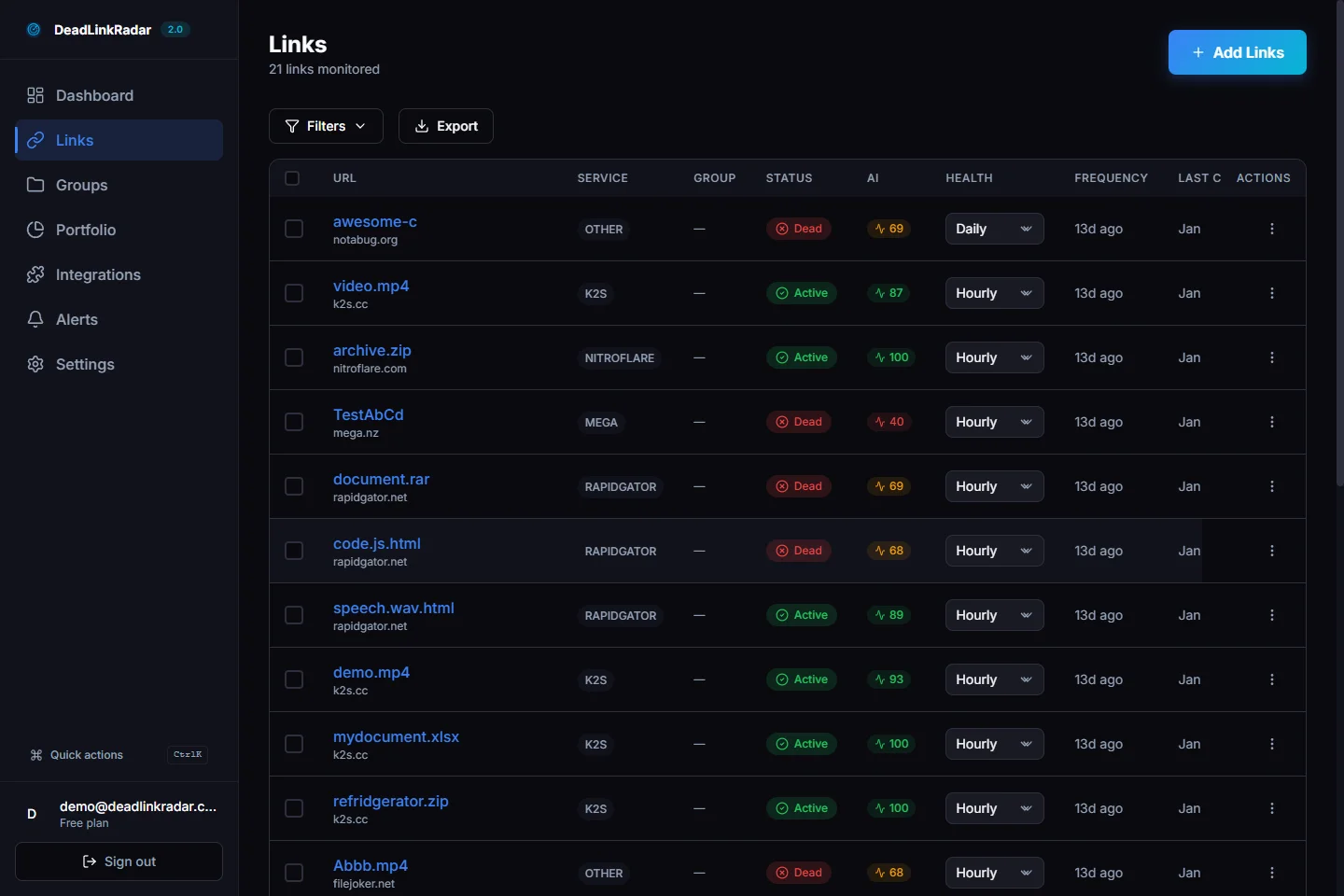
DeadLinkRadar uses service-specific detection that understands each file host's behavior. When you add a Nitroflare link, the system knows how Nitroflare indicates a removed file. When you add a K2S link, it recognizes K2S-specific status messages. This means you get accurate dead link detection instead of false positives and missed failures.
Check Speed Comparison
Different types of links require different verification approaches, which affects check speed:
| Link Type | Average Check Time | Why |
|---|---|---|
| Standard websites | ~2 seconds | Simple HTTP HEAD request |
| File hosting services | ~3 seconds | Service-specific verification |
| Protected services | 30-60 seconds | Enhanced verification required |
| Video platforms | ~1 second | Optimized platform integration |
Most file host checks complete in about 3 seconds. Some services like TakeFile and ExLoad use additional protection that requires enhanced verification—these checks take 30-60 seconds but still provide accurate results. Links from protected services display a shield badge in your dashboard so you know to expect slightly longer check times.
Supported File Hosting Services
DeadLinkRadar monitors over 40 file hosting services with specialized detection for each one. The system automatically recognizes which service a URL belongs to and applies the appropriate verification method.
Tier 1: Most Popular File Hosts
These premium file hosting services are used by millions of users worldwide for sharing large files, software, and digital content:
| Service | URL Patterns | Notes |
|---|---|---|
| Keep2Share (K2S) | k2s.cc, keep2share.cc | Premium file hosting with long retention |
| Nitroflare | nitroflare.com, nitro.download | Popular for large file distribution |
| Rapidgator | rapidgator.net, rg.to | One of the largest file hosts globally |
| Mediafire | mediafire.com | Free and premium tiers available |
| MEGA | mega.nz, mega.io | End-to-end encrypted storage |
| Google Drive | drive.google.com | Shared links and public folders |
| Gofile | gofile.io | Free unlimited storage |
Tier 2: Premium File Hosts
Additional premium services with specialized adapter support:
| Service | Service | Service |
|---|---|---|
| Pixeldrain | Emload | DaoFile |
| JumpLoads | Robofile | UploadGig |
| FileJoker | Xubster | FilesMonster |
| Turbobit | Hitfile | Filefox |
| FileFactory | DepositFiles | EliteFile |
| Hotlink | Kshared | RapidCloud |
| Katfile | Upstore | Alfafile |
| File.al | Filedot | FileSpace |
Also Supported
Beyond dedicated file hosting, DeadLinkRadar monitors links across:
- Cloud Storage: MEGA, Google Drive, Dropbox shared links
- Video Platforms: YouTube, Vimeo, Dailymotion embedded videos
- Social Media: Bluesky, Reddit, Instagram media links
- Any HTTP/HTTPS URL: Standard website links work out of the box
Missing a Service?
Need a file host that isn't listed? Contact us at support@deadlinkradar.com—we add new services within 1-2 weeks based on user demand. Our verification accuracy is 99.8% across all supported services, with intelligent retry logic for temporary issues.
Ready to start monitoring? Sign up free and add your first 50 links with daily checks. No credit card required.
Getting Started: Check for Broken Links in Your File Hosts
Setting up file host monitoring takes less than a minute. The system automatically detects the service type from your URL and applies the appropriate verification method.
Common use cases:
- Digital product sellers: Monitor download links for software, templates, or assets shared with customers
- Course creators: Track video and resource links across K2S, MEGA, or Google Drive
- Forum moderators: Ensure download links in posts stay active for your community
- Content distributors: Maintain large libraries of files across multiple hosting platforms
Step 1: Sign Up and Access Your Dashboard
Log in to your DeadLinkRadar account and navigate to the Links section. New users get 25 free monitored links with daily checks—perfect for testing with your most critical downloads.
Step 2: Add Your File Hosting Links
Click "Add Link" and paste your file hosting URL. The system accepts URLs from any supported service:
https://k2s.cc/file/abc123/myfile.zip
https://nitroflare.com/view/XYZ789
https://rapidgator.net/file/abc123def456
https://mega.nz/file/ABC123#key
The system automatically identifies the service from the URL pattern. You don't need to specify which file host you're using—just paste the link and the detection happens automatically.
Step 3: First Check Runs Immediately
After adding a link, the first verification check runs within seconds. You'll see the status update in your dashboard:
- Green badge: File is accessible and available for download
- Red badge: File has been removed, expired, or is otherwise unavailable
- Yellow badge: Status is temporarily uncertain (will resolve within 24 hours)
- Gray badge: Check is pending or scheduled
For bulk additions, you can import links from CSV or JSON files. This is useful when migrating from spreadsheets or other tracking systems. The bulk import process handles hundreds of links at once, with each link checked according to your plan's schedule.
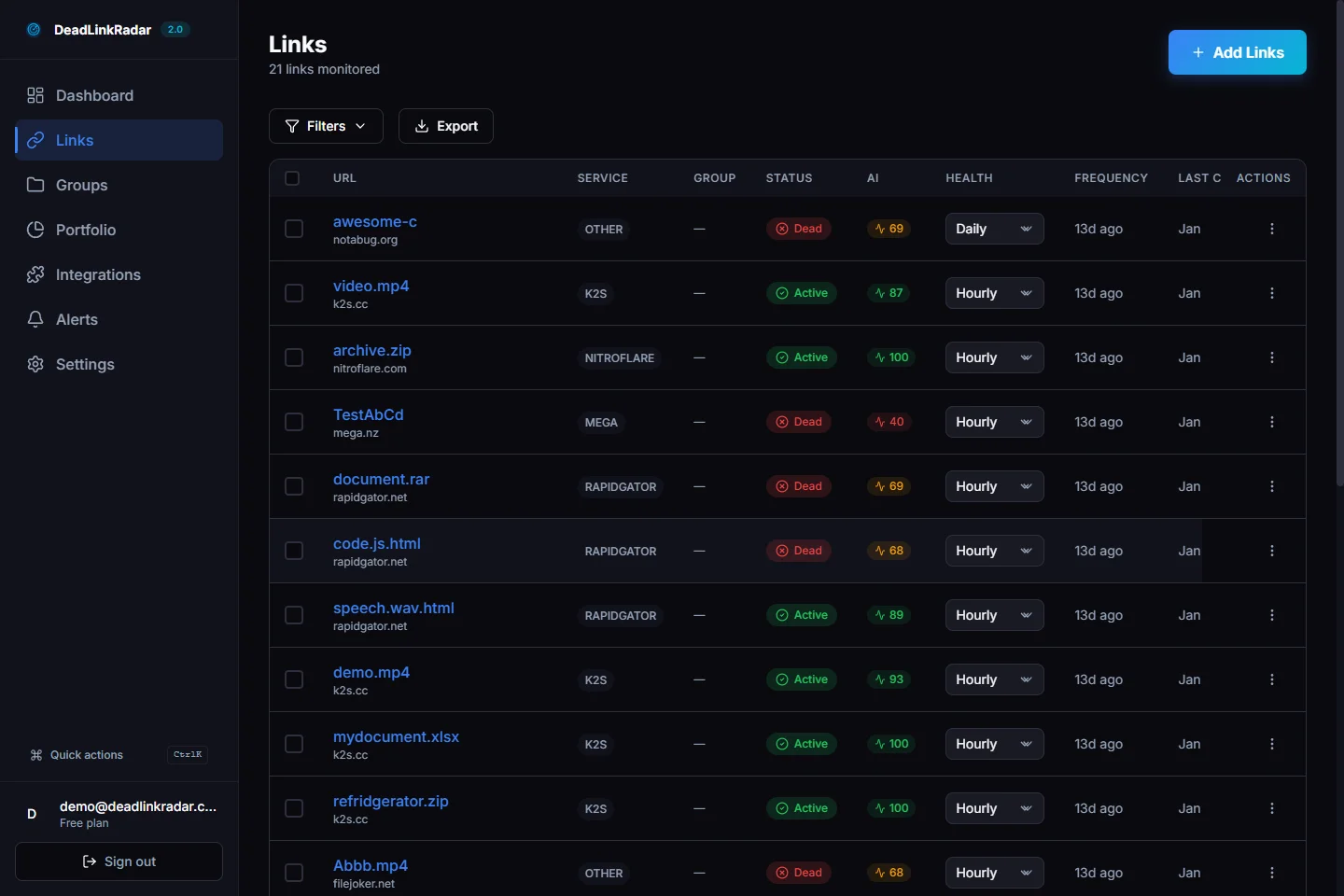
Monitoring Dashboard Features
Your dashboard provides a complete overview of all monitored links with filtering, sorting, and quick actions. The interface is designed to surface problems quickly so you can fix broken links before users encounter them.
Filter by Service Type
The service filter lets you view links from specific file hosts. This is useful when you want to audit all your K2S links or check the status of your Nitroflare downloads specifically.
Available filters include all supported services, plus status-based filters (Active, Dead, Unknown, Pending) and custom groups you've created. Combine filters to narrow down exactly what you're looking for—like "all dead Rapidgator links in my Software Downloads group."
Status Badges and Check History
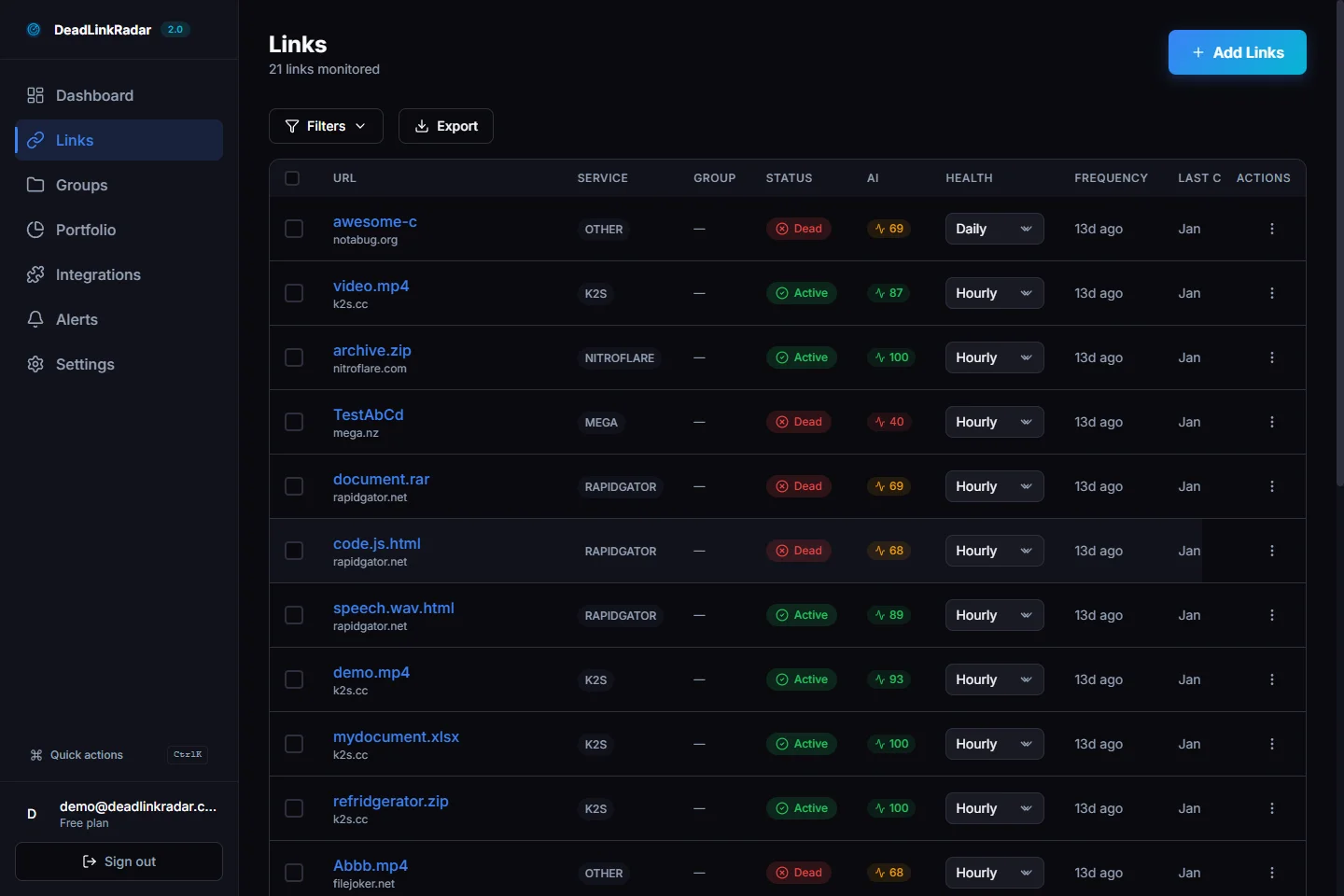
Each link displays a color-coded status badge that updates after every check:
| Badge Color | Status | Meaning |
|---|---|---|
| Green | Active | File is accessible and downloadable |
| Red | Dead | File removed, expired, or unavailable |
| Yellow | Unknown | Temporary uncertainty, will resolve soon |
| Gray | Pending | Check scheduled but not yet run |
Click any link to view its full check history. The history shows every status change with timestamps, so you can see exactly when a link went dead and how long it was accessible before that.
Check Frequency by Plan
How often your links get verified depends on your subscription tier:
| Plan | Check Frequency | Links Included |
|---|---|---|
| Free | Daily | 50 links |
| Starter | Hourly | Unlimited |
| Pro | Hourly | Unlimited |
All plans include on-demand manual checks. If you need to verify a specific link immediately, click the refresh icon and the check runs within seconds.
Alert Notifications
Knowing when a link dies is only useful if you find out quickly. DeadLinkRadar sends instant notifications through multiple channels so you can fix problems before users complain.
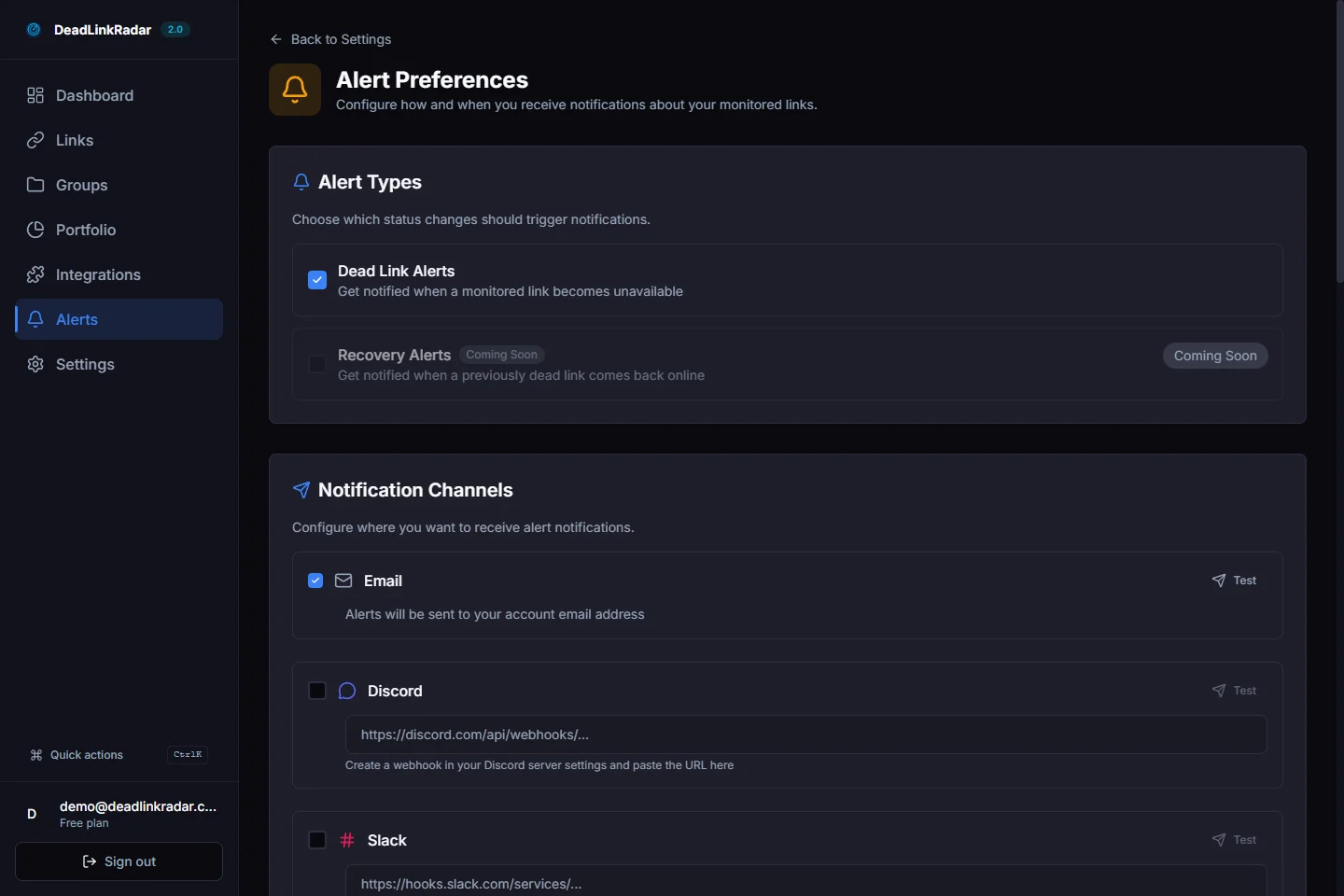
Supported Notification Channels
Configure alerts through any combination of these channels:
| Channel | Best For | Setup Complexity |
|---|---|---|
| Individual users, async updates | Simple (built-in) | |
| Discord Webhook | Development teams, community servers | Easy (webhook URL) |
| Slack Webhook | Business teams, project channels | Easy (webhook URL) |
| Telegram Bot | Mobile notifications, personal alerts | Easy (bot token) |
| ntfy.sh | Self-hosted, privacy-focused | Easy (topic URL) |
| Custom Webhook | Integration with other tools | Moderate (endpoint config) |
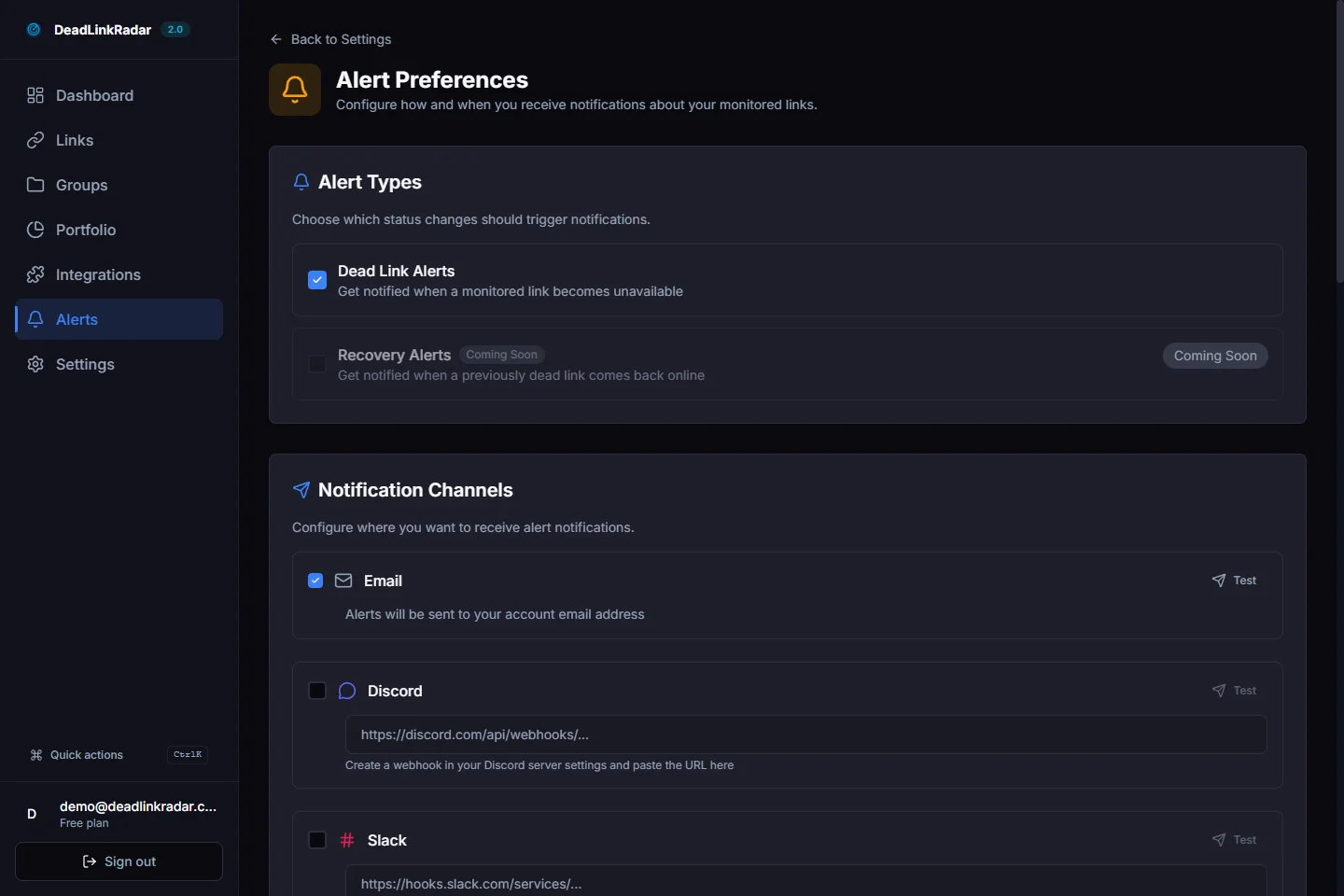
Example: Discord Notifications
Many teams use Discord for real-time collaboration. With Discord webhook integration, you get a message in your designated channel the moment any monitored link goes dead.
The notification includes:
- Which link failed
- The file hosting service
- When the failure was detected
- A direct link to your dashboard for more details
This means you can fix broken download links within minutes of them failing, rather than discovering the problem days later from user complaints.
Weekly Digest Reports
In addition to instant alerts, you can enable weekly email digests that summarize your link health. The digest includes:
- Total links monitored
- New dead links found
- Links recovered (previously dead, now working)
- Overall health percentage
This gives you a regular checkpoint even if no urgent issues arise during the week.
Pro Tips for File Host Monitoring
After monitoring thousands of file hosting links, we've identified patterns that help you get the most accurate results and the best coverage.
Password-Protected Files
Some file hosts allow password-protected downloads. If you're monitoring password-protected links, you can store the credentials securely in DeadLinkRadar. The system uses these credentials during verification to confirm the file is actually accessible—not just that the password page loads.
Stored passwords are encrypted and never shared. They're only used during automated checks to verify file availability.
Bulk Import for Large Libraries
If you have hundreds of file hosting links to monitor, manual entry isn't practical. Use the bulk import feature to add links from:
- CSV files: One URL per row, with optional columns for name and group
- JSON files: Structured format with URL, name, and metadata
- Plain text: Simple list of URLs, one per line
The import process validates each URL, detects the file hosting service, and queues verification checks. You can import up to 1,000 links at once, making migration from spreadsheets or other tracking systems straightforward.
Organize with Groups
Groups (also called folders) help you organize links by project, client, or category. For example:
- Software Downloads: Links to your application installers
- Course Materials: Video files and PDF resources
- Client: Acme Corp: All files shared with a specific client
When a link in a group goes dead, the notification includes the group name so you immediately know the context. You can also filter your dashboard by group to audit specific projects.
Understanding Check Times
Most file host checks complete in about 3 seconds, but some services require enhanced verification that takes longer:
| Service Type | Typical Check Time | Why |
|---|---|---|
| Standard file hosts | 3 seconds | Direct service verification |
| Protected services | 30-60 seconds | Additional processing required |
| Rate-limited hosts | 5-10 seconds | Intelligent retry handling |
Links from protected services display a shield badge in your dashboard. This indicates that checks for these links take longer—not that there's a problem with the link itself.
When you run batch checks on hundreds of links, the system processes them in parallel. Batch operations add about 0.5 seconds of overhead per link, capped at 30 seconds total. So checking 100 links takes roughly 30-35 seconds, not 100 times the individual check time.
Stop Losing Customers to Broken Download Links
Manual link checking is inefficient and reactive. By the time you discover a dead Rapidgator or K2S link, users have already bounced. Every broken download link costs you credibility and revenue.
Transform your file host monitoring:
| Before | After |
|---|---|
| Discover dead links from user complaints | Get instant alerts when links fail |
| Generic HTTP checks miss file-specific failures | Service-specific detection catches all failure types |
| Manual spot-checking (hours per week) | Automated monitoring (0 hours per week) |
| No visibility across 40+ file hosts | Single dashboard for all services |
| Broken links hurt trust and conversions | Fix problems before users notice |
Key features:
- 40+ file hosting services monitored with specialized detection
- 99.8% accuracy through service-specific verification
- Instant alerts via email, Discord, Slack, Telegram, and more
- Hourly checks on paid plans (daily on free tier)
- Bulk import for migrating large link libraries
- Groups and filters for organized monitoring
Start monitoring in 60 seconds: Sign up free and add your first 50 links with daily automated checks. No credit card required.
Need more capacity? Our Starter and Pro plans include unlimited links with hourly monitoring, priority support, and advanced features.
Questions? Email support@deadlinkradar.com—we'll help you set up monitoring for your specific use case.
Related Guides
- Monitor Paid Content Download Links - Protect course and digital product links
- How to Set Up Broken Link Alerts - Get instant notifications when files are removed
- How to Bulk Import Links - Add hundreds of file hosting links at once
- Broken Link Checker: Complete Guide - Master link monitoring best practices