
You've just launched your premium course. Students are enrolling. Everything's going well—until you wake up to angry emails: "The download link is broken." "I paid for this and can't access it." "Requesting a refund."
Your file hosting service expired the link after 60 days of inactivity. Or maybe the file was flagged and removed. Either way, you're now scrambling to fix it, issuing refunds, and watching your reputation tank on social media.
Here's the reality: file hosting links don't last forever. If you're using services like K2S, Nitroflare, Mega, or Rapidgator to deliver paid content, you need automated monitoring—or you will lose subscribers.
What You'll Need Before Getting Started
Before we dive into the details, let's make sure you have everything you need to follow along and get the most value from this guide:
- Paid content delivery links — Full understanding of where your download links are hosted (file hosting services, cloud storage, course platforms) and what happens when they break
- Access to your content platforms — Login credentials for your course platform (Teachable, Kajabi), Patreon account, Gumroad products, or newsletter archives where download links are embedded
- Time estimate — 15-20 minutes to read this guide, plus 30-45 minutes to set up monitoring for your first batch of links (time varies based on how many links you're monitoring and how they're currently organized)
Don't have all your links organized yet? No problem! This guide includes a section on collecting and organizing your download links before monitoring them.
The Hidden Cost of Broken Download Links
When a paying customer clicks your download button and gets a 404 error, the damage extends far beyond a single failed transaction. The financial impact compounds through multiple channels, each one eroding your revenue and reputation.
Immediate churn is the first consequence. A subscriber who can't access the content they paid for will request a refund. For a $99 course, that's $99 in immediate lost revenue. But the real cost runs deeper—that customer is unlikely to purchase from you again, and they're likely to warn others.
Reputation damage spreads quickly in online creator communities. When download links break, frustrated customers don't just email support—they post on Twitter, Reddit, Facebook groups, and course review platforms. A single broken link can trigger a cascade of public complaints that potential customers see when researching your products. Content creators live and die by their reputations. Once you're known for broken links, that perception sticks.
Lost future revenue multiplies the initial loss. Negative reviews on course marketplaces, Gumroad listings, or Patreon pages directly impact conversion rates. If your product has 20 five-star reviews and suddenly gets 3 one-star reviews about broken links, your conversion rate can drop 30-40%. That $99 refund just cost you thousands in prevented sales.
Support overhead drains your time and focus. Every broken link generates support tickets, emails, and direct messages. You spend hours re-uploading files, sending replacement links, and explaining what went wrong. Time you could have spent creating new content or growing your audience instead goes to firefighting preventable issues.
Here's what this looks like in real numbers:
| Scenario | Impact |
|---|---|
| $99 course with 1 broken link | 1 refund ($99 lost) + 2 hours support time + potential negative review blocking 5 future sales ($495 lost) = $594 total impact |
| $29/mo Patreon with broken exclusive content | 1 subscriber cancels = $348/year lost + word-of-mouth damage discouraging 3 potential patrons = $1,392 total impact |
| $199 digital product bundle with expired file host | 1 refund + 8 negative reviews tanking conversion rate by 35% on 100 monthly visitors (normally 10% convert) = 10.5 lost sales = $2,089 lost monthly |
Financial impact visualization showing how broken links cascade into revenue loss (click to view full size)
The math is brutal: a single broken file hosting link doesn't just cost you the immediate refund. It costs you future customers, your time, and your reputation as a reliable creator.
Why File Hosting Links Break (And Why It's Not Your Fault)
File hosting services operate under constraints that most content creators don't realize until links start breaking. Understanding these failure modes helps you anticipate problems and choose better hosting strategies.
Inactivity policies are the silent killer of download links. Services like K2S and Rapidgator automatically delete files that haven't been accessed in 60-90 days. This creates a vicious cycle: you launch a course, early students download everything successfully, then the course goes quiet for a few months. When new students enroll, the links are dead. You didn't change anything—the file host simply removed "inactive" files to free up storage.
Storage limits hit unexpectedly when you're using free tiers or when paid plans lapse. Mega's free tier gives you 20GB, which sounds generous until you host high-resolution video tutorials or large software bundles. Once you exceed the limit, newer files become inaccessible. If your payment method fails on a paid plan, the service doesn't gracefully downgrade—it immediately restricts access to files, breaking all your links at once.
Copyright strikes affect even creators hosting their own original content. Automated DMCA bots scan file hosting services looking for copyrighted material. These bots make mistakes. Your original photography preset pack might get flagged because the filename matches a known pirated product. Your tutorial video might trigger a copyright claim because it includes 10 seconds of copyrighted background music. When this happens, the file disappears instantly—no warning, no appeal process, just a broken link.
Service shutdowns are rare but catastrophic. When Megaupload shut down in 2012, millions of legitimate files disappeared overnight. Smaller file hosts go offline regularly due to legal pressure, unprofitability, or ownership changes. You wake up one day to discover that the service hosting your entire course library no longer exists. Every single download link is dead, and there's no way to recover the files unless you have backups.
URL structure changes happen when file hosting services migrate platforms or change their routing systems. A link that worked yesterday (filehoster.com/d/abc123) might redirect to a different format (filehoster.com/files/abc123) or simply return 404 if the migration didn't preserve old URL patterns. These changes happen without notice to users.
Here's what this looks like in practice:
- Rapidgator: Files deleted after 90 days of zero downloads. If you launch a course and it takes 4 months to gain traction, early links are already dead.
- K2S (Keep2Share): Storage quota exceeded triggers immediate access denial. Your $9.99/month plan covers 100GB. Upload 101GB of course materials and the newest files become inaccessible.
- Mega: Copyright detection algorithms flag files based on filename similarity. Upload "Lightroom-Presets-Pack.zip" and their bot might assume it's pirated software, removing it within hours.
- Nitroflare: Free accounts expire files after 30 days of inactivity. Premium accounts have better retention, but if your payment fails, the switch to free-tier rules is immediate.
- Google Drive: Shared link access changes based on account activity. Inactive Google accounts (no login for 2 years) lose access to shared files, breaking all your course links.
Timeline showing how different file hosting services expire content (click to view full size)
The truth is, file hosting services optimize for their business model, not yours. They want active users constantly uploading and downloading. Your use case—uploading once and serving downloads over months or years—doesn't align with their retention policies. This fundamental mismatch means broken links are inevitable without monitoring.
What You Should Be Monitoring (Complete Checklist)
Content creators spread download links across multiple platforms, often without realizing how many failure points exist. A comprehensive monitoring strategy covers all these areas, ensuring you catch problems before customers do.
Download links are the most obvious category, but they're also the most diverse. Course materials include PDFs, video files, ZIP archives of templates, software installers, plugin files, and high-resolution image packs. Each file type has different hosting requirements and failure patterns. A 5GB video file on K2S faces different expiration risks than a 2MB PDF on Dropbox. Digital product downloads from Gumroad or Patreon might link to external file hosts rather than native storage, creating additional points of failure. Bonus content for members—exclusive resources, extended tutorials, premium assets—often lives on separate hosting services with different retention policies.
Software and plugin files require special attention because broken links here directly prevent customers from using what they bought. If someone purchases your WordPress plugin and the download link is dead, they can't even install the product. That's an instant refund request. Templates and resources (design files, spreadsheets, code libraries) have similar urgency—customers need immediate access when they're ready to work.
Embedded media creates a different monitoring challenge. YouTube videos set to "unlisted" or "members-only" can become unavailable if your account status changes, if the video violates community guidelines (even incorrectly), or if YouTube's algorithm flags it. When a course module embeds a YouTube video and that video goes private, the entire lesson breaks. Vimeo private videos have similar risks—account payment issues, storage limits, or accidental privacy setting changes can make embedded content inaccessible. Audio files hosted on SoundCloud for podcast bonus episodes face the same challenges as file hosting services: storage limits, content flags, and account status changes.
Platform-specific links depend on the health of third-party services you don't control. Patreon exclusive posts can become inaccessible if your account is suspended, if payment processing fails, or if Patreon changes its access rules. Gumroad product pages depend on Gumroad's uptime and your account status—if Gumroad is down or your account is flagged, all product links break simultaneously. Teachable and Kajabi course modules might link to external resources that you don't directly control, and when those external links die, students can't access promised materials.
Here's your complete monitoring checklist:
- All file hosting links — K2S, Nitroflare, Mega, Rapidgator, Uploaded, Mediafire, and any other service hosting downloadable files
- Video embeds — YouTube videos (especially unlisted/members-only), Vimeo private videos, Wistia embeds, self-hosted video files
- Download buttons in course platforms — Teachable lessons, Kajabi modules, Thinkific content, any platform where students click to download
- Bonus content in email archives — Links in old newsletters, welcome sequences, drip campaigns that deliver downloadable resources
- Affiliate links in product descriptions — Links to recommended tools, partner products, supplementary resources that generate affiliate revenue
- Cloud storage shared links — Google Drive sharing links, Dropbox shared folders, OneDrive public links
- Landing page download buttons — Lead magnets, free samples, trial versions that convert visitors to subscribers
- Social media profile links — Link-in-bio tools, pinned posts, profile descriptions directing followers to content
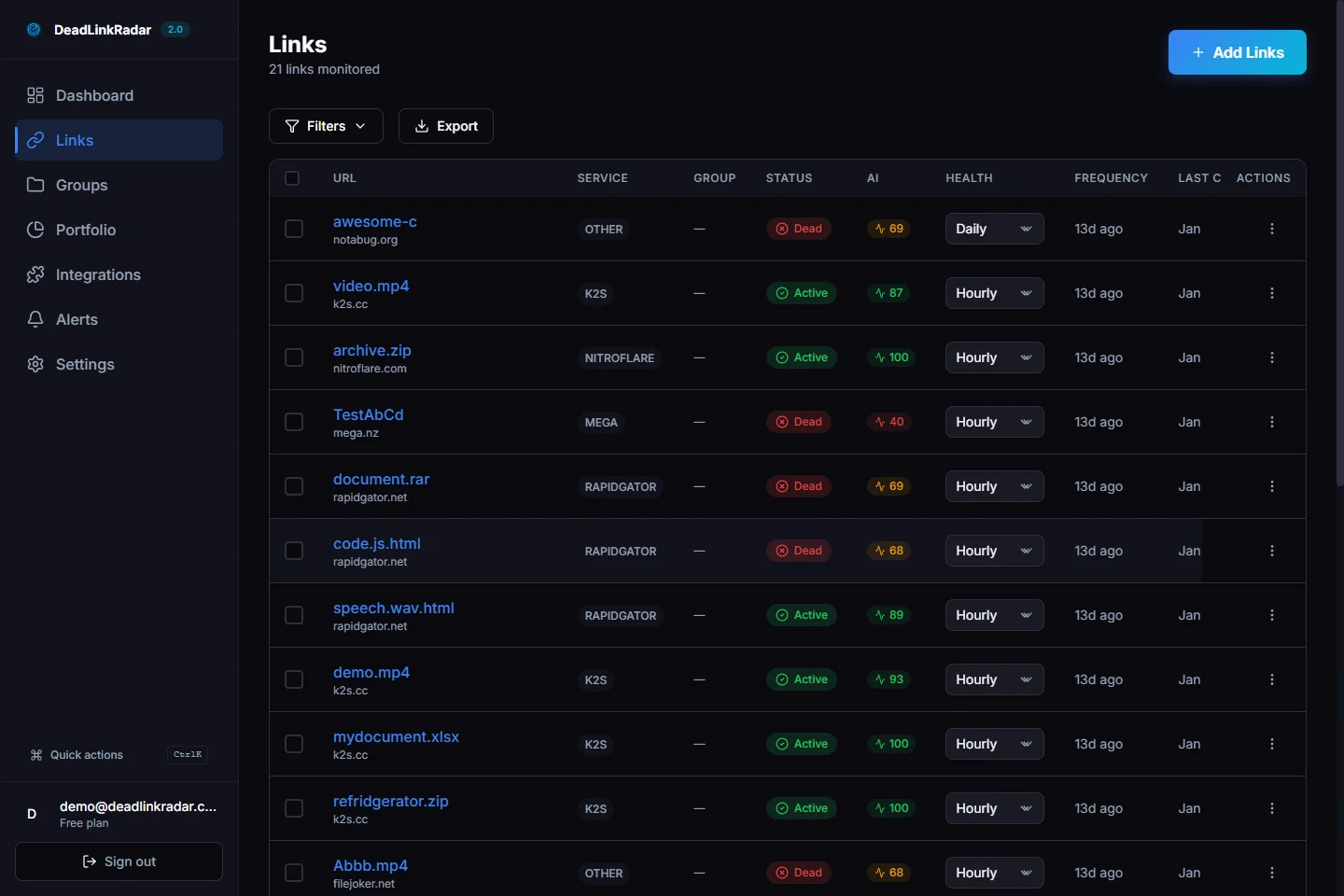
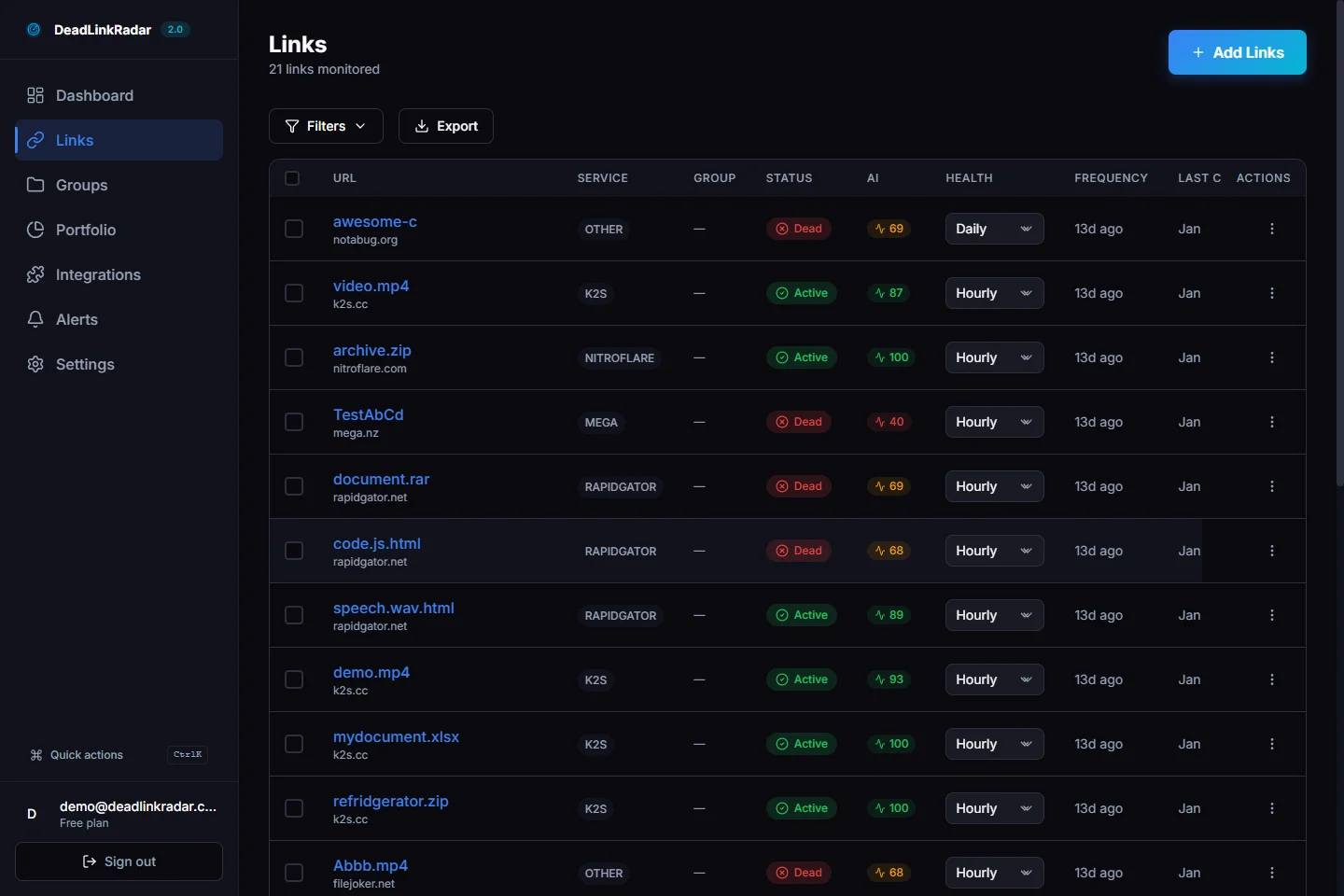
Dashboard view showing organized link monitoring across content types (click to view full size)
The key insight is that every link you share with customers is a potential failure point. The more organized your monitoring, the faster you catch and fix issues. Group links by content type, priority level, and check frequency to optimize your monitoring strategy.
How to Set Up Automated Monitoring (Step-by-Step)
Manual checking doesn't scale. If you have 50+ download links across courses, Patreon tiers, and products, you need automation. Here's how to set up monitoring that runs 24/7 and alerts you the moment something breaks.
The setup process has five distinct phases, each building on the previous one. You'll start by collecting all your download links in one place, then add them to automated monitoring, configure how often they're checked, set up alert channels, and finally verify everything works correctly. The entire process takes 30-45 minutes the first time, but once configured, it runs automatically forever.
Step 1: Collect Your Download Links
Before you can monitor links, you need to know what you're monitoring. Start by systematically extracting every download link from every platform where you deliver content.
Export from course platforms using their built-in tools. Teachable, Kajabi, and Thinkific all offer ways to export course content, though the process varies. In Teachable, go to your course dashboard, click "Curriculum," and manually collect links from each lesson. Kajabi provides a content export feature under "Settings → Import/Export." Thinkific requires checking each course module individually. Take notes as you go—which links are essential (course materials students need) versus optional (bonus resources).
Pull from Patreon posts by reviewing your post history. Patreon doesn't offer bulk export, so you'll need to scroll through your posts and copy any file hosting links or download URLs you've shared. Pay special attention to tier-exclusive content—these links break most often because file hosts see them as "low activity" (only accessed by your premium subscribers).
Scrape product pages if you sell digital products through Gumroad, Gumroad, or similar marketplaces. Open each product page and collect the download link, preview link, and any supplementary resource links. Note which products are currently active versus archived—you might check active products daily but archived ones only weekly.
List email archive URLs from your newsletter platform (Substack, ConvertKit, Mailchimp). Review old welcome sequences, drip campaigns, and broadcast emails to find any links you promised subscribers. These links often get forgotten because they're buried in old emails, but when new subscribers join and work through your sequence, broken links here create terrible first impressions.
At the end of this step, you should have a spreadsheet with columns for: Link URL, Content Type (course/Patreon/product), Platform (K2S/Mega/YouTube), Priority (critical/important/optional), and Current Status (working/untested).
Step 2: Add Links to DeadLinkRadar
Now that you have your links organized, add them to monitoring. DeadLinkRadar offers three methods depending on your volume and workflow.
Bulk import via CSV is the fastest method for large collections. Export your spreadsheet from Step 1 as a CSV file with columns for URL, name, and tags. Log into DeadLinkRadar, navigate to Dashboard → Links → Import, and upload your CSV. The system automatically detects which file hosting service each link uses and configures appropriate checks. Within minutes, all your links are under monitoring.
One-click add from browser works well when you're actively using your course platform or reviewing products. Install the DeadLinkRadar browser extension (available for Chrome, Firefox, Safari). As you browse your content, click the extension icon whenever you see a download link. The extension automatically captures the URL, page title, and context, adding it to your monitoring list without leaving the page.
API integration for automated sync suits creators with technical skills or developers on the team. DeadLinkRadar provides a REST API that lets you programmatically add, update, and check links. If you have a custom course platform or a complex content delivery setup, API integration ensures new links are automatically monitored as soon as you publish them. No manual step required.
The bulk import method handles most use cases efficiently. You'll spend 5-10 minutes uploading your CSV and reviewing the imported links to ensure everything parsed correctly.
Step 3: Configure Check Frequency
Not all links need the same monitoring frequency. Active products with high traffic need frequent checks; archived content can be checked less often. DeadLinkRadar lets you set different frequencies per link or group of links.
Daily checks suit active products currently generating sales. Your flagship course, top-selling digital product, or current Patreon tier should be checked every 24 hours. This catches most failures within a day—fast enough to fix before significant customer impact, but not so frequent that you're wasting resources checking static links constantly.
Weekly checks work for archived content that still has occasional traffic. Old courses you no longer actively promote, bonus content from past Patreon tiers, or supplementary resources linked from blog posts can be checked once a week. If these links break, the impact is smaller because fewer people access them, giving you more time to respond.
Hourly checks are critical during high-traffic launches or time-sensitive promotions. If you're running a 48-hour flash sale on a course, or you just sent an email to 10,000 subscribers promoting a download, you want to know immediately if the link breaks. Hourly monitoring catches issues within 60 minutes, letting you fix problems before support tickets flood in.
The configuration happens in DeadLinkRadar's dashboard. Select a group of links (or tag them), then choose "Configure Check Frequency" and pick your interval. You can adjust these settings anytime—increase frequency during launches, decrease it after a product is retired.
Step 4: Set Up Alerts
Monitoring is useless if you don't know when links break. Alert configuration ensures the right notifications reach the right people through the right channels.
Email notifications are the baseline. Configure alerts to send to your main email address (or your support team's email) whenever a link changes status from working to broken. Include relevant details in the alert: which link broke, what platform it's on, when it was last verified working, and a direct link to fix it. Email alerts work well for non-urgent failures that you can address during business hours.
Slack or Discord webhooks provide real-time team notifications. If you have a support team, operations team, or community managers who need to know about broken links immediately, route alerts to a dedicated Slack channel like #link-monitoring or #customer-support. This creates a shared awareness system where anyone on the team can respond to issues.
SMS for critical links (optional but recommended for high-revenue products) ensures you're notified even when you're away from your computer. If your $299 flagship course link breaks at 2am, an SMS alert means you can fix it from your phone before morning traffic hits. Most creators reserve SMS alerts for their top 5-10 most critical links to avoid alert fatigue.
Configure alerts in DeadLinkRadar under Dashboard → Settings → Notifications. You can set different alert channels for different link priorities—SMS for critical links, Slack for important links, email for everything else.
Step 5: Verify Everything Works
The final step is testing your configuration to ensure alerts actually reach you and monitoring actually detects failures.
Test with an intentionally broken link by adding a URL you know is dead (like https://example.com/this-does-not-exist-test-link) to your monitoring list. Within the check frequency you configured (hourly, daily, etc.), the system should detect the failure and send an alert. If the alert arrives via your configured channels (email, Slack, SMS), your setup works correctly.
Confirm alert delivery by checking your email inbox, Slack channel, or phone for the test alert. If nothing arrives, review your notification settings—email filters might be blocking alerts, Slack webhook URLs might be incorrect, or SMS configuration might need phone number verification.
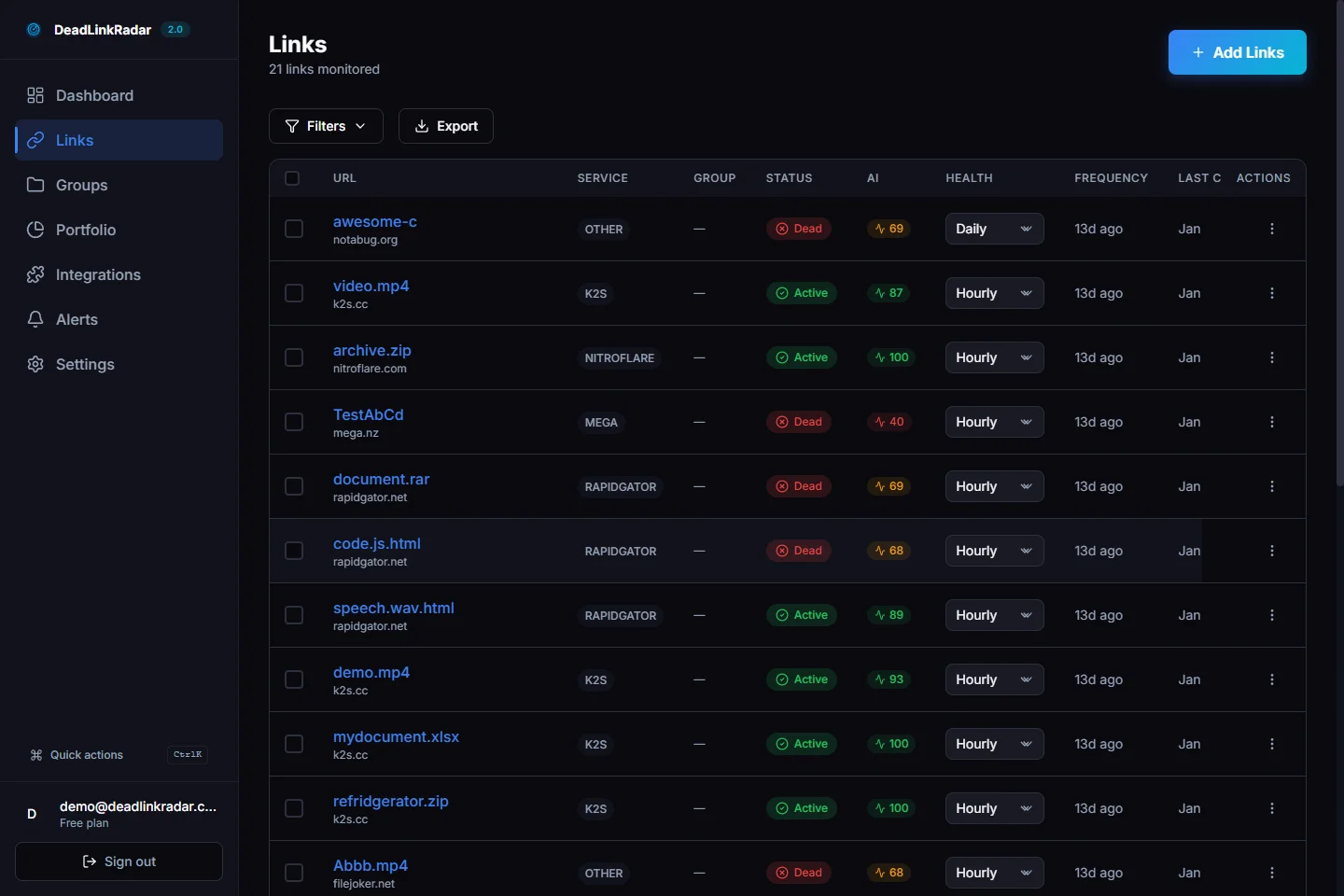
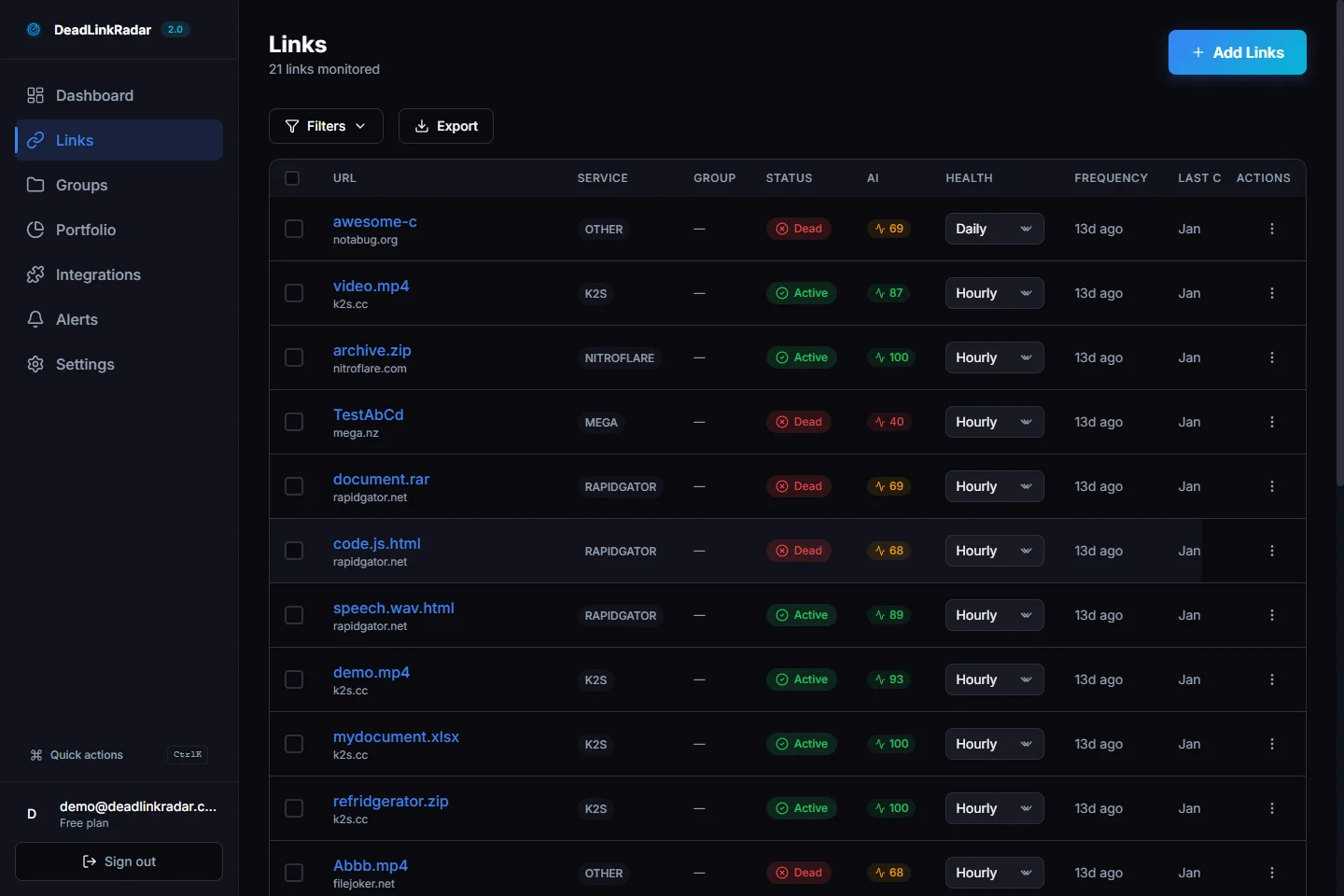
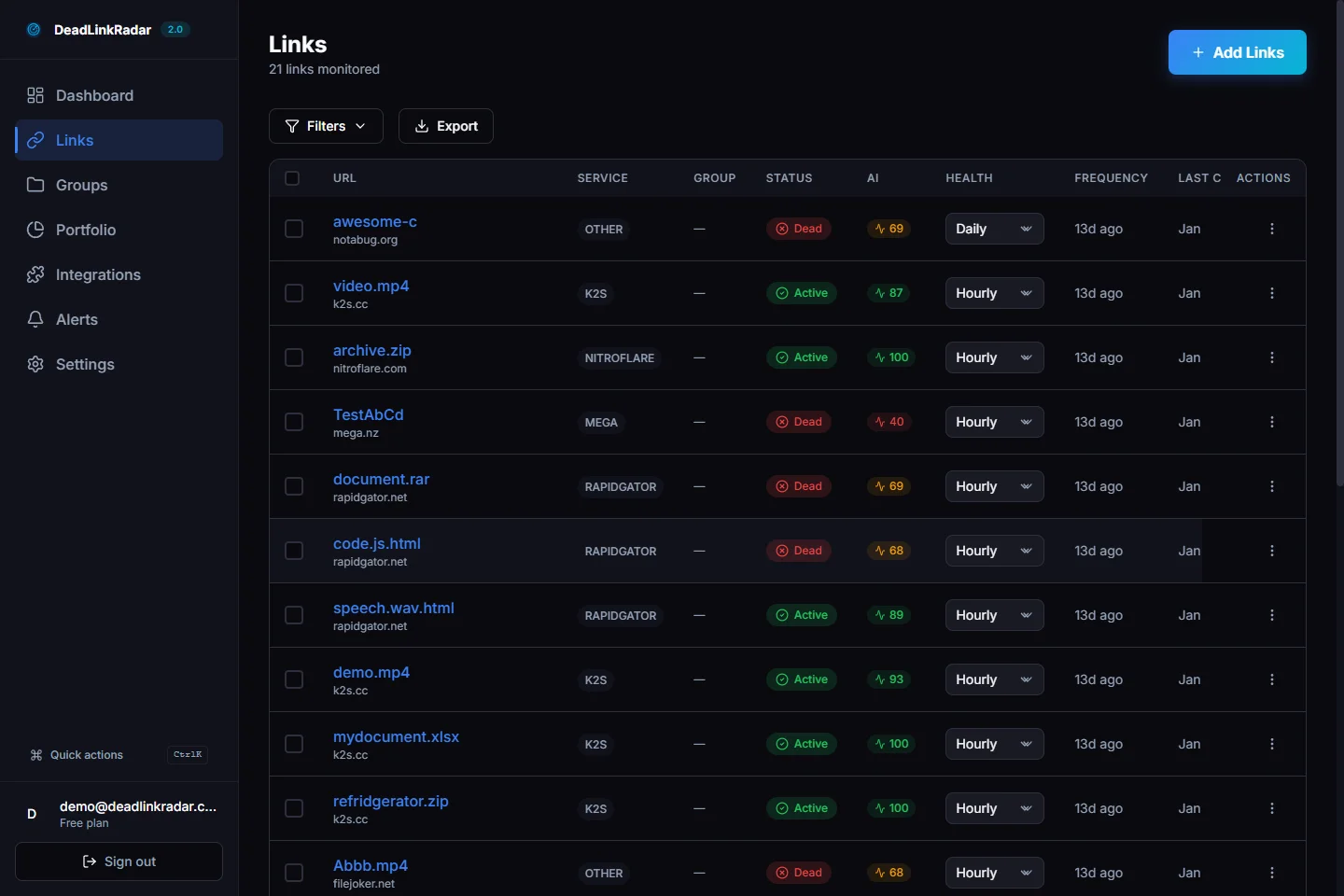
Check dashboard visibility by logging into DeadLinkRadar and viewing your links dashboard. You should see the test broken link highlighted with a "Dead" or "Failed" status, along with a timestamp of when it was last checked. The dashboard provides a centralized view of all monitored links, making it easy to spot issues at a glance even if alerts are delayed.
Step-by-step configuration flow showing CSV import and alert setup (click to view full size)
Once you've confirmed everything works, remove the test broken link and your monitoring is live. From this point forward, the system checks your links automatically and alerts you to any failures, freeing you to focus on content creation instead of link maintenance.
File Hosting Service Integration (Deep Dive)
Generic link checkers send a basic HTTP request and check for a 200 OK response. That approach fails catastrophically with file hosting services, which deliberately return 200 status codes even when files are missing, deleted, or inaccessible. This creates "soft 404s"—the page loads successfully, but the actual file isn't available. Generic tools miss these failures entirely.
DeadLinkRadar handles file hosting services differently. Instead of basic HTTP checks, the system uses platform-specific detection methods tailored to how each service signals file availability. This means checking for specific page elements, status messages, and platform behaviors that indicate whether a file is truly accessible.
For major file hosting services content creators use, here's how the detection works:
| Service | Detection Method | What It Catches |
|---|---|---|
| K2S (Keep2Share) | Native integration with deep verification | File deleted, storage quota exceeded, DMCA takedowns, account suspension, premium-only access, captcha walls, temporary downtime |
| Nitroflare | Platform-specific verification | File expired, removed by admin, access denied due to account status, bandwidth limits reached, service maintenance |
| Mega | Official verification through secure channels | File deleted, quota exceeded, copyright claims, encryption key issues, account limits, sharing permissions revoked |
| Rapidgator | Multi-method verification with fallback | File inactive (90+ day deletion), removed by uploader, premium requirement, temporary download restrictions, server errors |
| Google Drive | Standard verification | Access denied (sharing permissions changed), file removed by owner, account storage full, virus scan warnings, abuse flags |
| Dropbox | Official methods | 404 errors, permission changes, folder restructuring, account quota issues, shared link expiration |
Why platform-specific detection matters:
When you upload a course resource to K2S and share the download link with students, K2S generates a page at https://k2s.cc/file/abc123. If the file gets deleted due to inactivity, K2S doesn't return a 404—it returns a 200 OK status with a page that says "File Not Found." A generic link checker sees 200 OK and reports the link as working. Your students see "File Not Found" and request refunds. You don't know there's a problem until the complaints arrive.
DeadLinkRadar's K2S integration checks for specific page indicators: the presence of a download button, file size metadata, upload date information, and the absence of error messages. If any indicator is missing or an error message appears, the link is flagged as broken even though the HTTP status is 200.
This pattern repeats across every file hosting service. Nitroflare shows "File Expired" messages on 200 OK pages. Mega displays "File Deleted" with normal status codes. Rapidgator returns "File Removed by Administrator" with no HTTP error. Each service has its own way of indicating failures, and monitoring must account for these patterns.
The practical benefit is simple: DeadLinkRadar catches failures that generic tools miss. When a file host deletes your content, you get an alert within your configured check frequency (hourly, daily, weekly). You can re-upload the file, update the link, and notify affected customers before the issue compounds.
For content creators who depend on file hosting services to deliver paid products, this difference between generic HTTP checks and platform-specific verification is the difference between catching issues immediately versus discovering them from angry customer emails days later.
Visual grid showing 40+ supported file hosting platforms with deep integration (click to view full size)
The system currently supports 40+ file hosting services with platform-specific detection, covering the vast majority of services content creators actually use. When you add a link to monitoring, DeadLinkRadar automatically identifies which service it belongs to and applies the appropriate verification method. You don't need to configure anything manually—the system handles platform detection and check optimization automatically.
Real-World Scenarios (What Broken Links Actually Cost)
Numbers in a table don't capture the full impact of broken download links. Here are three real scenarios showing how link failures affect content creators and what monitoring would have prevented.
Scenario 1: Course Creator with $99 Photography Course
Sarah runs a popular photography course hosted on Teachable. The course includes Lightroom preset packs stored on K2S because the files are too large for Teachable's native storage limits. She chose K2S specifically because it offered reliable downloads and reasonable pricing.
After launching the course successfully and enrolling 50 students in the first month, Sarah moved on to creating her next course. Three months later, she received an email from a student: "The Lightroom presets link doesn't work." Then another. Then five more in the same day.
What happened: K2S deleted the files after 90 days of zero downloads. Because the course was "evergreen" (students could enroll anytime), there was a natural gap between download activity. Early students downloaded everything immediately. When new students enrolled months later, the links were already dead.
Sarah's response: She had to manually re-upload all the preset packs, update every lesson in Teachable with new K2S links, and send apology emails to the 12 students who had complained. She issued 12 full refunds totaling $1,188. But the real damage came from the negative reviews. Three students left one-star reviews mentioning broken links before Sarah could fix the issue. Her course rating dropped from 4.9 stars to 4.3 stars, and her conversion rate fell 35% over the next month.
Total cost: $1,188 in refunds + 4 hours of manual work + approximately $3,500 in lost sales from the ratings drop = $4,688 in total damage.
With automated monitoring: Sarah would have received an alert within 24 hours of the links breaking (before any student noticed). She could have re-uploaded the files and updated the links preemptively, preventing all refunds, avoiding negative reviews, and maintaining her course rating.
Scenario 2: Patreon Creator with $29/Month Tier
Mark offers exclusive sound packs to music producer patrons at the $29/month tier. He hosts files on Mega because it provides generous free storage and his patrons download files frequently enough to avoid inactivity issues.
One sound pack—a collection of drum samples—was uploaded with the filename "DrumKit-2024-ProPack.zip." Mega's automated copyright detection algorithm flagged this filename as potentially matching a known pirated product (it didn't—Mark created every sample himself). Mega removed the file without warning.
What happened: 15 patrons tried to download the pack over the next 72 hours and found it unavailable. Frustrated by paying $29/month for broken links, all 15 cancelled their subscriptions immediately. Because Patreon subscriptions are recurring, Mark didn't just lose 15 x $29 = $435 for that month. He lost $29/month x 15 patrons x 12 months = $5,220 in annual recurring revenue.
Mark's response: By the time he realized the file was removed (3 days later), the damage was done. He re-uploaded the sound pack with a different filename and sent an email apologizing to patrons, but the trust was broken. Of the 15 who cancelled, only 2 re-subscribed.
Total cost: $5,220/year in lost MRR (13 cancelled patrons) + reputation damage.
With automated monitoring: Mark would have received an alert within 1 hour of Mega removing the file (assuming hourly checks on premium tier content). He could have immediately re-uploaded the file to an alternative service and sent a proactive message to patrons explaining the temporary issue and providing a new link. Most patrons would have appreciated the transparency and stayed subscribed.
Scenario 3: Digital Product Seller with $199 Design Bundle
Lisa sells design template bundles on Gumroad. Her best-selling product is a $199 collection of 50 Figma templates. To keep costs low, she hosts the large template files on Nitroflare rather than paying for Gumroad's expanded storage.
Lisa's Nitroflare account was on a monthly paid plan ($9.99/month) that provided 100GB of storage. One month, her payment method expired (she had moved banks and forgotten to update the card). Nitroflare downgraded her account to the free tier, which only allows 10GB of storage and enforces aggressive file deletion policies.
What happened: All of Lisa's template files became inaccessible immediately. Gumroad customers who purchased the bundle received confirmation emails with broken download links. Over 3 weeks (before Lisa discovered the issue), 22 customers purchased the product, couldn't download it, and left negative reviews. Eight requested refunds through Gumroad. The product went from 147 five-star reviews and a 4.9 average rating to 169 reviews with a 4.1 average rating. Conversion rate dropped from 12% to 7% overnight.
Total cost: $1,592 in refunds (8 x $199) + lost sales from conversion rate drop (estimated 40 sales/month x 5% conversion difference x $199 = $398/month ongoing) + 6 hours manually re-uploading files and responding to support tickets = initial $1,592 + $398/month ongoing + reputation damage.
With automated monitoring: Lisa would have received an alert within 24 hours of her Nitroflare account being downgraded and files becoming inaccessible. She could have immediately updated her payment method, restored access, or uploaded files to an alternative service. The entire issue would have been resolved before any customer attempted a download, preventing all refunds and negative reviews.
These scenarios share a common pattern: the creator discovers the problem from customer complaints, not from proactive monitoring. By the time you know there's an issue, the damage is already done—refunds issued, reviews posted, subscribers cancelled. Automated monitoring reverses this dynamic, alerting you to failures before customers encounter them.
Pro Tips for Content Creators
Beyond basic monitoring setup, these advanced strategies help you build resilient download systems that survive file host failures and minimize customer impact.
Pro Tip 1: Use Multiple File Hosts for Critical Content
Don't rely on a single service for your most important downloads. Upload critical course materials, flagship product files, and premium Patreon content to 2-3 different platforms simultaneously. Configure your course pages or product pages to list alternative download links: "Download from K2S | Backup: Mega | Backup: Google Drive."
This redundancy means that if K2S deletes your file, students can still access it from Mega. If Mega flags it for copyright (falsely), Google Drive still works. The small extra effort of maintaining multiple uploads pays off massively when one service fails. You're not scrambling to fix broken links—you're just pointing customers to the working alternative while you resolve the primary link.
The cost is minimal (most file hosts offer free tiers sufficient for backups), but the reliability improvement is substantial. Your uptime goes from 95% (single host with occasional failures) to 99.9% (three independent hosts failing simultaneously is extremely rare).
Pro Tip 2: Monitor Before Launch, Not After
Add your download links to monitoring during the product creation phase, before you announce the launch. This catches configuration issues, permission problems, and access restrictions before customers encounter them.
Run a test purchase (or ask a friend to test) and verify that every download link works from a customer's perspective. Check that files download completely, that no login walls or premium restrictions block access, and that download speeds are acceptable. Fix any issues during this testing phase while the stakes are low.
If you monitor only after launch, you're discovering problems in production—when real customers are affected. Monitoring before launch turns your launch day into a smooth experience instead of a firefighting session.
Pro Tip 3: Schedule Weekly Manual Audits
Even with automation, manually review your monitoring dashboard weekly. Look for patterns that automated alerts might not surface: one file host consistently slower than others, certain links failing more frequently, or specific content types having higher error rates.
These patterns inform strategic decisions. If Nitroflare links fail twice as often as Mega links, migrate your content to Mega. If video files have more issues than PDFs, consider upgrading your file host plan or switching to a service optimized for large media files. If links in one specific course module keep breaking, investigate whether there's a deeper issue with how those files are hosted or structured.
Weekly audits take 10-15 minutes but surface insights that save hours of reactive troubleshooting later.
Pro Tip 4: Set Up Backup Download Pages
Create a "backup downloads" page on your own website that lists alternative download links for your most critical content. When a primary link breaks and you receive an alert, update the backup page immediately with working alternatives. Include the backup page URL in your alert notifications so you can quickly share it with affected customers.
This strategy transforms a crisis into a minor inconvenience. Instead of telling customers "Sorry, the link is broken, we're working on it," you can say "The primary link is temporarily unavailable, but you can download from this backup page: [URL]." Customers get instant access, you avoid refunds, and you have time to fix the primary link properly.
The backup page lives on infrastructure you control (your website), so it can't be taken down by file host issues. It becomes your emergency fallback whenever external services fail.
Pro Tip 5: Track Response Times, Not Just Uptime
File hosts might return "working" status but deliver files so slowly that customers give up and request refunds. Configure your monitoring to track download speeds and response times, not just whether the link returns a success code.
If a file host's average response time increases from 2 seconds to 15 seconds, that's a red flag—their servers are overloaded or deprioritizing free tier downloads. Switch to a faster service before customers complain about slow downloads. Speed matters as much as availability when you're delivering paid content.
Most creators only discover speed issues after customers complain. Proactive response time monitoring lets you migrate to faster hosts before performance becomes a problem.
Troubleshooting Common Issues
Even with monitoring configured correctly, you'll encounter specific scenarios that require interpretation. Here's how to handle the most common issues content creators face.
Issue: "My file host says the link works, but monitoring shows it's broken"
Cause: This is a soft 404—the file host returns a 200 OK status but the page shows an error message like "File Not Found" or "File Removed." The file host's server is technically responding, but the file isn't actually available.
Solution: Trust the monitoring. Platform-specific detection catches soft 404s that generic tools miss. Log into the file host directly and manually check if you can access the file. If you see an error message, re-upload the file and update your links. If the file genuinely works when you test it manually but monitoring still reports it as broken, contact support—there may be geographic restrictions, account-level permissions, or access rules blocking automated checks.
Issue: "Links break faster than I can fix them"
Cause: You're using free tier file hosting with aggressive expiration policies (30-60 day inactivity rules). Free tiers delete files to encourage upgrades to paid plans.
Solution: Upgrade to paid file hosting plans with better retention policies. Most paid plans extend inactivity limits to 180+ days or remove them entirely. Alternatively, migrate to services designed for long-term storage (Google Drive, Dropbox, S3) rather than short-term file sharing (Rapidgator, K2S free tier). The monthly cost ($10-20) is far less than the revenue lost from broken links and refunds.
Issue: "I get too many false positives (links flagged as broken when they're actually working)"
Cause: File hosts have temporary downtime, maintenance windows, or intermittent server issues. A single failed check doesn't mean the link is permanently broken.
Solution: Configure retry logic in your monitoring settings. Instead of alerting immediately when a check fails, set the system to retry 2-3 times over the next hour before sending an alert. This filters out temporary issues while still catching genuine failures. Most monitoring tools default to immediate alerts, but adding a retry policy dramatically reduces false positives without significantly delaying genuine failure detection.
If you still get frequent false positives after enabling retries, the file host itself may be unreliable. Consider migrating to a more stable service.
Summary: Stop Losing Subscribers to Broken Links
Broken download links cost content creators thousands in lost revenue, damaged reputations, and wasted time. Manual checking doesn't scale when you're managing courses, Patreon tiers, digital products, and membership content across multiple platforms. File hosting services have complex failure modes—inactivity deletions, storage limits, copyright strikes, service shutdowns—that generic link checkers completely miss.
DeadLinkRadar's file hosting integrations monitor K2S, Nitroflare, Mega, Rapidgator, and 35+ other platforms using platform-specific detection methods. The system catches soft 404s, quota issues, and access restrictions that would otherwise go unnoticed until customers complain. You'll know the moment a link breaks—before any subscriber encounters it.
The setup takes 30-45 minutes: collect your download links, bulk import via CSV, configure check frequencies (daily for active products, weekly for archives, hourly for launches), set up alerts (email, Slack, SMS), and verify everything works with a test. From that point forward, monitoring runs automatically, freeing you to focus on creating content instead of firefighting link failures.
For content creators who depend on reliable downloads to deliver value to paying customers, automated monitoring isn't optional—it's essential infrastructure. The alternative is discovering broken links from angry emails, issuing refunds, and watching negative reviews tank your conversion rate. That's not a sustainable way to run a content business.
Ready to stop losing subscribers to broken links? Start monitoring free—no credit card required. Monitor up to 100 links on the free plan, upgrade when you need more capacity. Questions about file hosting integration, bulk imports, or monitoring strategies? Contact us at support@deadlinkradar.com. We help content creators protect their revenue by catching broken links before customers do.
Related Guides
- Dead Link Checker for 40+ File Hosting Services - K2S, Nitroflare, Rapidgator detection
- How to Bulk Import Links - Add hundreds of download links quickly
- How to Set Up Broken Link Alerts - Instant notifications when links die
- Link Status History Tracking - Understand when files get removed