
A customer clicks your top-selling product link from a blog post you wrote six months ago. The URL was valid when you published it, but you renamed the product handle during a rebrand. Now they land on a 404 page. You don't know it happened. They don't come back. You lost the sale and may have lost the customer permanently.
To find broken links on your Shopify store before they cost you sales, you need systematic monitoring—not luck. This scenario plays out silently every day. Unlike a website outage you'd notice immediately, broken links accumulate undetected over weeks and months, eroding your revenue and search rankings. This guide shows you how to find and fix broken links on your Shopify store, understand exactly why they happen, and set up monitoring so you catch them before your customers do.
Why Shopify Stores Break More Links Than You Think
Shopify's structure creates more link-breaking opportunities than most platforms. Every time you manage your catalog, you risk orphaning a URL that someone, somewhere, has saved, shared, or linked to.
Product Handle Changes
The product handle is the URL slug—the part after /products/. By default, Shopify sets the handle from your product title. When you rename a product ("Blue Sneakers" becomes "Classic Blue Running Shoes"), Shopify updates the handle automatically. Your old URL—/products/blue-sneakers—now returns a 404. Any customer who bookmarked it, any blog post that linked to it, any influencer who shared it on social media: all of them hit a dead end.
Shopify doesn't automatically redirect old handles to new ones. You have to create those redirects manually in Online Store → Navigation → URL Redirects. Most store owners don't know this until they've already broken dozens of links.
Product Deletions and Archiving
When you delete a product or move it to draft, its URL disappears entirely. This is the most common source of broken links for stores that regularly rotate inventory. Fashion stores, seasonal goods, limited-edition drops—every time a product leaves your catalog without a redirect, you leave behind a broken link in every place that URL was ever shared.
Collection Restructuring
Collections have the same vulnerability. Reorganizing your collections—splitting "Clothing" into "Men's" and "Women's", or consolidating subcategories—creates URL changes that break existing links. A customer who bookmarked your "Sale" collection during last season's event might find it gone entirely if you renamed or restructured it.
App-Generated URLs
Third-party Shopify apps frequently create their own URL patterns: countdown timers, loyalty programs, custom landing pages, bundle builders. When you uninstall or switch apps, every URL those apps generated becomes a dead end. These are especially dangerous because they're often scattered across email campaigns, affiliate links, and marketing materials you may have forgotten about.
Blog Post Internal Links
If you maintain a Shopify blog, your posts link to products, collections, and other posts. Every catalog change is a potential link break inside your own content. A gift guide from November that links to five products—three of which got renamed in January—is now actively damaging the customer experience of anyone finding that post through search.
How Broken Links Damage Your Store
The direct cost is easy to see: a customer who hits a 404 doesn't buy. But the indirect damage compounds over time in ways that are harder to measure.
Search Ranking Impact
Google crawls your site and follows every link. When it finds broken links in your sitemap or product pages, it signals that your site is poorly maintained. Google's quality signals factor in the freshness and health of your content. A site with consistent broken links across product pages and blog posts gets lower quality scores than a site with clean, working URLs.
Specifically, broken links:
- Waste crawl budget: Google has a finite number of requests it makes to your store per crawl. Wasting them on 404 pages means fewer of your actual product pages get indexed.
- Lose link equity: If external sites link to a product URL that now returns 404, that backlink equity is lost. The page it used to support no longer exists to benefit from it.
- Reduce page authority: Internal links distribute authority across your store. Dead internal links break that distribution and leave some pages under-supported.
Customer Trust and Conversion
A 404 page is a trust signal—just not a positive one. Research consistently shows that users who encounter a 404 page have significantly lower confidence in a store's reliability. For ecommerce specifically, trust is the primary conversion driver. A customer comparing you to a competitor who has a clean, working site will choose the competitor.
| Impact Area | What Happens | When You Notice |
|---|---|---|
| Direct sales loss | Customer hits 404 instead of buy page | Never (silent) |
| SEO degradation | Lower rankings from poor crawl signals | Weeks to months later |
| Trust damage | Returning customer confidence drops | Rarely measured |
| Email campaign waste | Links in campaigns send to 404 | After campaign sends |
| Affiliate link rot | External promoters drive traffic to 404 | When they complain |
The common thread: you usually find out long after the damage is done, if at all.
How to Find Broken Links on Your Shopify Store
There are several approaches to finding broken links, from one-time manual audits to automated ongoing monitoring. We'll cover each one.
Method 1: Your Shopify Sitemap
Every Shopify store automatically generates an XML sitemap at yourstore.com/sitemap.xml. This file lists all the URLs Shopify considers canonical—product pages, collection pages, blog posts, and standard pages. It's the most complete list of your store's URLs you'll find in one place.
Download your sitemap (right-click → Save As on any browser), then extract all the URLs. You can paste them into DeadLinkRadar's bulk import to check all of them at once:
- Go to your sitemap at
yourstore.myshopify.com/sitemap.xml - Open each nested sitemap (products, collections, blogs, pages)
- Copy all URLs and paste them into DeadLinkRadar's Add Links → Bulk Import tab
- Run the check and filter results by status
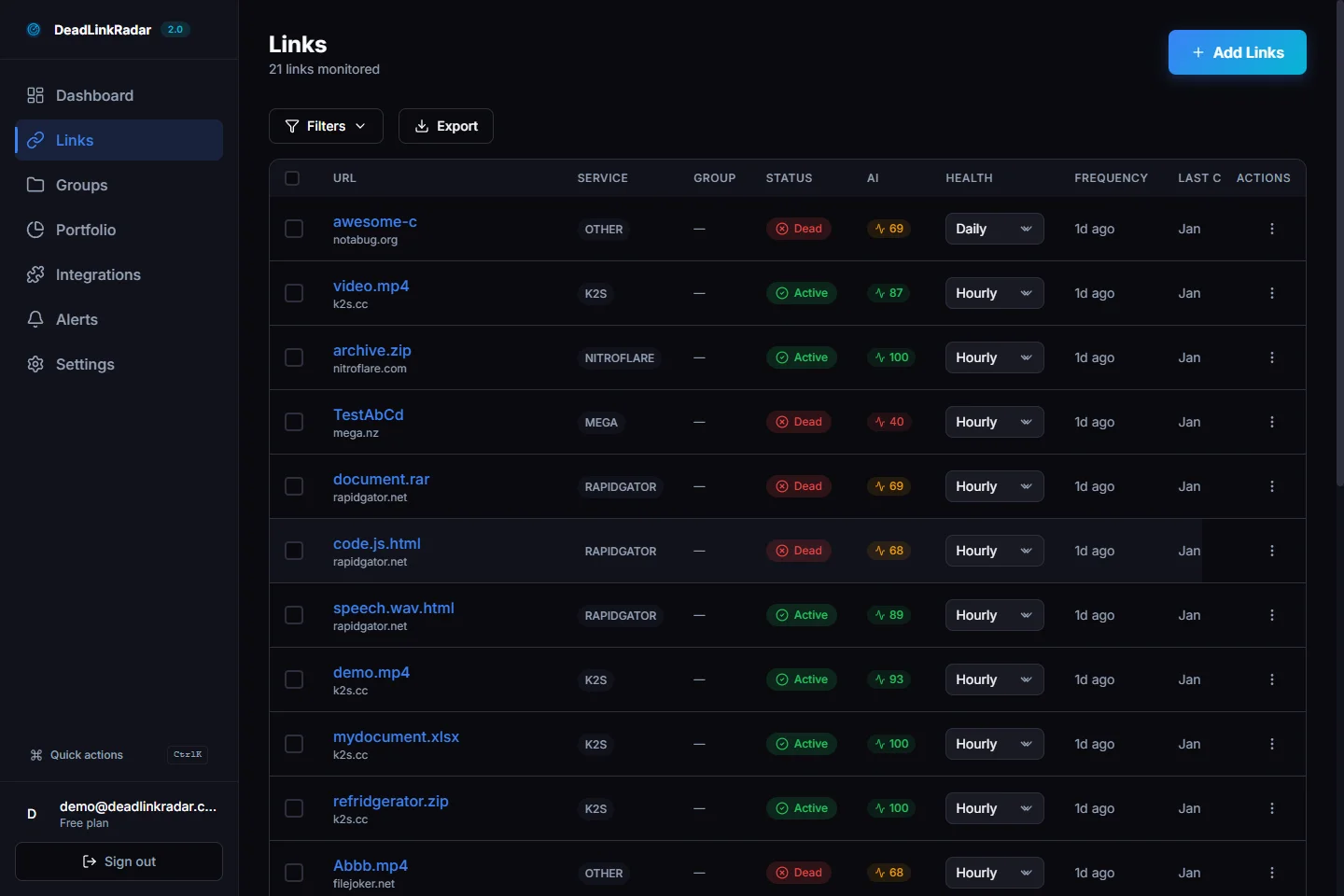
Bulk importing Shopify URLs into DeadLinkRadar for a broken link check (click to view full size)
Method 2: Shopify Product Export
Shopify lets you export your entire product catalog as a CSV from Products → Export. The export includes product URLs, which you can extract and check in bulk. This is especially useful if you want to verify every product page is accessible—not just the ones in your sitemap.
Extract the handle column from the export, prepend your domain, and you have a complete list of product URLs to monitor.
Method 3: Google Search Console
If you've connected Google Search Console to your store (which you should), the Coverage report shows you which pages Google has tried to crawl and whether it found errors. Look for:
- Not Found (404): Pages Google tried to crawl but got a 404
- Soft 404: Pages that appear to be missing content but still return 200
- Redirect errors: Pages with redirect chains that aren't resolving correctly
Google Search Console catches links that external sites or your own sitemaps are pointing to. It won't catch links in email campaigns or places Google hasn't crawled, but it's a useful signal for SEO-impacting broken links.
Method 4: Continuous Automated Monitoring
One-time audits have a fundamental limitation: they're already out of date the moment you finish them. Every product you rename, delete, or archive afterward creates new broken links that your audit won't catch.
Automated monitoring closes this gap. Instead of scheduling quarterly audits, you import your store's URLs into DeadLinkRadar, set a monitoring frequency, and get notified the moment any URL breaks.
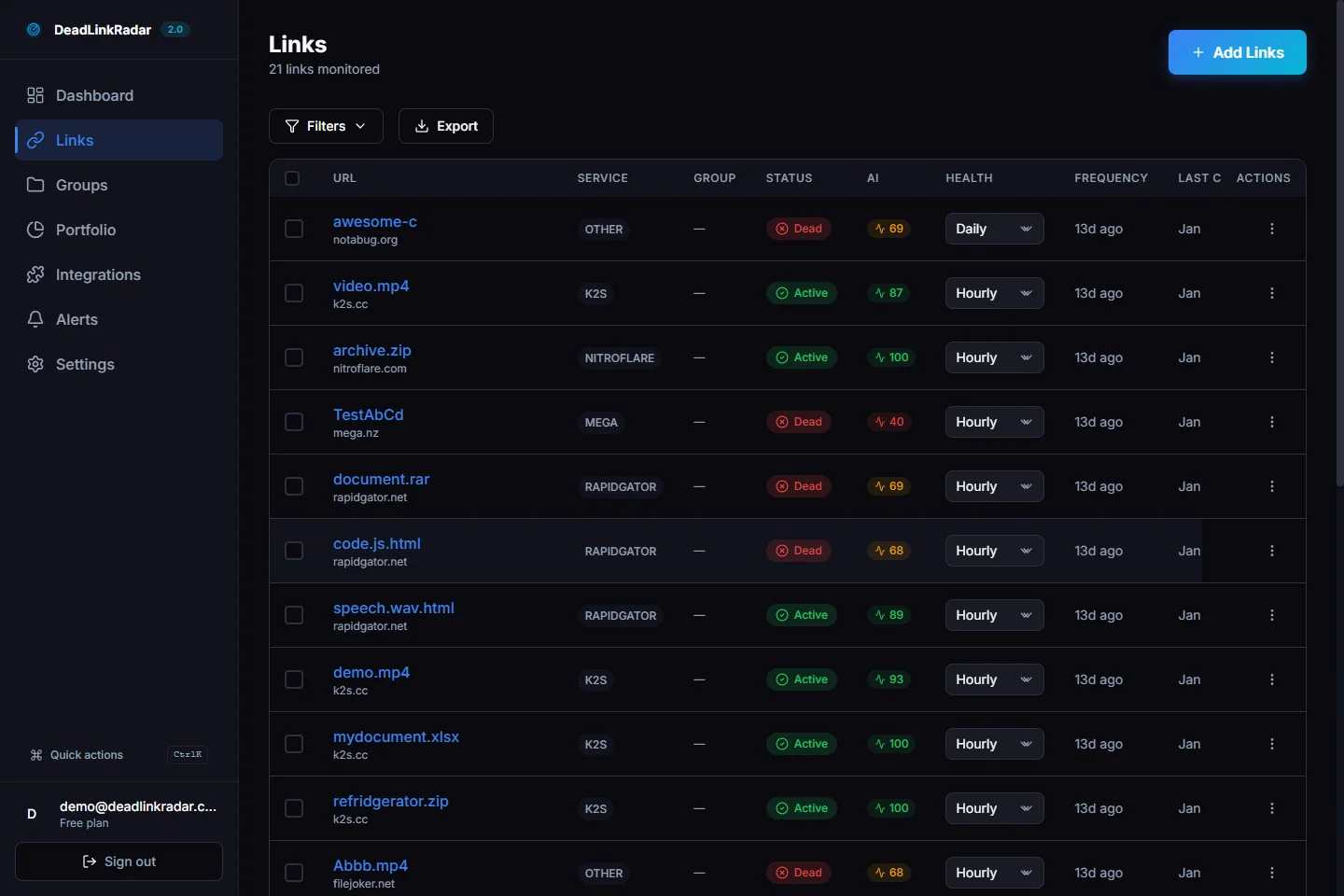
DeadLinkRadar monitoring dashboard showing Shopify link health status (click to view full size)
Setting Up Ongoing Monitoring for Your Shopify Store
Here's a step-by-step setup that takes about 15 minutes and gives you continuous visibility into your store's link health.
Step 1: Import Your Shopify URLs
Start with the highest-priority URLs—the ones where a broken link costs you the most:
- Open DeadLinkRadar and go to Add Links
- Choose Bulk Import
- Add your Shopify URLs grouped by type:
- All product page URLs (highest priority)
- Collection page URLs (high priority)
- Blog post URLs (medium priority)
- Static page URLs: About, Contact, FAQ (lower priority)
For a store with 100-500 products, this initial import typically takes 2-3 minutes to complete the first check.
Step 2: Organize into Groups
Create link groups that mirror your catalog structure. This makes it easy to spot patterns—if an entire collection group goes red, you know the issue is a collection-level change rather than individual product issues.
Suggested groups for a typical Shopify store:
| Group Name | What to Include | Why |
|---|---|---|
| Products: Active | All published product URLs | Core inventory |
| Collections | All collection page URLs | Navigation links |
| Blog Posts | All blog post URLs | Content marketing |
| Marketing Links | URLs from email campaigns, ads | External references |
| Redirect Check | Old URLs you've redirected | Verify redirects work |
The "Redirect Check" group is underutilized but valuable: import your old product handles after renaming them and verify that your redirects in Shopify are actually working.
Step 3: Set Check Frequency
Match monitoring frequency to link importance:
| Link Type | Recommended Frequency |
|---|---|
| Active product pages | Every 6 hours |
| Collection pages | Daily |
| Blog posts with product links | Daily |
| Marketing campaign URLs | Hourly during active campaigns |
| Archived products (redirect check) | Weekly |
Products under active promotion deserve more frequent checks. If you're running paid traffic to a product page and the URL breaks, you're spending ad budget to drive traffic to a 404.
Step 4: Set Up Alerts
Alerts are where monitoring becomes actionable. Configure notification channels so the right people know about broken links immediately.
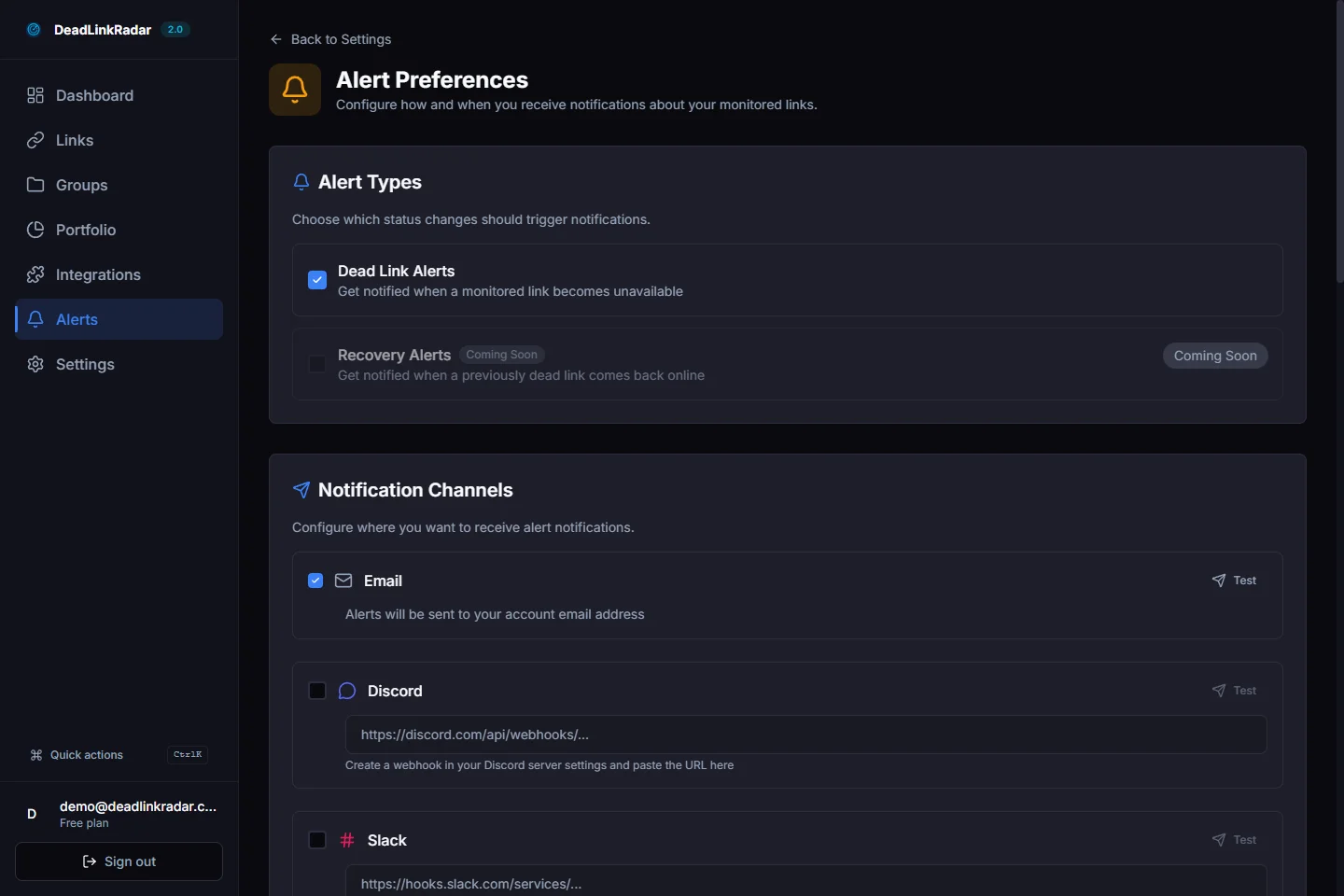
Configuring broken link alerts for your Shopify store (click to view full size)
For ecommerce teams, the most effective setup is:
- Email alerts for all broken links—your primary notification channel, goes to whoever manages the catalog
- Slack or Discord for high-priority product pages—instant notification during business hours
- Weekly digest for overall health summary and trend awareness
Fixing Broken Links in Shopify
When you find broken links, you have three options depending on the situation.
Option 1: Create a URL Redirect
This is the right fix when you've renamed or moved a product and want the old URL to work. In Shopify:
- Go to Online Store → Navigation → URL Redirects
- Click Add redirect
- Enter the old URL in "Redirect from"
- Enter the new URL in "Redirect to"
- Save
For large-scale renames, Shopify also supports bulk redirect imports via CSV. If you renamed 50 products at once, you can upload a CSV of old → new URL mappings rather than creating each redirect manually.
Option 2: Restore or Update the Content
If a product was deleted accidentally or a page was unpublished by mistake, restoring it is better than redirecting. Check your deleted products under Products → filter by "Draft" or restore from your store's backup if you use one.
For blog posts with broken internal links, go into the post editor and update the specific links that are pointing to dead URLs. DeadLinkRadar's status view gives you the exact URL that's broken so you know precisely what to fix.
Option 3: Replace with Equivalent Content
When a product is truly discontinued with no replacement, update the links in your content to point to a related product or collection. Don't just remove the link—redirect the intent. Someone who was interested in "Blue Sneakers v1" might convert on "Blue Sneakers v2" if you give them a path there.
When to Check for Broken Links After Common Shopify Changes
After monitoring a Shopify store for a while, you'll notice that broken links tend to cluster around specific events. Being aware of these patterns lets you proactively check links before they break.
After a Product Rename or Rebrand
Any time you change a product title and let Shopify auto-update the handle, old links break. Build a habit: before renaming a product, check DeadLinkRadar for any links pointing to the current URL. Create the redirect before making the change.
After App Migrations
When switching apps—especially page builders, upsell apps, or landing page tools—systematically check any URLs the old app generated. These are often buried in email campaigns and social media posts that aren't easy to find and update.
After Seasonal Catalog Cleanup
The weeks after major shopping seasons (post-holiday, post-Prime Day) are high-risk periods. Seasonal products get archived or deleted, limited-time collections disappear, and promotional URLs stop working. Run a full audit of your catalog-linked URLs after each major season.
After Theme Changes
Some Shopify themes add their own URL patterns for features like lookbooks, custom landing pages, or app-specific pages. When you switch themes, these URLs may no longer exist. Check your monitoring dashboard for a sudden spike in 404s after any theme change.
Stop Losing Sales to Links You Don't Know Are Broken
The core problem with Shopify broken links isn't that they're hard to fix—it's that they're hard to find. A 404 happens silently. No error in your dashboard, no notification, no alert. Your store looks fine from the admin panel while customers are quietly bouncing from broken pages.
Here's what to do right now:
- Start your free DeadLinkRadar account—the free tier covers up to 50 links
- Import your top 50 product URLs—start with your best-sellers and highest-traffic pages
- Set up email alerts—get notified the moment any link breaks
- Add the rest of your catalog—expand coverage as you see the value
Every product rename, seasonal cleanup, or app switch is a broken link waiting to happen. Monitoring turns invisible problems into fixable ones before they cost you customers.
Want to protect more of your store? See our guides on monitoring affiliate links and protecting revenue and how to set up multi-channel broken link alerts.