
When you check for broken links across dozens of URLs at once, it's frustrating not knowing what's happening. Are your links being checked? Is the broken link detection stuck? How much longer will it take? Without visual feedback, you're left wondering—or worse, triggering duplicate checks because you thought the first one failed.
DeadLinkRadar's new real-time progress stepper solves this problem. You'll see exactly where each link is in the checking process, with live timers showing elapsed time. Here's what you'll learn in this guide:
- Why progress tracking matters for link monitoring
- How the progress stepper works (normal vs. protected sites)
- Understanding the four check phases
- Using the progress modal for single and batch checks
- Best practices for monitoring large link collections
- Troubleshooting common issues
Why Broken Link Progress Tracking Matters
When you check for broken links manually, it's a black box experience. You click "Check Now" and...wait. Is it working? Did it fail? Should you try again?
Most dead link checker tools don't show real-time progress, creating several problems:
User Anxiety: Without feedback, you assume something went wrong. The average user will click "Check" again after 10 seconds of silence, creating duplicate requests that slow down the entire system.
Wasted Time: You spend time refreshing the page or switching tabs to check if anything changed. This defeats the purpose of automation.
Lost Trust: When users can't see what's happening, they lose confidence in the tool. Progress visibility builds trust through transparency.
Real-World Scenario: Imagine using a broken link checker to verify 50 download links from various file hosts. Some respond in 2 seconds, others take 30-60 seconds due to additional processing. Without progress tracking, you're staring at a static page wondering if the dead link detection is even working.
This is where DeadLinkRadar's progress stepper transforms the experience. Instead of guessing, you see exactly what's happening:
- Phase visibility - Know which stage each check is in
- Elapsed time - See how long each verification has been running
- Protected site detection - Understand why some checks take longer
- Completion status - Get instant feedback when checks finish
- Batch progress - Monitor multiple link checks simultaneously
Whether you're checking a single critical link or running a broken link checker across your entire site, progress tracking gives you confidence that the system is working.
How the Broken Link Detection Progress Stepper Works
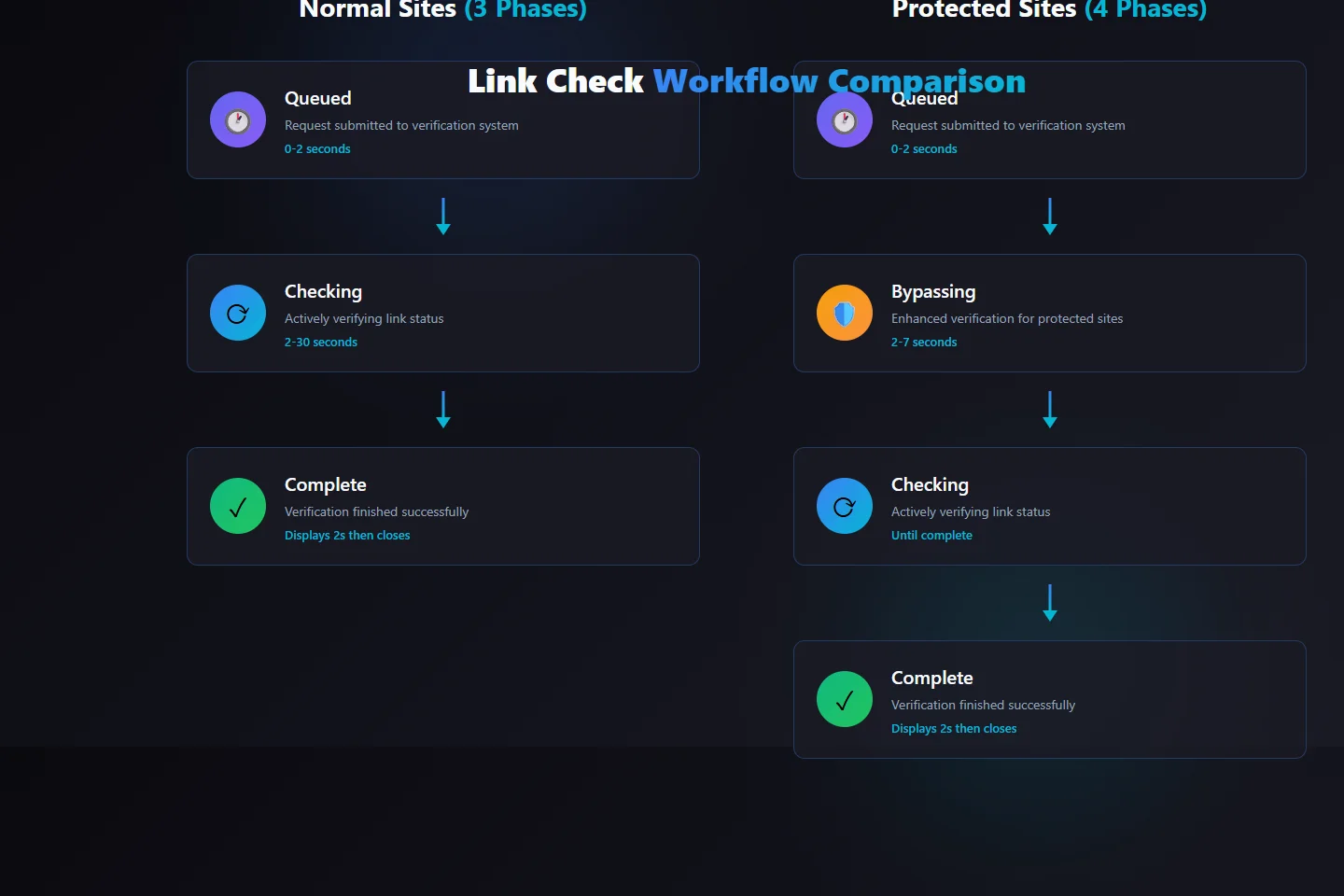
DeadLinkRadar's broken link checker provides real-time visibility into every phase of link verification. Unlike traditional dead link checkers that show only "checking" and "complete", our progress stepper reveals the entire workflow. Here's what happens when you check for broken links:
Normal Sites (3 Phases)
For standard websites, you'll see three phases:
- Queued (0-2 seconds) - Your request has been submitted
- Checking (2-30 seconds) - The system is actively verifying the link
- Complete (displays for 2 seconds) - Check finished successfully
Protected Sites (4 Phases)
Some sites use protection services that require additional processing. For these sites, you'll see an extra phase:
- Queued (0-2 seconds) - Request submitted
- Bypassing (2-7 seconds) - Additional processing for protected sites
- Checking (until complete) - Active verification
- Complete (displays for 2 seconds) - Check finished
The progress modal opens automatically when you trigger a check and closes 2 seconds after completion. You can manually close it anytime by clicking outside the modal or pressing the close button.
Live Elapsed Timer
Every broken link checker progress modal includes a live timer showing elapsed time in MM:SS format. This helps you:
- Estimate completion - See how long the check has been running
- Identify slowdowns - Protected sites take longer, and you'll know why
- Debug issues - If a check takes unusually long, the timer helps identify problems
- Compare performance - Track which file hosts respond fastest
- Plan workflows - Understand typical check durations for scheduling
The timer starts when the broken link detection begins and continues updating every second until completion.
Why Real-Time Progress Matters for Dead Link Checking
Traditional broken link checkers operate silently in the background, leaving you unsure if they're working. DeadLinkRadar's approach is different:
Before Real-Time Progress:
- You trigger a check and refresh the page repeatedly
- No way to know if the dead link checker is stuck or processing
- Duplicate checks waste system resources
- Frustration when checks take longer than expected
After Real-Time Progress:
- Instant feedback the moment you trigger a check
- Clear visibility into each phase of broken link detection
- Confidence that the system is working
- Better understanding of why some checks take longer
- Reduced support requests about "stuck" checks
Understanding Protected Sites
Protected sites use services like Cloudflare to defend against abuse. While this protects website owners, it means link checkers need additional processing to verify these links reliably.
What Makes a Site "Protected"?
DeadLinkRadar automatically detects protected sites using two signals:
- Service metadata - Known file hosts and platforms that use protection
- Cloudflare detection - Sites with Cloudflare-specific response patterns
When a link is flagged as protected, the progress stepper adds the "Bypassing" phase to set expectations for the longer check time.
Why Protected Checks Take Longer
Protected sites require enhanced verification methods to ensure accurate results. This extra processing typically adds 30-60 seconds to check time, but it's worth it: you get reliable status updates instead of false positives.
Using the Broken Link Checker Progress Stepper
The progress stepper integrates seamlessly into your existing broken link detection workflow. Whether you're checking a single URL or running a dead link checker across hundreds of links, you'll see real-time updates. Here's how to use it for single and batch checks.
Single Link Check
- Navigate to Dashboard → Links in your DeadLinkRadar account
- Find the link you want to check in your links list
- Click "Check Now" on the link card
- Watch the progress modal appear with phase stepper and timer
- Wait for completion - The modal automatically closes 2 seconds after finishing
The modal shows:
- Current phase (Queued, Bypassing, Checking, Complete)
- Elapsed time in MM:SS format
- Visual progress through the stepper with color-coded icons
Pro Tip: If you're checking multiple links and don't want to wait, click "Run in Background" to dismiss the modal. The check continues, and you'll see the updated status in your links list when it completes.
Batch Check Progress
When you select multiple links for batch checking, the progress modal adapts to show a summary view:
- Total links being checked - See how many links are in the batch
- Individual progress - Each link shows its own phase and elapsed time
- Completion status - Green checkmarks appear as links finish
- Overall summary - Track how many links are complete vs. in progress
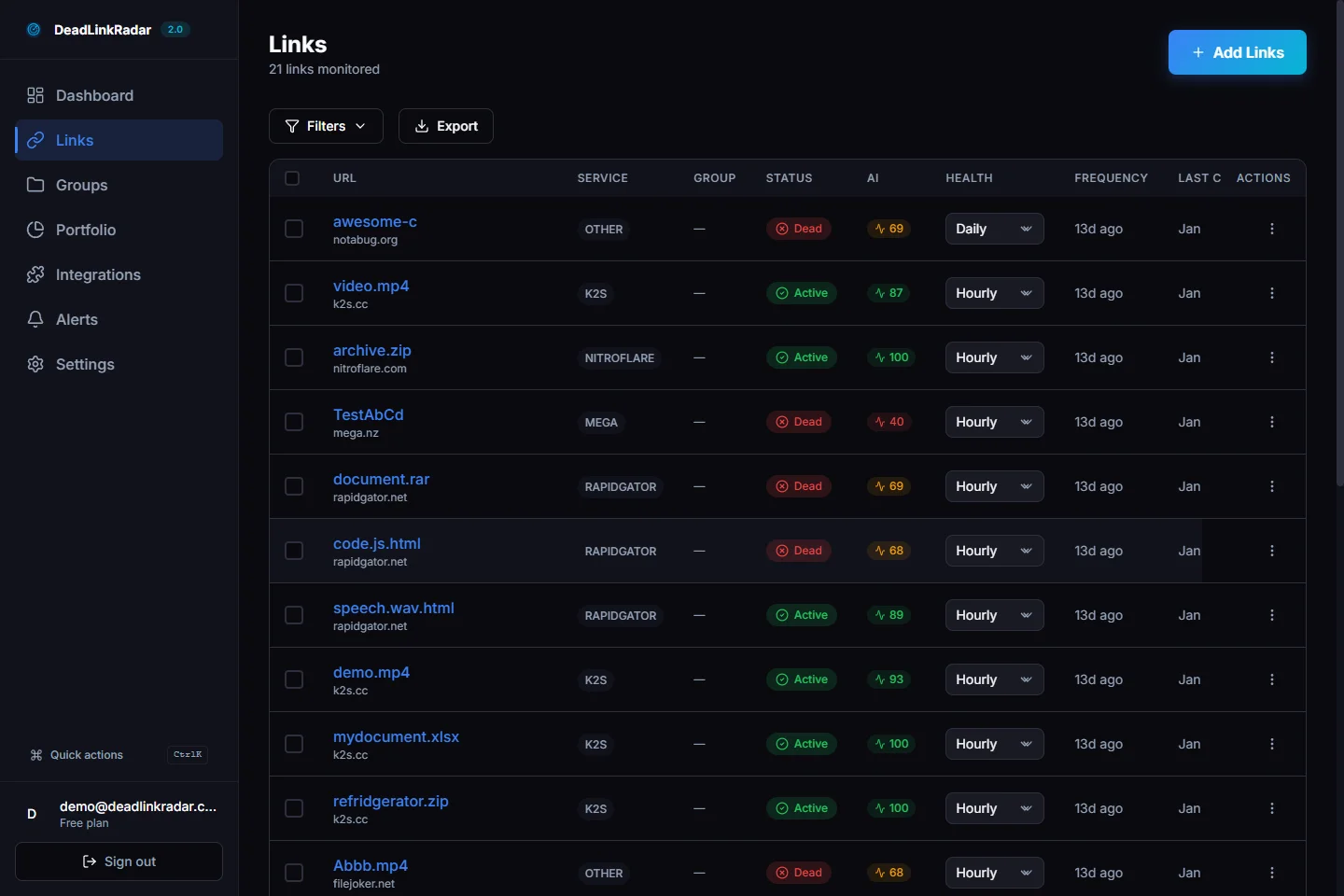
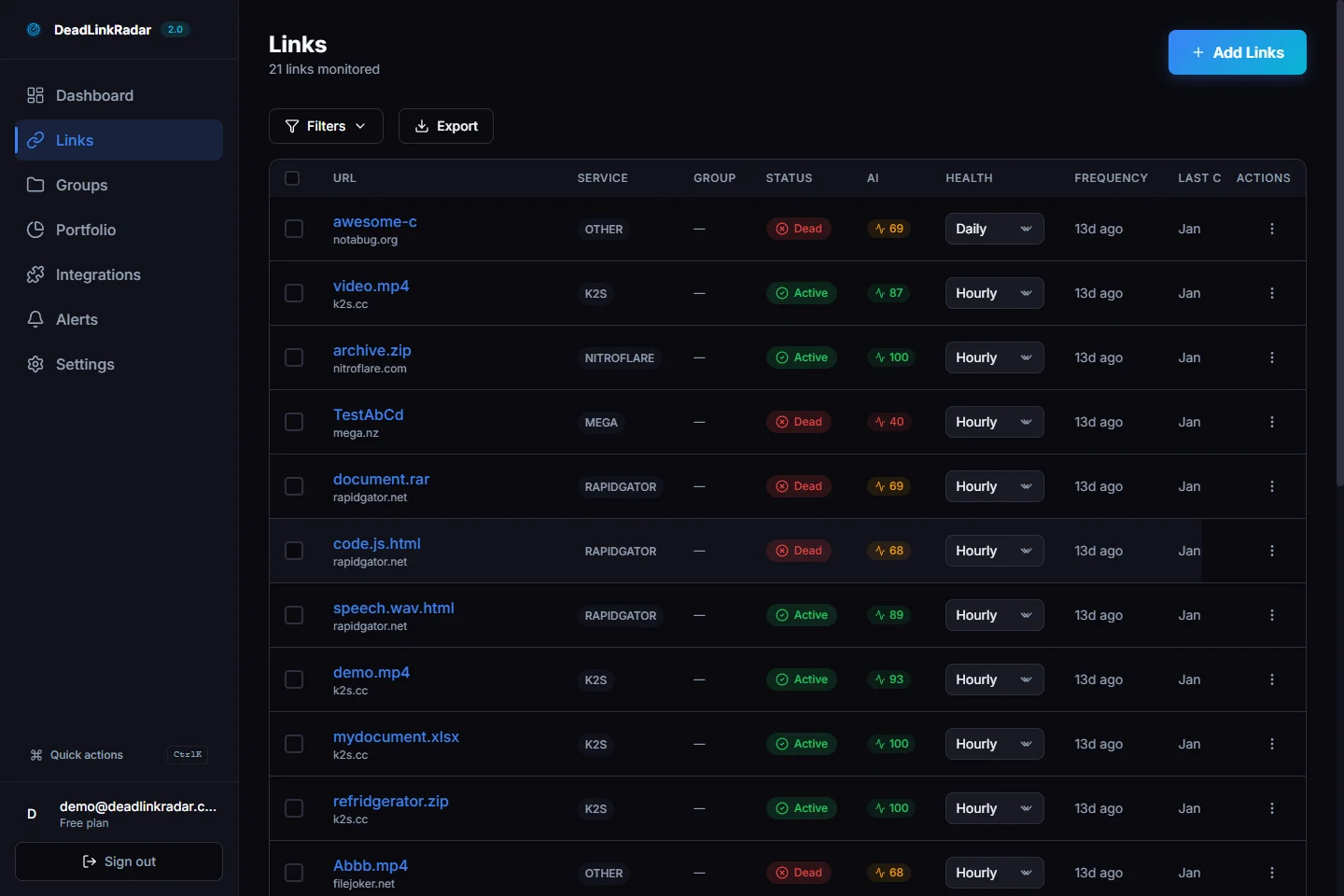
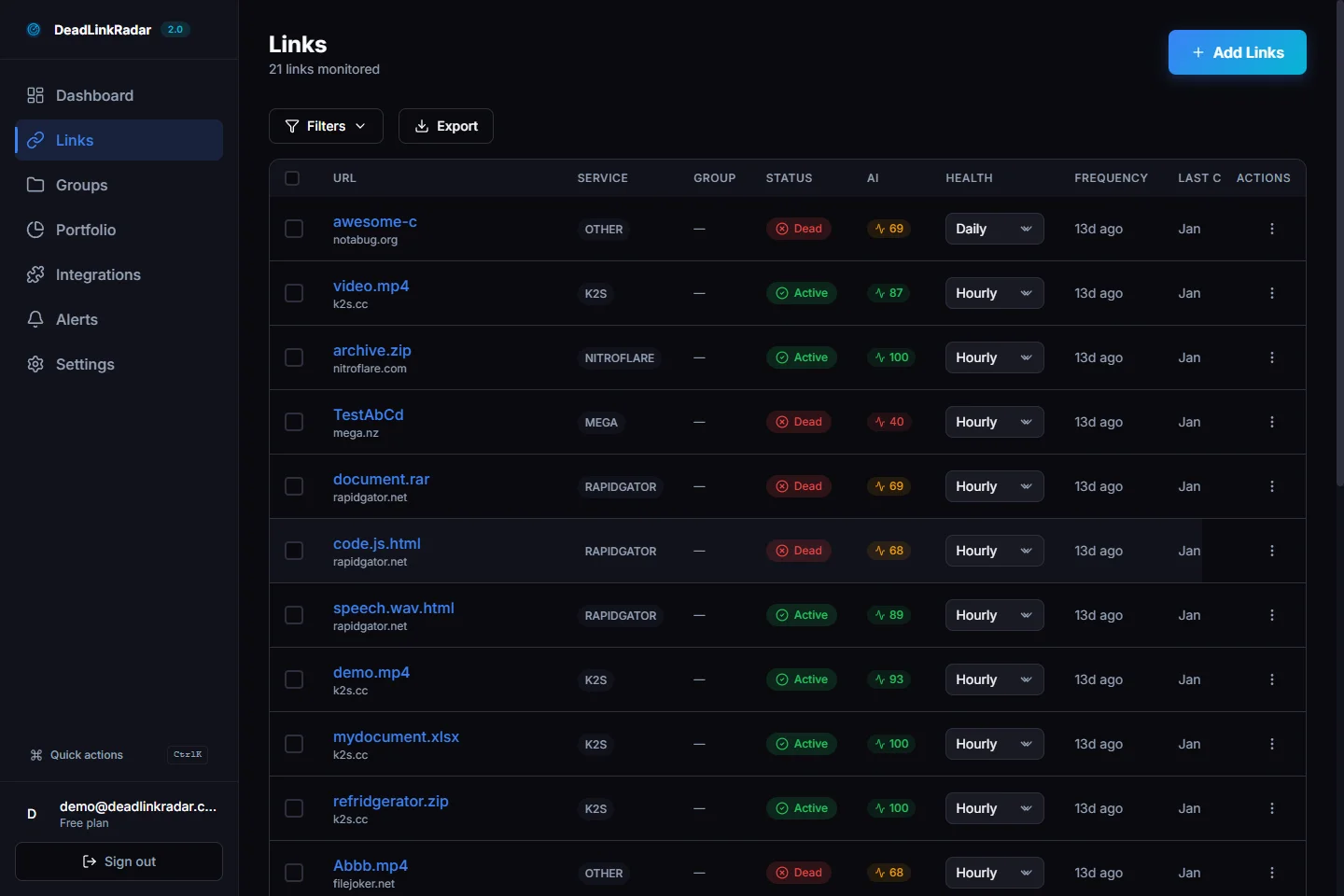
To batch check for broken links:
- Select multiple links using the checkboxes on link cards
- Click "Check Selected" in the batch actions toolbar
- Monitor the progress modal as each link progresses through phases
- Review results when all broken link checks complete
Batch checks are ideal for:
- Weekly link health audits across your entire collection
- Verifying links after content updates or migrations
- Testing file host availability during outages
- Monitoring seasonal download links before high-traffic periods
- Running a broken link checker before product launches
- Auditing affiliate links for commission optimization
- Checking all download links in documentation sites
- Verifying backlinks after site migrations
Advanced Batch Check Strategies
For large-scale broken link detection, use these strategies:
Strategy 1: Segmented Checks Instead of checking all 500 links at once, segment by category:
- Check all PDF downloads (50 links)
- Check all video embeds (80 links)
- Check all external references (120 links)
- Check all file host links (250 links)
This approach lets you identify which content types have the most dead links and prioritize fixes accordingly.
Strategy 2: Time-Based Checks Run your dead link checker during low-traffic hours:
- Schedule batch checks for 2-4 AM local time
- Avoid peak hours (9 AM - 5 PM) when users are active
- Run checks before major announcements or launches
- Verify links immediately after site migrations
Strategy 3: Priority-First Checks Check critical links first, then expand:
- Start with homepage and landing page links
- Move to product pages and documentation
- Check blog posts and resources last
- Focus on revenue-generating pages (affiliate links, downloads)
Best Practices
Use these strategies to get the most value from progress tracking:
| Scenario | Recommended Approach | Why |
|---|---|---|
| Single critical link | Use single check with progress modal visible | Immediate feedback, catch issues fast |
| 10-50 links | Use batch check, keep modal open | Track overall progress, identify slowdowns |
| 100+ links | Use batch check, run in background | Avoid blocking your workflow, check results later |
| File host monitoring | Schedule automated checks, review digest emails | Automated detection, no manual monitoring needed |
| Protected site collection | Batch check during low-traffic hours | Longer processing times, less urgency |
| Pre-launch validation | Single check each critical link | Verify one-by-one, confirm status before going live |
Key Insight: The broken link checker progress stepper is most valuable during manual checks and troubleshooting. For routine monitoring, rely on automated scheduled checks and email digests instead. This hybrid approach gives you visibility when you need it without requiring constant attention.
When to Watch Progress vs. Run in Background
Watch Progress:
- Testing after you've fixed broken links
- Debugging why a specific link keeps failing
- Verifying critical download links before a product launch
- Learning which file hosts respond slowly
Run in Background:
- Checking 50+ links at once
- Routine weekly link health audits
- Non-urgent batch verification
- When you need to continue working on other tasks
Troubleshooting
| Issue | Possible Cause | Solution |
|---|---|---|
| Modal doesn't appear | Browser refresh needed | Hard refresh the page (Ctrl+Shift+R or Cmd+Shift+R) |
| Progress stuck on "Queued" | High system load or network issue | Wait 30 seconds; if stuck, close modal and retry |
| Bypassing phase takes 60+ seconds | Protected site with complex verification | Normal for some sites; check continues automatically |
| Check completes but modal stays open | Auto-close failed | Manually close modal; status is already updated |
| Timer shows 00:00 for entire check | Timer initialization issue | Refresh page; check still completes successfully |
| Multiple links show "Error" phase | Service outage or rate limiting | Wait 5 minutes and retry; check file host status pages |
Common Misunderstandings
"Does the progress stepper make checks faster?" No. Progress tracking provides visibility, not speed improvements. Checks take the same time—you just see what's happening now instead of waiting blindly.
"Should I leave the modal open for all checks?" Not necessarily. For batch checks of 50+ links, running in background is more efficient. You'll get the same results without blocking your workflow.
"Why do some links skip the Bypassing phase?" Only protected sites show the Bypassing phase. Normal websites go directly from Queued to Checking.
How Real-Time Broken Link Detection Works Behind the Scenes
The progress stepper uses DeadLinkRadar's existing real-time infrastructure to detect when broken link checks complete. Unlike traditional dead link checkers that poll for updates every 30-60 seconds, our approach provides instant visibility. Here's what happens behind the scenes:
- You trigger a check - Click "Check Now" or "Check Selected"
- Modal opens - Progress stepper initializes with "Queued" phase
- Phase transitions - Timer-based simulation moves through phases
- System processes - The system verifies the link in the background
- Completion detection - Real-time subscription detects when check finishes
- Final phase - Modal shows "Complete" with green checkmark
- Auto-close - Modal closes after 2 seconds
This approach combines client-side phase simulation with server-side completion detection for a smooth user experience.
Getting Started
Ready to see the broken link checker progress stepper in action? Here's how to try it:
- Log in to your DeadLinkRadar account at deadlinkradar.com
- Navigate to Dashboard → Links
- Click "Check Now" on any link
- Watch the progress modal appear with live updates
Don't have an account yet? Start monitoring free with no credit card required. Add your first links in 2 minutes and see the broken link detection progress stepper in action.
Comparing DeadLinkRadar to Other Broken Link Checkers
How does DeadLinkRadar's progress tracking compare to other dead link checker tools?
| Feature | DeadLinkRadar | Traditional Broken Link Checkers |
|---|---|---|
| Real-time progress visibility | ✅ Live phase tracking | ❌ Silent background processing |
| Elapsed timer | ✅ MM:SS format, updates every second | ❌ No time visibility |
| Protected site detection | ✅ Shows "Bypassing" phase | ❌ No explanation for delays |
| Batch progress summary | ✅ Individual link tracking | ⚠️ Only total count |
| Auto-close on completion | ✅ After 2 seconds | ❌ Manual close required |
| Background mode | ✅ Run checks while working | ⚠️ Blocks interface |
| File host support | ✅ 40+ file hosts | ⚠️ Generic HTTP only |
According to research on backlink monitoring tools, most broken link checkers update their indexes every 15 minutes at best, making them "the closest to real-time." DeadLinkRadar goes further by showing phase-by-phase progress for individual checks, not just periodic index updates.
Frequently Asked Questions
Q: Does the progress stepper make broken link checks faster?
No. The broken link checker runs at the same speed—the progress stepper just makes the process visible. You're not waiting any less time, but you know what's happening instead of wondering if the dead link detection is stuck.
Q: What if I close the progress modal before the check completes?
The broken link check continues in the background even if you close the modal. You'll see the updated status in your links list when the verification completes. The progress modal is just a visibility layer, not a requirement for checks to work.
Q: Why do some dead link checks take 60+ seconds?
Protected sites (those using services like Cloudflare) require additional processing to verify reliably. The progress stepper shows this as the "Bypassing" phase. While it takes longer, you get accurate results instead of false positives.
Q: Can I check for broken links on a schedule with progress tracking?
Automated scheduled checks run in the background without the progress modal. Progress tracking is designed for manual, on-demand checks when you want immediate visibility. For scheduled monitoring, use email digest notifications instead.
Q: Does the broken link checker work for file hosting sites?
Yes. DeadLinkRadar supports 40+ file hosts including Rapidgator, K2S, Nitroflare, and others. The progress stepper shows when these checks enter the "Bypassing" phase for protected file hosts.
Q: How many links can I check at once with the broken link detector?
You can check as many links as you have in your account. The progress modal adapts to show batch progress for large collections. For best performance, we recommend batches of 50-100 links.
Learn More
Want to dive deeper into DeadLinkRadar's real-time features?
- Setting Up Automated Link Monitoring
- Batch Operations for Large Link Collections
- Email Digest Notifications
Questions? Reach us at support@deadlinkradar.com—we read every email.
Sources: