
Manually checking hundreds of links for status changes isn't just tedious—it's unsustainable. You spend hours each week clicking through dashboards, only to discover critical failures days after they happened. By the time you notice a broken download link, frustrated users have already bounced.
Here's the good news: DeadLinkRadar's weekly email digest delivers a comprehensive portfolio health report straight to your inbox every Monday morning. No manual checking required. In this guide, you'll learn how to enable automated weekly summaries so you can catch issues early and keep your link portfolio healthy.
What You'll Need
Before setting up weekly email digests, make sure you have:
- An active DeadLinkRadar account (free or paid plan)
- At least one link added to your monitoring dashboard
- Email notifications enabled in your alert preferences
Worth noting: Weekly digests require email notifications to be turned on. If you've disabled email alerts, you'll need to re-enable them first.
Enabling Weekly Email Digests
Setting up your weekly digest takes less than a minute. Navigate to your dashboard's Alerts page to get started.
Once you're on the Alerts page, scroll down to the Weekly Reports section. You'll see a toggle switch that lets you enable or disable weekly email summaries. When you turn this toggle on, DeadLinkRadar automatically schedules your first digest for the upcoming Monday at 9 AM in your timezone.
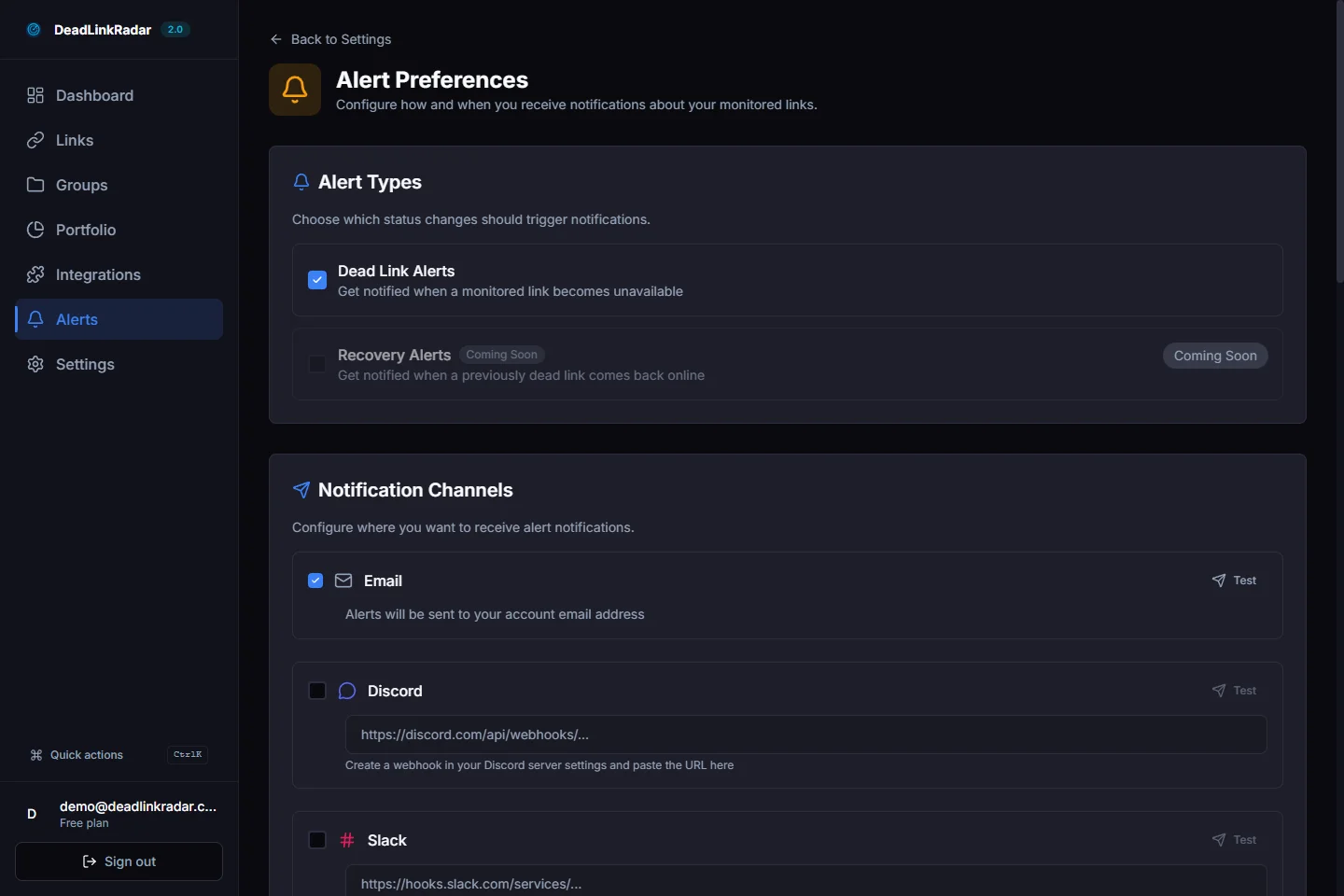
DeadLinkRadar weekly report toggle in alert settings dashboard (click to view full size)
The digest runs every Monday at 9 AM based on your account's timezone setting. This timing ensures you start the week with a clear picture of your link portfolio's health before diving into other tasks. If Monday is a holiday or you're unavailable, the email waits in your inbox for whenever you're ready to review it.
Key detail: The system tracks when it last sent your digest to prevent duplicate emails. If there's a processing error or system maintenance, you won't receive multiple copies of the same report.
What's Included in Your Weekly Email Digest
Your weekly report provides a comprehensive snapshot of your link portfolio's health over the past seven days. Here's what you'll find in each email:
The report opens with a portfolio summary showing your total link count and a breakdown by status. You'll see exactly how many links are active (working perfectly), dead (returning errors), or unknown (awaiting first check). This overview gives you an immediate sense of your portfolio's overall health.
Next comes your health score—a percentage showing the ratio of active links to total links. This score includes a trend indicator (↑/↓/→) comparing this week's performance to last week's, so you can see if your portfolio is improving or needs attention.
| Status Category | Visual Indicator | What It Means |
|---|---|---|
| Active | Green checkmark | Link returns 200 OK, file is accessible |
| Dead | Red X | Link returns 404/403/500, file unavailable |
| Unknown | Gray question mark | Link not yet checked or awaiting retry |
The status changes section is where the real value lives. This table lists every link that changed status during the past week—from active to dead, dead to active, or unknown to either state. You'll see the URL (truncated for readability), the service name (like YouTube, K2S, or Nitroflare), and both the old and new status.
Finally, the report includes actionable insights and recommendations. These aren't generic tips—they're specific to your portfolio. If you have unchecked links piling up, the system suggests running a manual check. If a file host has been unstable, it flags capacity issues. When links recover from dead status, it confirms the recovery so you know the issue is resolved.
DeadLinkRadar weekly email digest showing portfolio summary and health score (click to view full size)
Understanding Your Health Score
Your health score is calculated as a simple percentage: (Active Links / Total Links) × 100. If you have 85 active links out of 100 total, your score is 85%.
The color coding helps you assess severity at a glance:
- Green (90-100%): Excellent health—most links working smoothly
- Amber (70-89%): Moderate issues—some broken links need attention
- Red (Below 70%): Critical issues—significant portion of links down
DeadLinkRadar health score with trend indicator and color-coded status bar (click to view full size)
The trend indicator compares your current score to last week's. An upward arrow (↑) means your portfolio health improved—you fixed broken links or added more working ones. A downward arrow (↓) signals declining health, often caused by newly broken links or removed active ones. A horizontal arrow (→) indicates stable performance with no significant change.
In practice: A health score of 95% with an upward trend is ideal. It means your monitoring is working, you're addressing issues proactively, and your portfolio stays healthy. A score of 75% with a downward trend is a warning sign—multiple links are breaking, and you need to investigate why.
Customizing Alert Preferences
Weekly digests work best when paired with the right alert configuration. Navigate back to the Alerts page to fine-tune your notification settings.
You can enable or disable specific alert types based on what matters most to you. The notify on dead links setting sends immediate alerts when a link goes down, while notify on recovery confirms when a previously dead link comes back online. Most users enable both—you want to know about failures quickly and get confirmation when issues resolve.
The timezone setting is critical for accurate delivery. If you're based in New York (America/New_York), your digest arrives at 9 AM Eastern time. If you're in London (Europe/London), it arrives at 9 AM GMT. Set your timezone correctly to ensure the email lands in your inbox when you need it.
Worth noting: DeadLinkRadar also supports hourly and daily digest batching, but these options currently show as "Coming Soon" in the interface. The backend infrastructure is ready—when we enable these features, you'll be able to choose between immediate alerts, hourly summaries, or daily rollups in addition to your weekly digest.
Pro Tips for Weekly Digests
Get the most out of your weekly email reports with these best practices:
Set your correct timezone. Delivery time matters. If you're reviewing emails at 9 AM your time but the digest arrives at 3 PM, you've already missed half the day. Double-check your timezone setting in alert preferences to ensure Monday morning delivery aligns with your schedule.
Enable both dead link AND recovery alerts. Knowing when links break is important, but knowing when they come back online is equally valuable. Recovery alerts confirm your fixes worked and help you track file host reliability over time.
Check your spam folder for the first digest. Automated emails sometimes get flagged by overzealous spam filters. If your first weekly digest doesn't arrive, check spam and mark it as "Not Spam" to whitelist future messages.
Whitelist the sender address. Add DeadLinkRadar's sender email to your contacts or create a filter rule to ensure digests always land in your inbox. This prevents important reports from getting buried in spam or promotions tabs.
Troubleshooting Common Issues
Running into problems with your weekly digest? Here are the most common issues and their solutions:
Not receiving emails: First, confirm email notifications are enabled in your alert preferences—weekly digests require this setting to be turned on. Second, check your spam or junk folder. Third, verify your account email address is correct in your profile settings.
Wrong delivery time: If your digest arrives at the wrong hour, your timezone setting is likely incorrect. Navigate to Alerts → Timezone and select your IANA timezone (like America/Los_Angeles or Europe/Paris) from the dropdown. The change takes effect for the next scheduled digest.
Missing status changes: If your weekly report doesn't show links you know changed status, confirm the specific alert types are enabled. For example, if you disabled "notify on dead links," those status changes won't appear in your digest even though they happened.
Duplicate emails: The system prevents duplicate sends by tracking when it last sent your digest. If you receive multiple copies of the same report, contact support—this indicates a rare processing bug that needs investigation.
Start Your Week with Clear Insights
Weekly email digests transform link monitoring from a reactive chore into a proactive workflow. Instead of discovering broken links from user complaints or spending hours manually checking dashboards, you start each Monday with a comprehensive health report delivered straight to your inbox.
The setup takes less than a minute: enable the toggle, set your timezone, and let DeadLinkRadar handle the rest. Your first digest arrives on the upcoming Monday at 9 AM with a complete snapshot of your portfolio's health, status changes, and actionable recommendations.
Ready to automate your link monitoring? Enable weekly digests in your dashboard and reclaim those hours you've been spending on manual checks. Questions? Reach us at support@deadlinkradar.com.
Related Guides
- How to Set Up Broken Link Alerts - Instant notifications across 6 channels
- RSS Feed Link Monitoring - Alternative way to stay updated
- Portfolio Analysis Dashboard - Detailed health analytics
- Link Status History Tracking - Understand link health trends